


Too Many Login Attempts Error: What It Means and How to Fix It Universal Guide
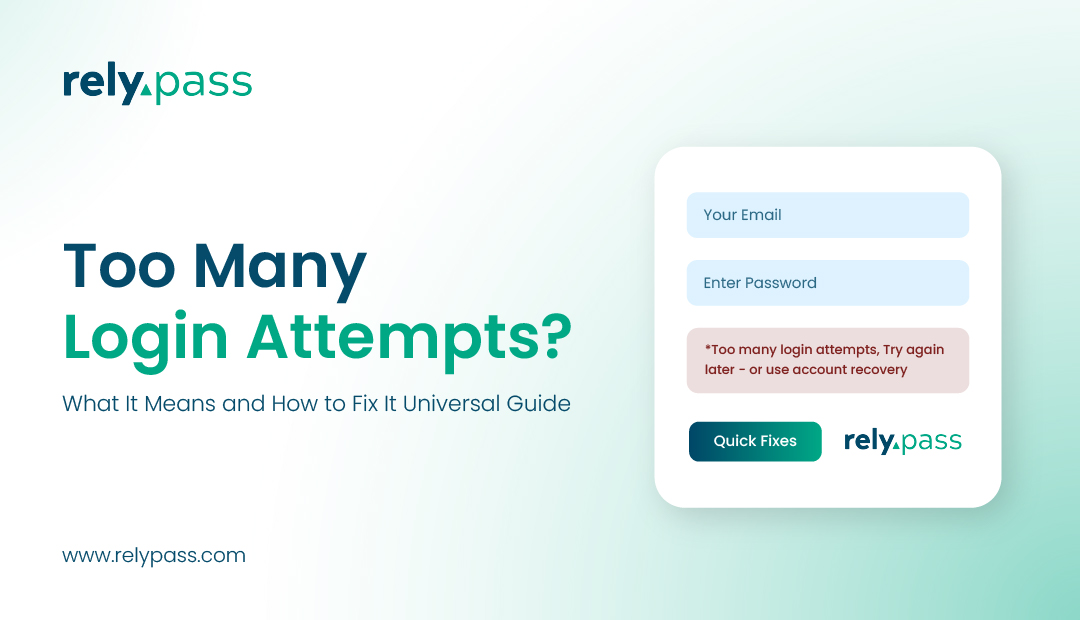
TLDR “Too many login attempts” (often shown as just “too many attempts”) means the site has paused sign-ins because the wrong password was entered several times in a row. It is a security lock, and your account is still there. Most sites unlock in 15 to 30 minutes. Google and Apple ID take about 1 hour, and Instagram, TikTok and Microsoft can take 24 hours. To get back in sooner, stop guessing and use “Forgot password” to reset it.
Have you ever tried logging into an account and got a “too many login attempts” error? This can be frustrating, but it’s actually a security feature used by many platforms like email, social media, banking, WordPress, and workplace systems.
This issue mostly happens when the system detects multiple failed login attempts to protect your account from unauthorized access. While it can be annoying, knowing why it happens and how to fix it can save you time and stress.
In this blog, I will explain what a ‘too many login attempts’ error means, why it occurs, how long the lockout lasts, and the best ways to regain access. You’ll also learn practical tips to prevent it from happening again and keep your accounts safe.
Let’s begin the discussion.
What Is Too Many Login Attempts
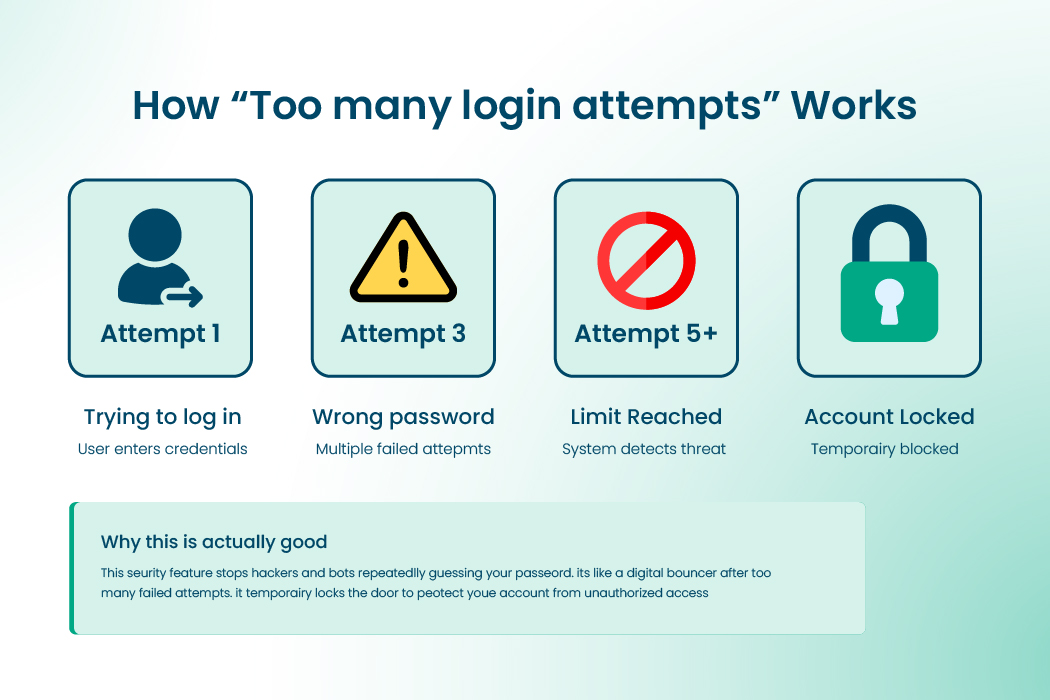
A “too many login attempts” error occurs when a system detects repeated failed login attempts. When this happens, the platform temporarily locks the account.
This is a security feature designed to protect your account from unauthorized access. It helps stop hackers or automated bots from guessing your password and accessing your account.
‘Too many login attempts’ error happens on email, social media, banking platforms, and content management systems. It keeps accounts safe even if someone tries to use the wrong login information.
A lockout is not the same as an app that signs you out on its own. For that problem, see our guide to apps logging out.
Why This Feature Exists
This error is a safeguard against brute-force attacks. A brute-force attack is when someone or a bot repeatedly tries different username and password combinations to gain access. The too many login attempts lockout stops this by preventing further attempts for a set period of time.
Common Triggers
There are several ways this error can happen. Common triggers include:
- Entering the wrong password multiple times. Most platforms set the limit between three and ten attempts.
- Autofill on your browser entering the wrong saved password repeatedly.
- Another person trying to access your account without permission.
- Logging in from multiple devices at the same time.
Learn More:
Autofill Not Working: Best Solutions to Solve This Issue
How to Reset My Apple ID Account: A Complete Guide
How Long Does the Lockout Last
Here is how long the lockout usually lasts after too many login attempts on different platforms.
| Platform | Typical Lockout Duration | How to Reset Early |
| Google or Gmail | 1 hour | Verify with your phone number or backup email |
| 24 hours | Confirm your identity with an email or phone code | |
| Up to 24 hours | Use Forgot Password and confirm your phone or email | |
| TikTok | 24 hours | Verify with an SMS code or email |
| Microsoft | 24 hours | Use the Microsoft Authenticator app or answer security questions |
| Dropbox | 30 minutes | Reset your password using the email link |
| Snapchat | A few hours | Confirm your phone number or email |
| Twitter (X) | A few hours | Verify your identity with your phone or email |
| Apple ID | 1 hour | Use Apple Account Recovery |
| Banking apps (generic) | Varies by bank | Call the number on the back of your card |
Note: If the platform is not listed, the standard wait is 15 to 30 minutes before retry.
Locked out of a specific platform? See our full guides: Locked Out of Gmail? Here’s How to Get Back In and Netflix Password Reset Not Working? Here Are 9 Fixes.
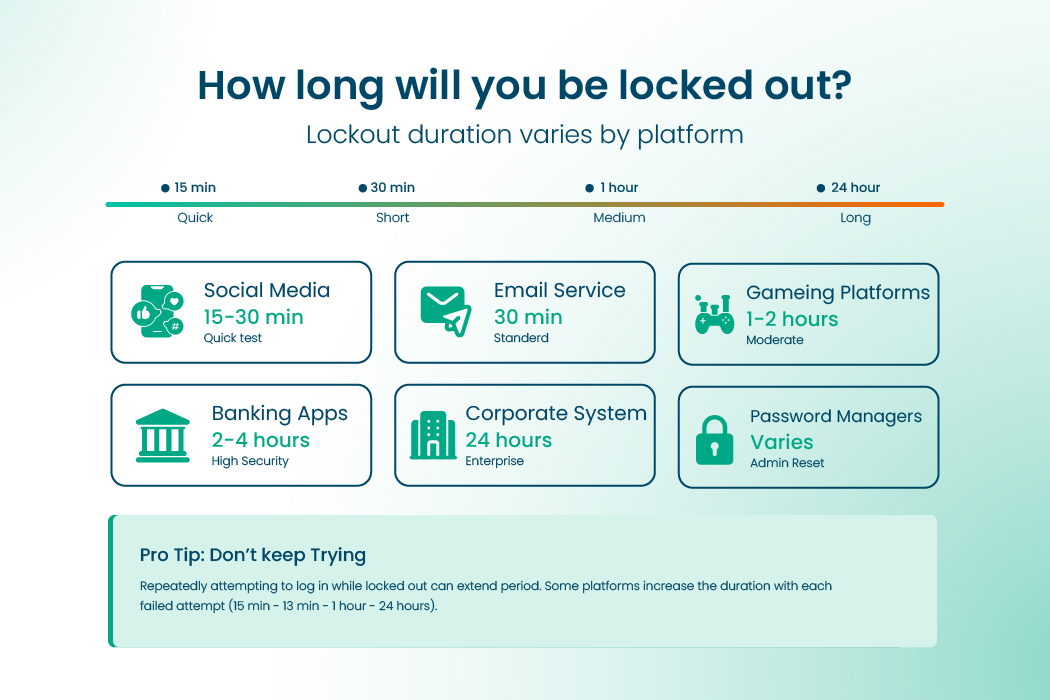
It is important not to keep trying while locked out. Doing so can make the lockout last longer. Other things to keep in mind are:
- Mobile apps and web logins can have different lockout times.
- Using a shared computer or network can sometimes trigger longer blocks.
- Many platforms send an email notification when your account is locked.
- Security updates or plugin settings may change how long the lockout lasts.
- Using recovery options like password reset can help you get back in faster.
Immediate Solutions for Too Many Login Attempts
There are multiple ways to regain access when you face a too many login attempts error. The right method depends on your situation and how urgently you need access.
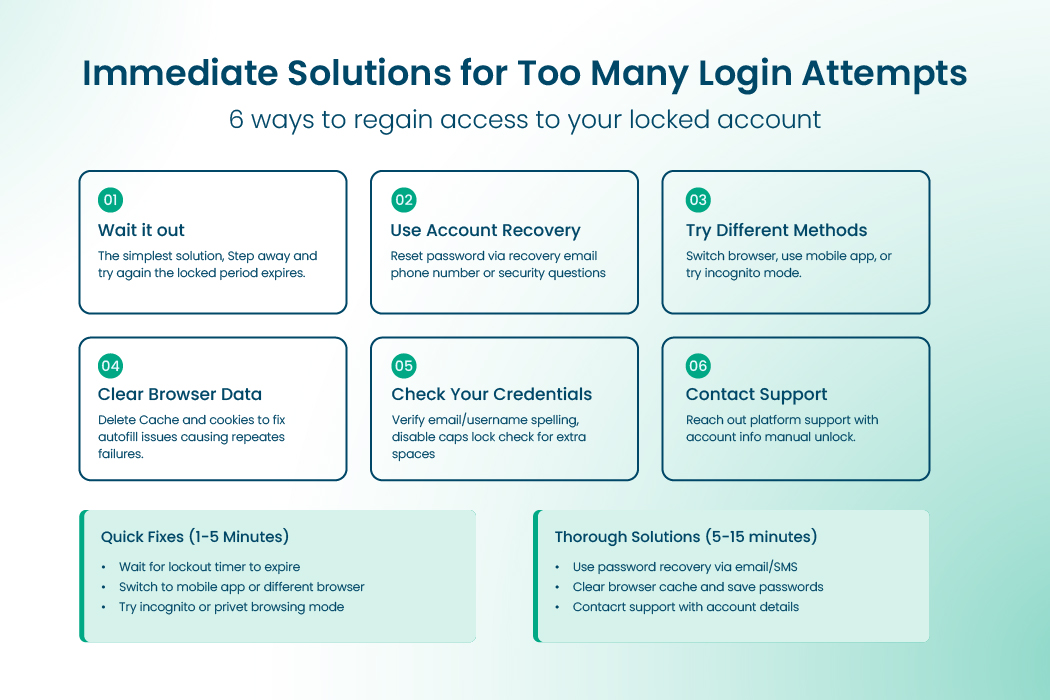
So the immediate solutions are:
Wait It Out
Sometimes the simplest solution is to wait. Attempting to log in repeatedly while locked out can increase the lockout time. Step away for the required period and try again after the time expires.
Use Account Recovery Options
Recovery options are usually the fastest and most reliable solution for regaining access. Most platforms offer recovery options that allow you to regain access safely. These options include:
- Resetting your password through a recovery email.
- Using a registered phone number to receive recovery codes.
- Answering security questions that were set up previously.
- Using backup codes if they were configured for your account.
Try Different Access Methods
If the lockout continues, the issue could be related to your device or browser. You can try:
- Using another browser or opening an incognito or private browsing window.
- Accessing your account through a mobile app instead of a web browser.
- Logging in from a different device entirely.
Clear Browser Cache and Cookies
Autofill on your browser can repeatedly enter the wrong password, triggering the lockout. Clearing your browser cache and cookies can fix this problem. This step is especially important if multiple people use the same computer or device.
Check Your Credentials
Double-check that you are entering the correct email or username. Make sure to:
- Avoid extra spaces before or after the password. A hidden space is one of the most common reasons for a password not accepted error.
- Check if Caps Lock is on.
- Confirm that the saved password in your browser or password manager is correct.
Contact Support
If all else fails, contact the platform’s support team. Prepare the necessary account information so they can verify your identity. Support can help unlock your account, reset your password, or guide you through advanced recovery steps.
Why This Keeps Happening
Repeated ‘too many login attempts’ errors usually point to a larger issue with password management.
Password Confusion
Most people have more online accounts than they can keep track of. Many reuse the same passwords across multiple sites.
Variations such as Password123!, Password!123, or Password123 can create confusion. Browsers may autofill incorrect passwords, and frequent password resets add to the problem.
Hidden Costs
- Every password reset can take ten to fifteen minutes.
- Productivity drops when access is blocked.
- Stress and frustration increase.
- Reusing passwords or choosing weak ones can create security risks.
- Account takeovers are possible if users resort to very simple passwords.
Handling Too Many Login Attempts on Shared Devices
If multiple people share a device or network, a ‘too many login attempts’ error can occur unintentionally.
- Shared office Wi-Fi or VPN networks can group multiple users under the same IP address.
- One person’s failed login can block others on the same network.
- To avoid this, whitelist trusted IPs when possible and encourage each user to maintain separate passwords.
Read More: A Complete Guide to Reset Forgotten iCloud password
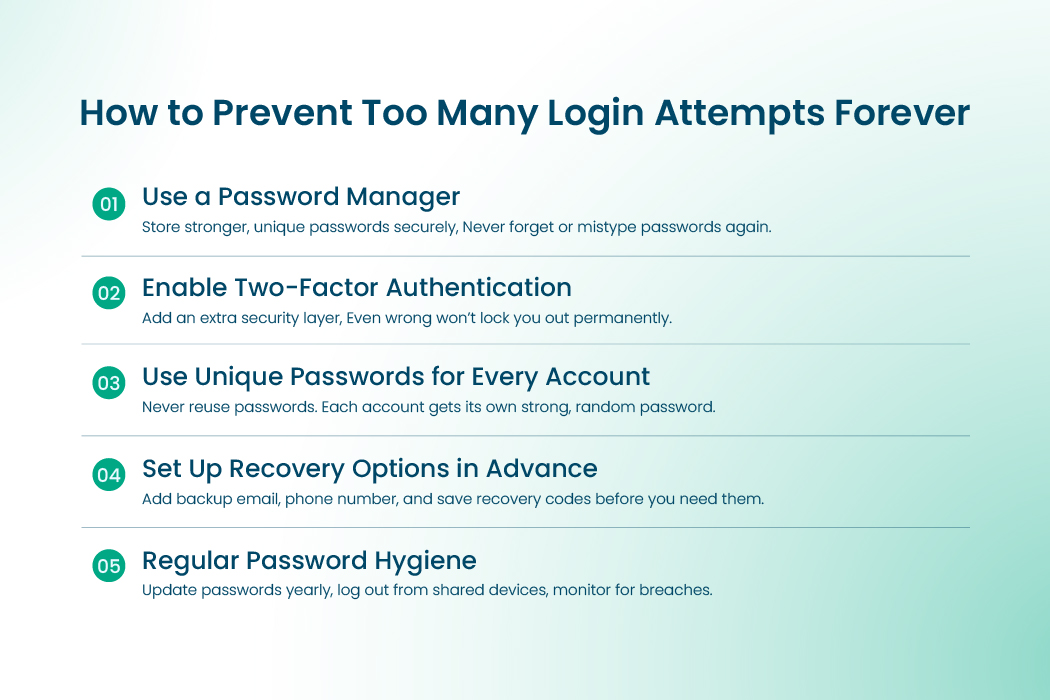
How to Prevent Too Many Login Attempts Forever
Prevention is always better than dealing with repeated lockouts. There are several strategies that help protect your accounts.
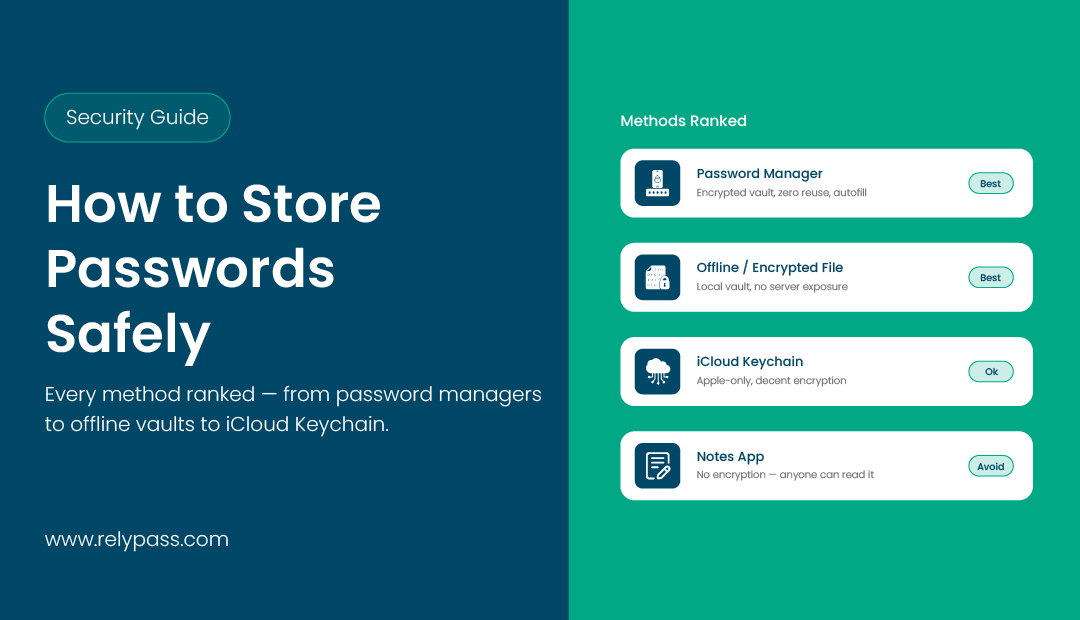
Use a Password Manager
A password manager stores strong, unique passwords for every account. This prevents repeated failed login attempts.
Benefits of a Password Manager
- Never forget passwords.
- Autofill works correctly every time.
- Eliminates guesswork and the stress of multiple failed login attempts.
Types of Password Managers
- Browser-based managers offer convenience but limited security.
- Cloud-based managers allow syncing but may have privacy concerns.
- Offline or local password managers provide maximum security.
Why RelyPass Is The Best
- Stores passwords locally on your device.
- Uses military-grade encryption.
- Works offline without an internet connection.
- Offers biometric access with Face ID or Touch ID.
- Free with optional synchronization across devices.
Enable Two-Factor Authentication
Two-factor authentication adds an extra layer of security. Even if someone enters the wrong password, they must verify identity through a code sent to a phone or email. This prevents unauthorized access and reduces the risk of repeated failed login attempts.
Use Unique Passwords for Every Account
Never reuse passwords. A password manager can generate strong, random passwords for each account, so you only need to remember one master password.
Not sure where to start? Check out the best password generators to create unique and strong passwords and pick one that fits your setup.
Set Up Recovery Options in Advance
- Add a recovery email address and phone number.
- Save backup codes in a secure location.
- Update security questions to ensure they remain relevant.
Regular Password Hygiene
- Update sensitive passwords at least once a year.
- Remove saved passwords from shared devices.
- Log out from accounts when done.
- Monitor accounts for data breaches using tools like Have I Been Pwned.
How Developers and Agencies Can Manage Too Many Login Attempts
For developers managing WordPress or other content management systems, repeated too many login attempts errors can affect workflow.
- Frequent logins during development may trigger security plugin lockouts.
- Staging sites prevent lockouts on live websites. Platforms like InstaWP allow developers to clone sites for testing safely.
- Whitelisting developer IP addresses avoids unnecessary lockouts during site maintenance.
Read More: Why Is Safari Not Saving Passwords and How to Fix It
Platform-Specific Lockout Considerations for Too Many Login Attempts
Although too many login attempts is a universal concept, lockout behavior varies across platforms:
- Social media platforms often lock accounts for fifteen to thirty minutes.
- Email providers add extra security layers, resulting in longer lockouts.
- Banking platforms may require verification through phone calls.
- Enterprise systems may require IT administrators to unlock accounts.
- Gaming platforms can be sensitive if accounts are linked to payment methods.
- Apple ID or iCloud lockouts affect all devices tied to the account.
Dropbox Too Many Login Attempts: How to Fix It
Dropbox locks your account after several wrong password tries. This stops hackers from guessing your password. It also protects your files from anyone trying random combinations.
Click the Forgot password link on the login page. Dropbox sends a reset email to your address. Open the email and follow the link inside it. Set a new password and confirm it. Check your spam folder if the email does not show up right away.
You may not have access to your email. In that case, contact Dropbox support directly. They can verify your identity and help you get back in. Dropbox also lifts the lock on its own after 30 minutes, even without a password reset. Wait out this time before you try again.
Use a password that is hard to guess after you reset it. This lowers your risk of facing this error again.
TikTok Maximum Number of Attempts Reached: What It Means
TikTok shows this message when you have too many login attempts in a row. TikTok blocks new attempts to keep your account safe. It stops anyone from guessing your password over and over.
TikTok usually locks the account for about 24 hours after repeated failed tries. During this time you cannot log in, even with the right password. The app shows a message telling you to wait.
To get back in sooner, ask TikTok to send a code to your phone number or email.
Enter that code to verify your identity. You can also tap Having trouble logging in inside the app. This opens more recovery options, including in app support chat. Follow the steps shown and TikTok will guide you back into your account.
X (Twitter) Too Many Login Attempts Fix
X, formerly known as Twitter, locks your account after a handful of failed login tries. The exact number is not published. Three or four wrong passwords in a row is usually enough to trigger the lock.
You can recover your account through your phone number or your email, whichever you added first during signup. Open the login page and choose Forgot password. X sends a code to your phone or a reset link to your email.
X also asks for an extra identity check when it sees a pattern of failed logins on a locked account. This may include entering your username, confirming your birth date, or answering a security question. Complete this step honestly to avoid further delays. Once you verify your identity, set a new password right away.
Pluralsight Password Failed Too Many Times
Pluralsight often shows this error when your account uses single sign on through your company, but you also try to log in with your regular email and password. This mix causes the system to block you after several failed tries.
Check with your IT team to see if your account uses single sign on. If it does, log in through that method instead of the normal password field. If you still use a regular Pluralsight password, click ‘Forgot password’ to reset it through email.
If your company manages the account, only your IT admin can remove the block or turn off the sign-in method causing the conflict.
How to Unlock Your Online Banking Account After Too Many Login Attempts
Let’s see how you can unlock your online banking account after too many login attempts:
Reach Out to Your Bank
If your account gets locked, your bank should be your first point of contact. Call the number on the back of your debit or credit card to speak with the right support team. Avoid using phone numbers from search results or messages you did not expect. If your bank is unresponsive, you can also file a complaint with the Consumer Financial Protection Bureau.
Keep Your Information Nearby
The bank will ask a few questions to confirm your identity before they unlock your account. It helps to have your account number, the last four digits of your SSN, and the phone number linked to your account ready before you call. This can make the process much smoother.
Take Your Time With Security Checks
Many banks ask questions about your account to make sure they are speaking with the real account holder. You may be asked about recent transactions or other account details. Listen carefully and answer each question as accurately as you can.
Give the Process Some Time
Once your account has been locked, avoid trying to sign in again until the bank tells you it has been restored. Repeated login attempts can sometimes delay the process or trigger another temporary lock. Waiting for confirmation is usually the better option.
Use a New Password When You Get Back In
After you regain access, it is worth creating a new password if you think your old one is no longer secure. Pick a password that is different from the ones you use on your other accounts. A unique password adds another layer of protection to your banking account.
Best Practices to Reduce Failed Login Attempts
Following simple security practices can help prevent unauthorized access, avoid login errors, and keep your personal information safe. Here are some best practices to follow:
- Avoid using the same password across multiple accounts: If one account is compromised, others could be at risk.
- Set strong, unique passwords: Use a combination of letters, numbers, and symbols. A password manager can help you create and remember complex passwords safely.
- Enable two-factor authentication (2FA): Adding a second layer of security, like a code sent to your phone or an authentication app, helps protect sensitive accounts.
- Keep recovery information up to date: Make sure your email and phone number linked to your accounts are current so you can recover access if needed.
- Log out from shared or public devices: Always sign out when using computers or devices that others can access.
- Monitor accounts regularly: Check for unusual activity, like unfamiliar logins or changes in account settings, and report anything suspicious immediately.
- Be cautious with security questions: Use answers that are not easy to guess or publicly available, and consider using fictitious answers stored in a password manager.
- Avoid clicking on suspicious links: Phishing emails or fake websites can trick you into giving away passwords or other sensitive information.
- Update software and apps regularly: Keeping your devices and applications up to date ensures you have the latest security fixes and protection against vulnerabilities.
- Limit sharing of account information: Do not share passwords or codes with anyone, even friends or family, and avoid saving passwords on shared devices.
FAQs About Too Many Login Attempts
Can I bypass the lockout?
No, you can’t bypass an account lockout. This feature is meant to protect your account from unauthorized access. Trying to get around it could put your account at risk. The easiest way to regain access is to use the recovery options, like resetting your password, verifying your identity through your email or phone, or contacting support. These steps keep your account safe while letting you log in again.
Will using a VPN help prevent lockouts?
Usually not. Some lockouts are tied to your account and others to the IP address the attempts came from. If the lock is on your account, a VPN does not lift it, and it may trigger extra security checks if your login looks unusual. The safest approach is to use correct credentials and follow recovery steps when necessary.
How many login attempts do I get before a lockout?
Most platforms allow between three and ten failed attempts before locking the account. The exact number varies depending on the platform. If you’re unsure of your password, it’s better to stop after a few tries and use the recovery options. This avoids frustration and helps protect your account.
Can someone else trigger a lockout on my account?
Yes. If someone tries to guess your password multiple times, it can trigger a lockout. While this can be frustrating, it shows the security system is working. Many platforms also send alerts about suspicious activity, which lets you act quickly to secure your account.
What if I forgot my recovery email or phone number?
If you no longer have access to your recovery email or phone, contact the platform’s support team. They will guide you through identity verification so you can regain access. To prevent this problem, keep your recovery information up to date and accessible only to you.
Are password managers safe?
Yes. Password managers are a safe and convenient way to store your login details. Offline managers, like RelyPass, keep your passwords secure on your device without using the cloud. They make it easy to create strong, unique passwords for every account and avoid reusing passwords or writing them down.
How can I test login fixes safely?
Before applying any changes to your main account, use a staging site or offline environment to test fixes. This helps avoid accidental lockouts and ensures your changes work properly before using them on your live account.
Can frequent password changes prevent lockouts?
Changing your password regularly can improve security, but it won’t prevent lockouts caused by incorrect login attempts. The key is to use strong, unique passwords and keep them secure so you don’t forget them.
What should I do if I suspect someone has my password?
If you think someone else knows your password, change it immediately and enable two-factor authentication. Review your account activity for suspicious logins and contact support if necessary. Acting quickly can prevent a lockout or potential account compromise.
End Note
In the end, a “too many login attempts” error is a security feature, not a problem. It happens when the system notices repeated failed login attempts. Most of the time, this is caused by weak or repeated passwords.
Using a password manager like RelyPass helps you create strong and unique passwords. It also reduces the chance of being locked out and makes logging in much easier.
When you add two-factor authentication and keep your recovery information up to date, you can manage all your accounts safely and without stress. Keep your accounts secure and easy to access. Try RelyPass.