


How to Store Passwords Safely Without the Cloud
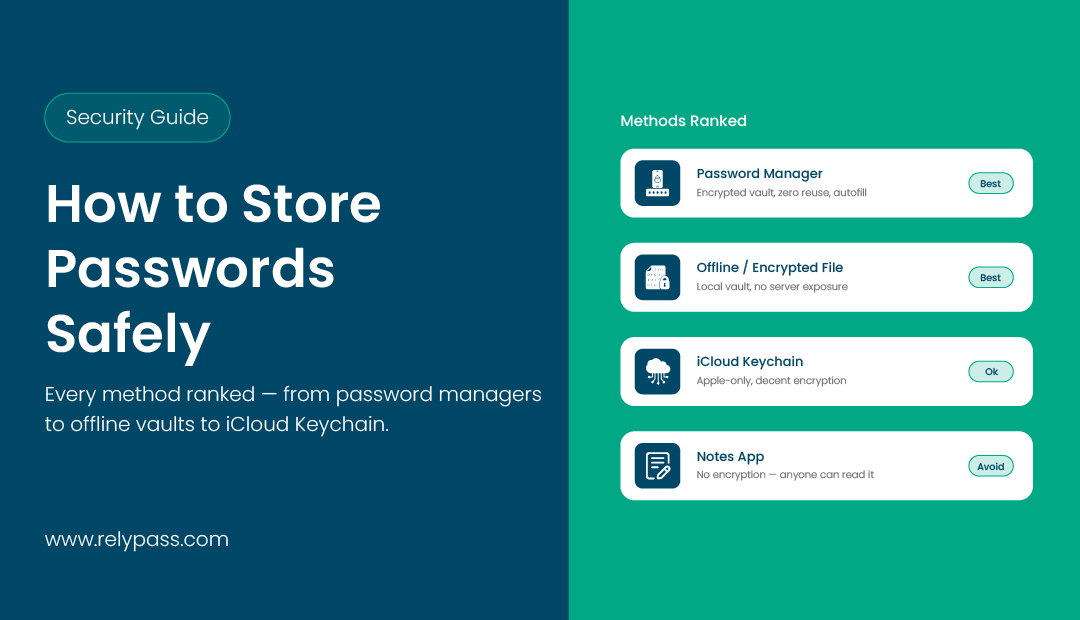
TLDR: How to store passwords safely comes down to one idea: keep them off the cloud and on your own device. An encrypted offline vault is the safest way to store passwords because no company server holds a copy for hackers to steal. Recent password manager breaches hit company servers, not phones. On an iPhone, your passcode is the first lock. A local encrypted vault is the second.
Stop assuming your passwords are safe just because they are saved in an app. Every time you store a password online, you are trusting a server you will never see and a company you know very little about. That works for some people, but it is not the only option.
So, how to store passwords safely? The first thing to decide is where your passwords should live. Keeping them on your own device instead of a remote server gives you more control over who can access them.
In this blog, you will learn practical ways to protect your passwords, avoid common mistakes, and choose a storage method that fits your privacy needs. So, let’s begin the discussion.
Why Password Storage Comes Down to Where a Hacker Can Reach
Every password has to be stored somewhere. Before choosing a password manager, understand where your passwords will be kept. The way your passwords are stored plays a bigger role in protecting your accounts than the app’s design.
Cloud Storage Risks
If your passwords are stored on a company’s servers, one security breach can affect a huge number of users. This happened with LastPass in 2022 when attackers accessed cloud storage that contained customer vault data. It showed how one incident can continue to affect users long after it happens. You can check whether your own accounts have been exposed in a breach like this at Have I Been Pwned.
Local Storage Offers Better Protection
If your passwords stay on your own device, they are much harder to steal. A hacker cannot simply access them through a remote server. They would need your phone and still have to get past your passcode or Face ID.
Fewer Storage Locations Mean Less Risk
Keeping passwords in fewer places reduces the chance of someone getting access to them. Every extra storage location creates another point that attackers can target. A single secure location gives your passwords better protection.
Choose a Password Manager With Care
Before you install a password manager, take a few minutes to understand how it stores your data. That simple step can help you choose a safer option and protect your online accounts with more confidence.
The 4 Places People Store Passwords, Ranked
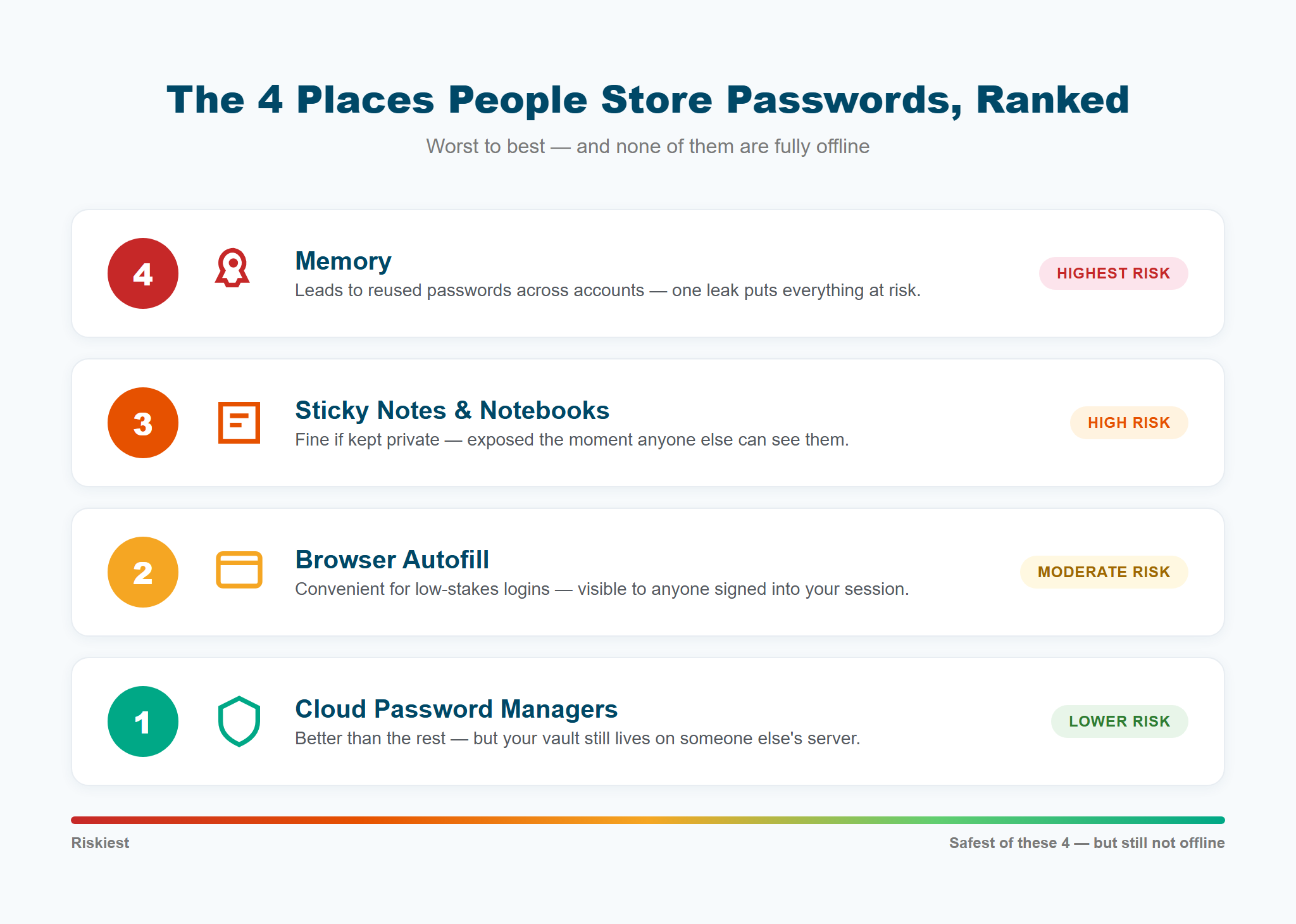
Before looking at offline password vaults, it helps to understand the common ways people store passwords. Some methods leave your accounts exposed, while others give you better protection. Looking at each option makes it easier to choose a safer way to store your passwords.
Memory
Remembering every password may sound like a good idea, but it often leads to using the same password for different accounts. If one account gets hacked, your other accounts can be at risk too. That is why relying on memory is not a safe option.
Sticky Notes and Notebooks
Writing passwords on paper can work if you keep them in a safe place. The problem starts when passwords are left on a sticky note beside your computer or in a notebook that anyone can open. If other people can see them, your accounts are no longer protected. Even the UK’s National Cyber Security Centre agrees that careful physical storage can be a legitimate option, as long as it stays out of sight.
Browser Autofill
Saving passwords in your browser makes signing in easier. It can be fine for less important accounts on your personal device. But if someone gets access to your computer while you are logged in, they may be able to view your saved passwords in just a few steps.
Cloud Password Managers
Cloud password managers are a better choice than reusing passwords or trying to remember everything. They keep your passwords in one place and make it easier to use a different password for every account.
At the same time, your password vault is stored on the provider’s servers. That means you are trusting another company to protect your login details, which is something to keep in mind when choosing a password manager. If you want to see exactly how these compare to keeping your vault local, here is the difference between online and offline password managers.
These options are not the complete solution. A local encrypted vault is another way to store passwords. It keeps your passwords on your own device instead of a company server. This gives you password manager features while keeping your data away from online threats. We will look at this method in the next section.
What Storing Passwords Offline Actually Means
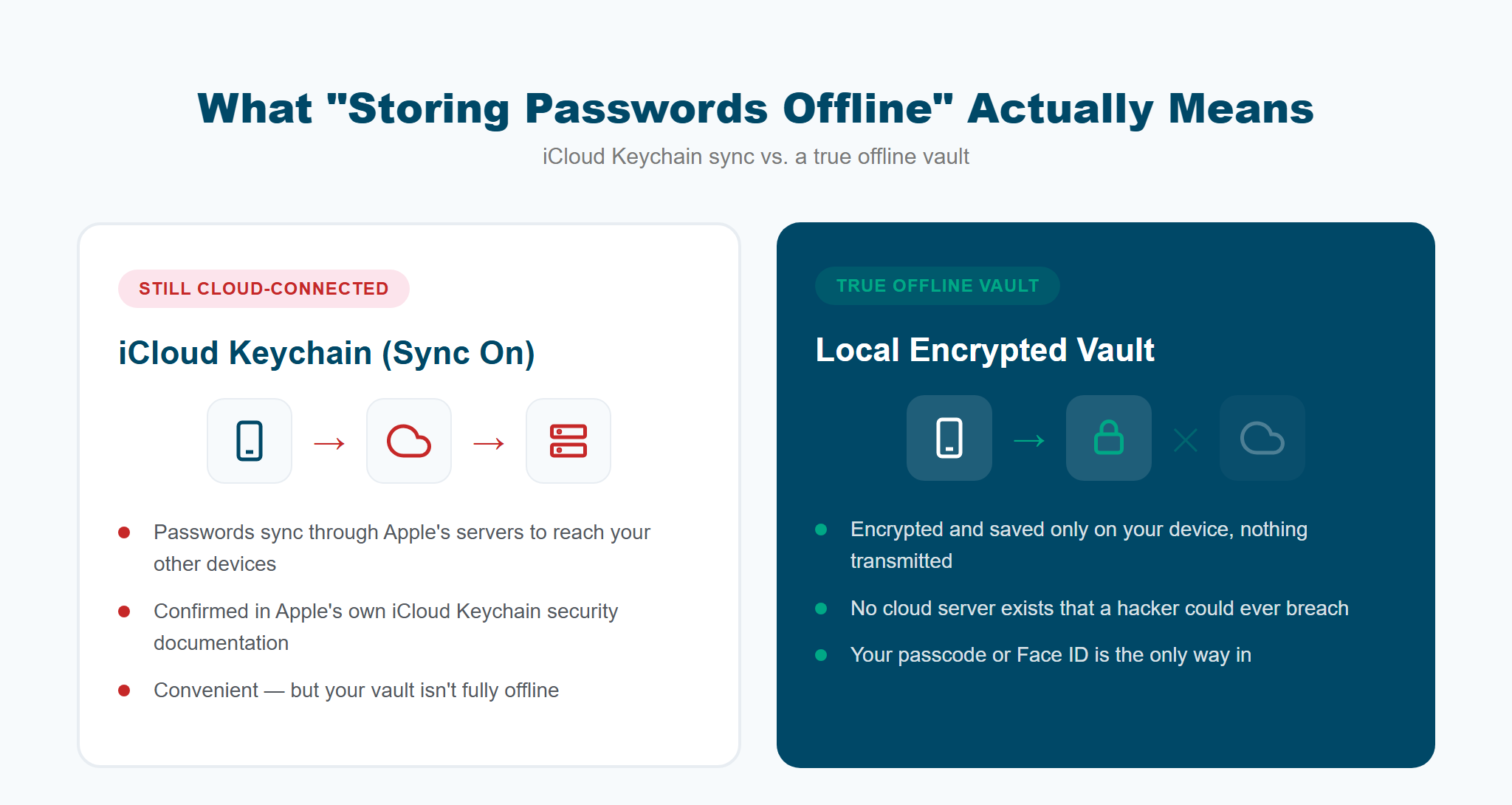
Anyone learning how to store passwords safely for the first time should start here. If you’ve been searching for the best way to store passwords offline, this is exactly it: encrypted, saved only on your own device, and never sent to a server or stored by another company. Let’s explore more about what storing passwords offline actually means:
Passwords Stay Only on Your Device
With offline storage, your password data stays with you. There is no cloud server holding a copy of your vault. This means hackers cannot access your passwords by breaking into a company’s system.
Offline Storage Is Different From Cloud Sync
Many people think saved passwords on their phone are always offline. That is not always true. For example, when iCloud Keychain sync is turned on, passwords are sent through Apple’s servers so they can appear across different devices. It makes access easier, but the data is still connected to the cloud — Apple’s own security documentation confirms this is how Keychain sync works.
Local Encryption Protects Your Data
A secure offline password manager uses encryption to protect your passwords on your device. Even if someone gets access to your phone, they still need your passcode or another security method to open the vault.
Your Device Becomes the Main Protection
With an offline password setup, your device security matters the most. A strong passcode, updated software, and safe device habits help protect your saved passwords.
A Private Way to Store Passwords
A true offline setup removes the need to trust a third party with your password data. Your device keeps the only copy, and you control access to it. For people who want more privacy, this can be a safer way to manage passwords.
How to Store Passwords Safely on iPhone, Step by Step
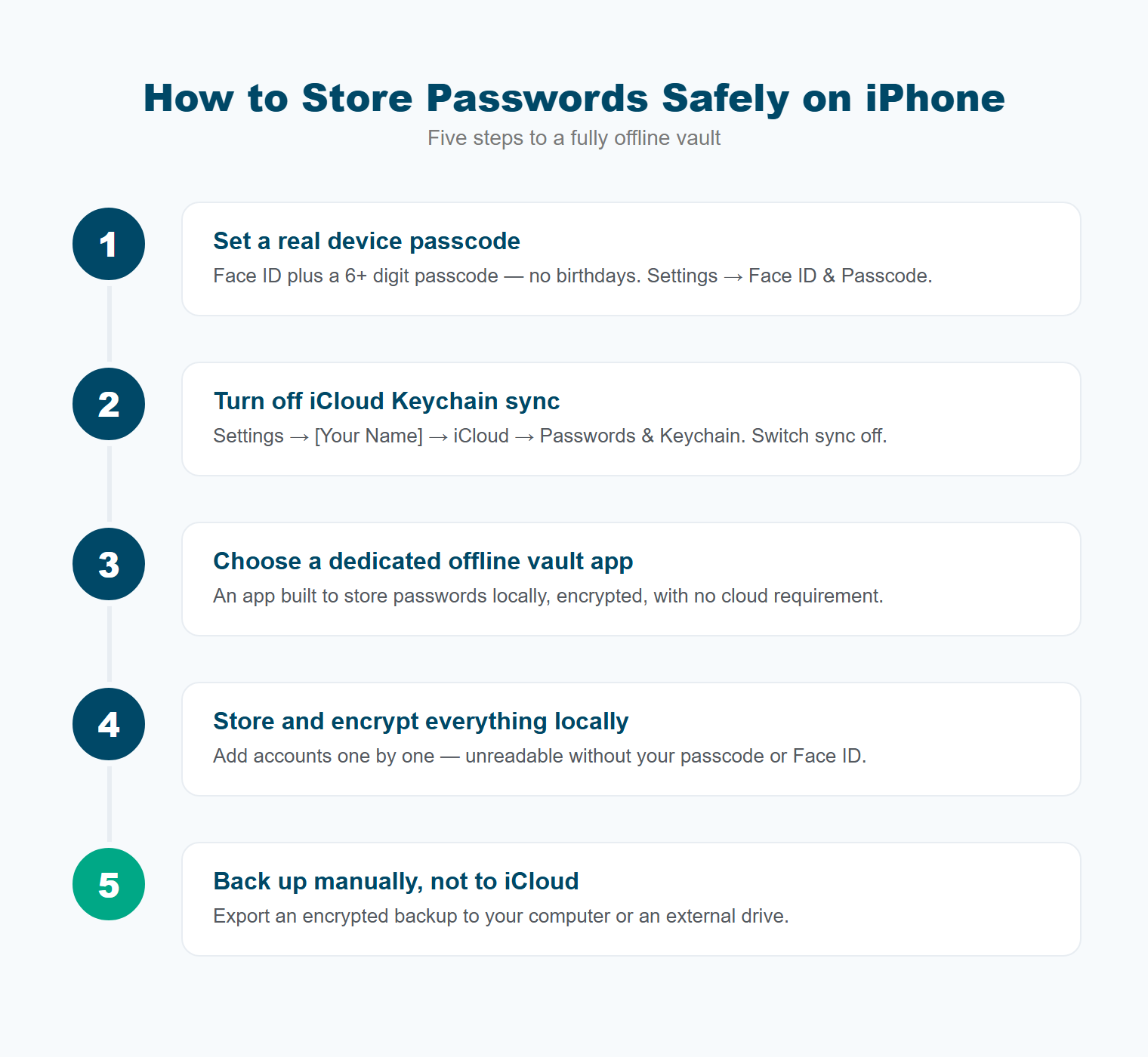
This is the part most articles never cover in detail. Here is exactly how to store passwords safely on an iPhone, one step at a time. If you have been searching for the best way to store passwords on phone and only found generic tips, these five steps give you a real plan you can follow this evening.
Step 1: Set a real device passcode
Your device lock is the true first layer of protection, not an afterthought. Use Face ID along with a passcode that is at least six digits, and avoid anything predictable like a birthday. Go to Settings, then Face ID and Passcode, and confirm it is turned on.
Step 2: Decide on iCloud Keychain sync
Open Settings, tap your name, then iCloud, then Passwords and Keychain. If you want a fully offline setup, turn sync off here. This stops your saved logins from passing through Apple’s servers.
Step 3: Choose a dedicated offline vault app
Instead of relying on browser or system storage, use an app built specifically to store passwords locally with encryption and no cloud requirement. This is where the setup for the most secure way to store passwords really comes together.
RelyPass is built for exactly this case. It stores and encrypts your passwords only on your device, with nothing synced to a server, ever.
You add each login a single time, and the vault keeps it locked behind your own device security. This is a practical example of the most secure offline password manager for iPhone, since it removes the server from the equation completely.
Step 4: Store and encrypt everything locally
Add your accounts into the vault one by one. A good offline vault encrypts each entry so that even if someone copied the file itself, it would be unreadable without your device passcode or Face ID.
Step 5: Back up manually, not to iCloud
Export an encrypted backup file to your own computer or an external drive on a regular basis. This keeps a copy safe if your phone is lost, without sending anything to a cloud account.
Following these five steps gives you a working answer to how to store passwords safely that does not depend on trusting a company you will never meet. Once your vault is set up, it is worth taking a moment to check your password strength for each account as you add it.
What Happens If You Lose Your Phone?
Let’s see what happens if you lose your phone:
Restore Your Password Vault
If your phone is lost or stolen, an encrypted backup stored on your computer or an external drive allows you to restore your password vault on a new device. You do not need a cloud account if you already have a backup ready.
Keep Your Backup Updated
Your backup is only useful if it is current. If you add new accounts or update important passwords, create a fresh backup. Setting a reminder every few months helps you keep it up to date and avoids problems later.
Use a Strong Device Passcode
A device passcode adds an extra layer of security. Even if someone gets your phone, they still need to unlock it before they can access your password vault. Face ID or a strong passcode helps protect your information while you replace your device and restore your backup.
What to Avoid When Storing Passwords
A few habits undo all the good work above, so keep this list short and follow it closely. Getting how to store passwords safely right means avoiding these mistakes just as much as following the steps above.
- Keep your passwords out of a regular notes app. These apps are not built to protect sensitive information, so anyone who unlocks your phone can view your passwords without much effort.
- Creating your own secret codes or using reversible encryption is not a safe option. If you can figure it out yourself, someone else can too.
- Written passwords should never be left where other people can see them. A notebook or piece of paper is only safe when it is stored in a private place that only you can access.
- Always keep a passcode on your phone. Your password vault depends on your device’s lock screen for protection. If your phone is lost or someone else gets hold of it, a passcode helps keep your strong, unique passwords out of the wrong hands.
In the end, I believe you now know the answer to “how to store passwords safely.” All you have to do is choose the right approach to make it much easier. Keeping your passwords on your own device gives you full control instead of relying on a remote server.
Setting up an encrypted password vault on your iPhone only takes a few minutes and helps protect your personal information.
If you are looking for a tool that follows this approach, RelyPass keeps your passwords encrypted on your device without sending your data to a server.
FAQ
What is the safest way to store passwords?
The safest way to store passwords is an encrypted vault that lives only on your device and is never synced to a server. That way, even if a password manager company gets breached, your personal vault is never part of it.
Is it safe to store passwords offline?
Yes, as long as the vault is encrypted and your device has a passcode or Face ID enabled. An attacker would need your actual phone in hand, not just a leaked username and password from some unrelated breach.
Is iCloud Keychain the same as offline storage?
No. Apple’s own documentation confirms that Keychain sync passes through Apple’s servers to keep devices updated. True offline storage means your data never leaves the device at all, with sync turned off completely.
What is the best way to store passwords on iPhone?
Start with a passcode or Face ID as your first layer. Then add a local encrypted vault app as the second layer, with cloud sync turned off so nothing leaves your device.
Should I write my passwords down on paper?
Paper works in a pinch, but it is fragile. It can be lost, damaged, or read by someone at a shared desk, and there is no autofill to save you time. A local encrypted app gives you the same benefit of keeping data out of reach from anyone remote, without the risk of a damaged or misplaced notebook.