


Locked Out of Gmail? Here’s How to Get Back In
TLDR If you’re locked out of Gmail, try these in order: (1) go to accounts.google.com/signin/recovery and follow the prompts, (2) use a recovery phone or email if set up, (3) answer Google’s security questions using old passwords or familiar devices, (4) try signing in from a device or location Google recognises, (5) if nothing works, submit an account recovery request and wait up to 3–5 business days for Google to verify your identity.
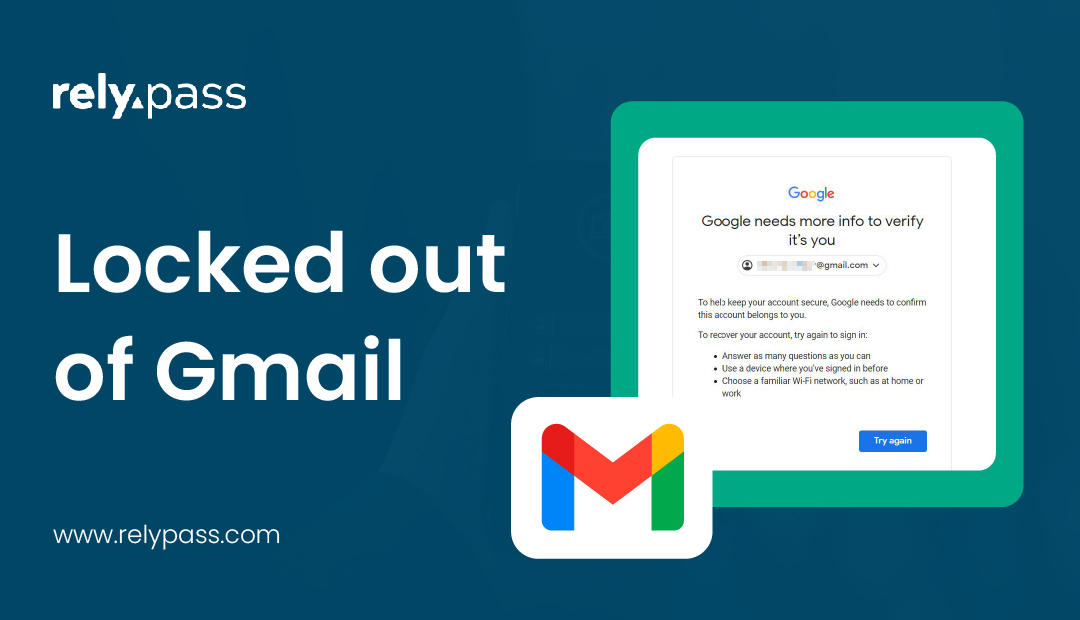
Getting locked out of Gmail cuts you off from more than email. Gmail is part of your one Google Account, so the same lock blocks Google Drive, Google Photos, Google Pay, YouTube, the Play Store, and any app on your Android phone signed in with that account. It usually happens after too many wrong password attempts, a suspicious login, or a 2-step verification problem. The good news is that most lockouts can be fixed in under 10 minutes. This guide walks through every recovery method – including what to do if you no longer have access to your phone or recovery email.
Why Your Google Account (and Gmail) Gets Locked
Gmail has security measures to protect your account. Sometimes these measures block access temporarily, which can feel frustrating. Knowing why it happens helps you take the right steps.
Too many wrong passwords
Entering the wrong password several times can trigger a temporary lock. This protects your account from unauthorized access.
Suspicious activity or verification issues
If Google notices unusual sign-ins, it may pause your access. Problems with 2-step verification can also cause a lockout.
Security actions after a breach
If Google suspects your account may be part of a larger security problem, it may force a password reset or temporarily block access.
What a Locked Google Account Really Means
If you’re locked out of your Google Account through Photos, Play Store, or Android — not just Gmail — you’re dealing with the exact same problem. Gmail is one part of your single Google Account, so a lockout on either side blocks Google Drive, Google Photos, YouTube, the Play Store, and any Android app signed in with that account. If you got locked out through Google Photos or the Play Store rather than the Gmail app itself, the fix is identical.
How to Recover a Locked Gmail Account
Most locked accounts can be recovered using Google’s account recovery tools. Here, I will share a step by step process that you can follow to recover a locked gmail account.
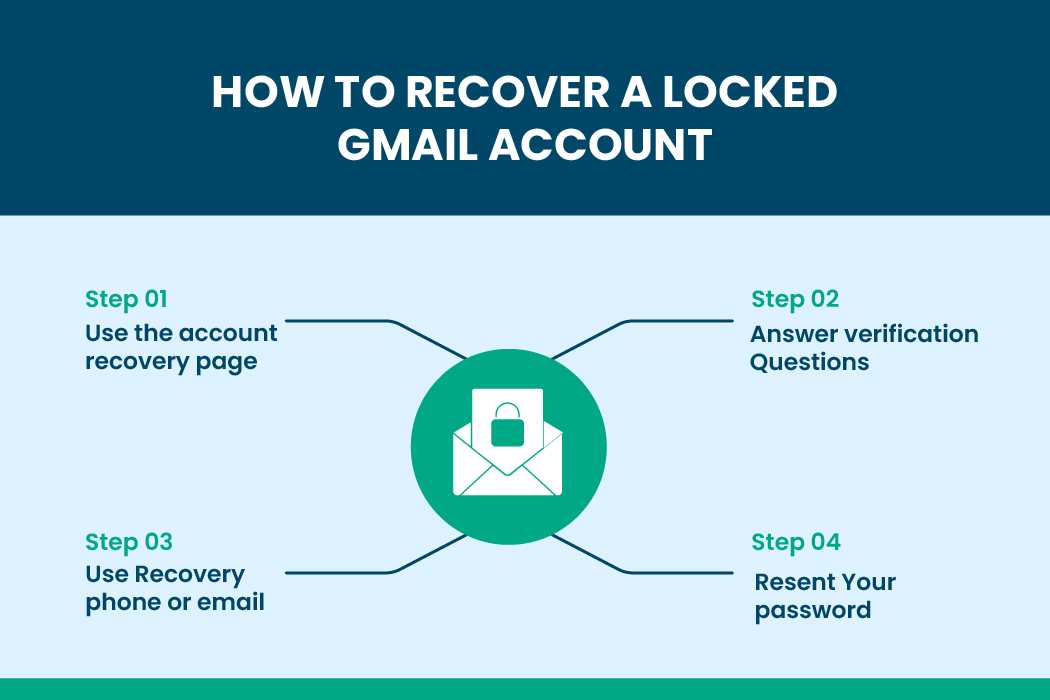
So, the process is:
Step 1: Use the Account Recovery Page
Go to Google’s official recovery page and enter your email address. Google will guide you through steps to confirm you own the account.
Step 2: Answer Verification Questions
Google may ask for:
- The last password you remember
- When you created the account
- Devices or locations you frequently use
- Your recovery phone number or email
Answer as accurately as you can. Even small details, like the month you created the account, can help.
If you’re asked when you created the account and can’t remember, check your other email accounts for Google’s original welcome message $em it’s usually still sitting in an inbox somewhere and shows the date.
Step 3: Use Recovery Phone or Email
If your recovery options are set up, Google will send a verification code. Enter the code to prove it’s you.
Step 4: Reset Your Password
After verifying, you can create a new password. Pick one that is strong and hasn’t been used for this account before. Avoid simple or common patterns.
Recover Gmail Without Phone or Recovery Email
If your recovery phone or email is unavailable, Google may ask for old passwords, devices, or locations you used to sign in. Providing accurate information increases the chance of getting back in.
Locked Out of Gmail and Can’t Verify Your Identity
If you can’t get past any verification step, there are still a few things you can try. This covers the worst case: no access to your recovery phone, recovery email, or a trusted device.
Use a Device You Have Signed In With Before
Start with a phone, computer, or browser you have used to sign in to your Gmail account before. Google sometimes recognizes familiar devices, which can make the recovery process easier. Go to the account recovery page and choose Try another way if that option appears.
If none of Google’s standard checks work, look for the “Try another way” option again — it sometimes offers to send a verification code to a different email address you provide on the spot, not just the recovery email already on file. Have a backup email ready before you start.
Answer the Questions as Best You Can
Google may ask a few questions to confirm that the account belongs to you. Try to answer them as accurately as possible. You might be asked when you created the account, which Google services you use, or details about emails you recently sent or received.
Fill Out the Recovery Request
If you still cannot get into your account, send a recovery request through Google’s account recovery page. Google will check the information you provide against your account history, sign-in activity, and other details. In many cases, the review takes a few business days.
Wait for the Result
After you submit your request, give Google some time to review it. It can take several days before you receive a response. While you wait, avoid submitting multiple requests because it will not make the process faster.
Some Accounts Are Harder to Recover
If your account is brand new or has very little sign-in history, Google may not have enough information to verify that you are the owner. Even so, it is still worth going through every recovery step. Many people are able to get their accounts back by providing the right information.
What to Do If Verification Codes Don’t Work
Sometimes codes don’t arrive or won’t verify. If this happens:
- Try signing in from a device you often use
- Use a location where you usually log in
- Wait a few hours if multiple attempts fail
- If a text code won’t arrive, try “call me instead” for a voice call
- Turn off Wi-Fi calling on your phone before requesting a code — it can block Google’s texts on some carriers
How Long Will Gmail Keep You Locked Out?
Google doesn’t commit to one fixed timeframe. Recovery requests can be delayed anywhere from a few hours to several days, depending on risk factors Google checks automatically — and it typically takes longer if you have 2-Step Verification turned on, since that adds an extra layer Google verifies before letting the request through. There’s no live phone or chat support for personal account recovery — everything runs through this automated process, so waiting it out (rather than repeatedly resubmitting) is the fastest path back in.
How to Reset or Change Your Gmail Password
Changing your password is key if your account is locked or has been compromised. You must know how to reset or change your Gmail password.
So, the ways are:
Reset Steps if You Are Logged Out
If Gmail is one of several apps that signed you out at once, start with why your phone logged you out of everything.
- Go to Google’s password reset page
- Enter your Gmail address
- Follow the prompts and use recovery options if asked
- Create a new strong password

What to Do If Reset Emails Don’t Arrive
- Check your spam or junk folder
- Make sure you are using the correct recovery email
- Confirm your email service isn’t blocking messages from Google
Read more: Password Reset Email Not Arriving: Major Causes and Proper Solutions
What to Do After a Gmail Data Breach
If your account may have been part of a data breach, so you must :
- Check Google security alerts
- Change your Gmail password immediately
- Update passwords for other accounts using the same login
- Use a secure password manager to store strong passwords
Gmail Account Hacked and Locked Out: Different Recovery Steps
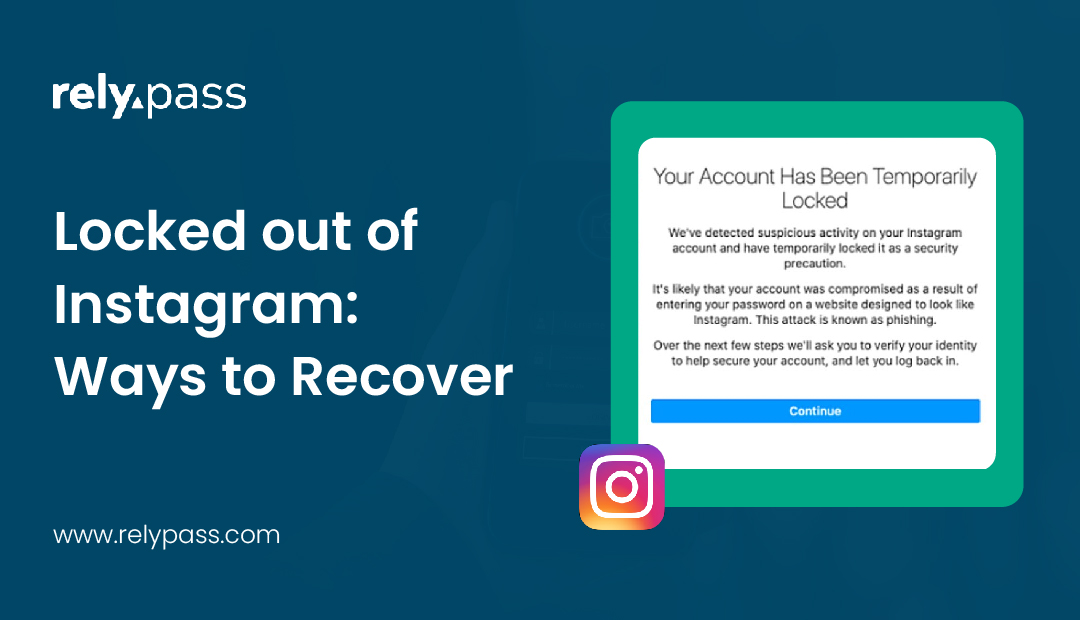
When a Gmail account is hacked and the hacker changes the password, this is a different recovery path than a standard lockout.
If you’re not locked out yet but something feels off, check for these signs first before assuming your account is fine.
Visit the Google Account Recovery Page
If someone has changed your Gmail password, go to g.co/recover and begin the recovery process. This page is designed for compromised accounts and is the best place to start if your account has been taken over.
Follow the Recovery Instructions
Answer the questions as accurately as possible. If you no longer have access to your recovery email or phone number, click Try another way to see other recovery options that Google provides.
Recover Your Account from a Familiar Device
Whenever possible, use a device and internet connection you have used before to sign in to Gmail. Google can often recognize trusted devices, which may improve your chances of recovering the account.
Review Your Account Settings
After getting back into your account, check your security settings right away. Review your recent activity, remove any unknown devices, and make sure your recovery phone number and email address have not been changed.
Secure Your Account
Turn on Two Step Verification to add an extra layer of protection. It is also a good idea to create a new, strong password that you have not used before. These simple steps can help keep your Gmail account safe from future attacks.
How to Prevent Future Lockouts
Preventing lockouts is easier than fixing them. You must prevent future lockout so that that you can save your gmail.
So, you must do:
- Keep recovery info updated: Make sure your recovery phone and email are current.
- Use backup codes for 2-step verification: Keep them in a safe place so you can access your account if your phone is lost.
- Manage passwords securely: A password manager can help you create strong, unique passwords and store them safely.
Special Situations to Consider
If any special situations happen, you should consider some facts. Keep in mind that being prepared for these situations makes account recovery much easier.
You should consider:
- Locked out of Gmail old phone number: Use a device and location Google recognizes. Answer security questions carefully.
- New phone locked out of Gmail: Sign in from a familiar device or location. This helps Google verify your identity.
- Locked out of Gmail can’t verify: Use all available recovery options and provide accurate information.
- Google Account through work or school: If your Google Account was set up by an employer or school, you may not be able to recover it yourself — an admin on their end will need to reset it for you.
- Forgot which Gmail address you used: Google has a separate “Find my email” recovery flow for this — go to the account recovery page and choose the option for forgetting your email instead of your password.
- Similar lockout problems on other platforms: Gmail isn’t the only platform where people face unexpected lockouts and verification issues. Facebook users often experience the same frustrations—getting locked out suddenly, codes not arriving, or recovery options not working. If you’re also dealing with Facebook login trouble, see our guide on how to fix Facebook login issues for platform-specific solutions.
Do Wrong Guesses Lock You Out of Google Account Recovery?
No. Google will not lock your account if you enter the wrong information during account recovery. If you are locked out of Gmail, you can keep trying without worrying that a wrong answer will block your account.
Many people are afraid to enter an old password or guess an answer because they think it will make things worse. It will not. If you remember any details, try them.
This is only for Google’s account recovery page. It is different from the normal Gmail sign in page. If you enter the wrong password too many times while signing in, Google may ask you to wait before trying again.
If you are locked out of Gmail, enter any information you remember. You can try an old password, your recovery phone number, your recovery email, or answer the questions Google asks. A wrong answer will not lock your account.
If Google sees too many recovery attempts in a short time, it may ask you to complete a CAPTCHA or wait for a while. This is only a security check. You can still continue the recovery process.
Google Account Security Settings to Review
Regularly reviewing security settings helps prevent future issues.These checks make sure only authorized devices are connected and alert you to unusual activity.
So, you must review:
- Check devices that are signed in
- Review security alerts and notifications
- Monitor apps that have access to your account
Why 2-Step Verification Helps
2-step verification adds an extra layer of security. Even if someone knows your password, they cannot access your account without the code. Keep backup codes safe and update your phone number if it changes.
Why Is My Google Account Locked, Not Just Gmail?
Yes — if your Google Account is locked, Gmail, Drive, Photos, YouTube, and the Play Store are all affected together, since Gmail is just one part of that single account.
Why Does Google Say My Recovery Request Is “Delayed”?
Google runs an automated risk check before letting you back in. It can take a few hours to several days, longer with 2-Step Verification on — there’s no live support to speed it up.
Can Wrong Guesses During Account Recovery Lock Me Out Further?
No. There’s no limit on attempts, though too many in a short time may trigger a CAPTCHA.
How to Stop Getting Locked Out of Gmail in the Future
Once you’re back in, take five minutes to lock things down properly.
Update your recovery phone and email. Go to myaccount.google.com > Security and confirm both are current. This is the single biggest reason people can’t recover their account the next time.
Save your 2-step verification backup codes. Google gives you 10 one-time codes when you set up 2FA. Most people never save them. Store them in a password manager like RelyPass so they’re there when you need them.
Use a password manager. A tool like RelyPass stores your Gmail password, backup codes, and recovery details securely offline – so a forgotten password never becomes a full lockout again.