


Best Password Manager Apps for iPhone: Individual & Family Picks
TLDR: For most iPhone users, 1Password is a solid choice because it has a simple design and a strong security history. If you want a free option, RelyPass is worth considering for keeping passwords stored securely on your device. Bitwarden is another popular free password manager with plenty of useful features. Apple’s Passwords app also works well if you mainly use Apple devices. The right choice depends on how you plan to use it. Families may need shared passwords, while a single user may prefer a private vault for personal accounts.
Finding the best password manager apps for iPhone matters more than most people realize. You use your iPhone to check your bank account, shop online, watch movies, and sign in to dozens of apps. Now think about the passwords behind all of those accounts. If you use the same one in more than one place, a single data breach can put everything at risk.
The best password manager apps for iPhone store your passwords in one secure place, create strong passwords for new accounts, and fill them in whenever you sign in. Instead of trying to remember dozens of passwords, you only need one password or Face ID.
In this blog, I tested the most popular apps to find the best password manager for iPhone. I looked at how easy they are to use, how well autofill works, what security features they offer, and how they handle shared passwords for families. If you want the fuller case for switching in the first place, see our breakdown of reasons to use a password manager.
If you’re searching for a free app, a cross-platform option, or one for your whole household, this guide will help you pick the right password manager app for iPhone. I’ll walk through six apps in detail, compare them side by side in a table, and then cover the family sharing question separately, since it changes the calculus quite a bit.
Let’s start with why you need one in the first place.
Why Do You Need a Password Manager on iPhone?
A password manager is useful if your iPhone is where you handle email, banking, shopping, social media, and other accounts. Using one password across several accounts can cause problems. If that password gets exposed on one website, someone can try it on your other accounts too.
Phishing Scams Can Be Easy to Miss
Mobile phishing attacks increased by more than 60% in 2024. A lot of these scams come through text messages and fake login pages. On a small screen, a fake website address can be harder to notice. A message that looks urgent can also make it tempting to tap without checking.
Reusing Passwords Creates More Risk
A password used for one account should not be used for another. If an old shopping account gets hacked, the exposed password should not give someone access to your email or bank account. A password manager can create different passwords for each account.
You Have More Accounts Than You Remember
Think about old shopping sites, newsletters, food delivery apps, fitness services, work tools, and other websites signed up for over the years. The list can get long quickly. Remembering a different password for every account is not easy.
Keep Your Passwords in One Place
A password manager keeps your different passwords organized, so there is no need to memorize every login. RelyPass can store passwords on your iPhone and help keep each account protected with its own password.
What a Password Manager Does
A password manager creates a different password for every account and saves it for you. It also fills in your login details when you need them. You don’t have to remember dozens of passwords anymore. On an iPhone, you can unlock your password vault with Face ID or Touch ID, which makes signing in quick and easy.
Most managers also flag weak or reused passwords automatically, so you can fix them before they become a problem. Many apps go a step further and scan the dark web for your email address, alerting you the moment your credentials show up in a known data breach. Some also generate one-time codes for two-factor authentication, so you don’t need a separate authenticator app for every account.
Why The Best Password Manager for iPhone Makes Life Easier
1. Sign In Without Remembering Every Password
You have passwords for email, banking, shopping, work, and plenty of other accounts. Keeping track of them all is hard. A password manager stores your login details, so you can sign in without trying to remember each password.
2. Make Every Account Safer
A password manager can create a different password for every account. This helps protect your other accounts if one password is exposed. You can also use it to update old or weak passwords quickly.
3. Stay Protected When You Change Devices
Switching from an old iPhone to a new one does not mean starting from scratch. A password manager can sync your saved logins across your Apple devices, making it easier to get back into your accounts.
What Password Managers Actually Do (and Don’t)
Before you pick an app, it helps to know what you’re actually buying. Password managers do more than autofill logins.
Beyond Passwords
Most password managers also work as a locked vault for other sensitive information: secure notes, payment card details, ID scans, WiFi credentials. Anything you’d hate to lose or see leaked can usually live there, encrypted the same way your passwords are.
What They Won’t Do
A password manager is not a full security system. It isn’t antivirus. It won’t stop a phishing email from looking convincing, and it won’t catch malware already on your phone. It also doesn’t track or limit your browsing, despite living in your keyboard or browser bar.
Your Master Password Is the New Single Point of Failure
Every password manager trades many weak points for one strong one. If someone gets your master password, or your Apple ID if you rely on iCloud Keychain, they get everything behind it. That risk is real, but it’s manageable.
Make the one password that matters actually count:
- At least 12 characters, longer if you can remember it
- Mix uppercase, lowercase, numbers, and symbols
- Skip your name, birthday, pet, or anything findable on your social media
- Never reuse it anywhere else, ever
Three Ways They’re Built
- Browser based, built into Chrome, Safari, or similar. Convenient, but usually the weakest encryption and no MFA support.
- Token based, deriving your passwords from a master key instead of storing a full vault. Lose the device without a backup, and you can get locked out.
- Locally installed, keeping your vault on the device itself and syncing to the cloud only if you turn it on. Smaller attack surface, since there’s no central database to breach.
Most consumer apps blend the last two: your vault lives locally and syncs through a connection you control.
Getting More Out of One
Downloading a password manager is the easy part. To actually benefit from it:
- Turn on two factor authentication wherever it’s offered, not just for your vault.
- Let the app flag reused or weak passwords, then actually change them.
- Check dark web alerts when they arrive. Don’t ignore them.
Top 6 Password Managers for iPhone
I tested the top 6 apps that work well on iOS. Each one has its own strengths, so let’s look at what sets them apart.
1Password

1Password is one of the most popular password manager apps for iPhone users, and it’s the app I recommend first when someone asks what is the best password manager app for iPhone. It has a clean, easy-to-use interface and includes Watchtower, a feature that alerts you the moment a data breach exposes one of your saved passwords.
1Password also supports Travel Mode, which lets you hide sensitive vaults before you cross a border, and it integrates tightly with Face ID for one-tap unlocking. The company publishes the results of its independent security audits, including SOC 2 reports, so you can verify its claims instead of just trusting them.
There is no free plan, but you can try it for 14 days before committing. Paid plans start at $2.99 per month, and family plans that cover up to five people cost a bit more. Setup takes about five minutes: download the app, create your account, set a strong master password, and then import existing logins from iCloud Keychain or a CSV file.
One thing to keep in mind is that 1Password requires an active subscription to keep using the app after the trial ends. If you let your subscription lapse, you lose access to your vault until you resubscribe, so it’s not a true one-time purchase. For anyone who wants an app that looks polished and backs up its security promises with public audits, 1Password is hard to beat.
RelyPass

RelyPass is a good choice if you want to keep your passwords on your own device instead of a company’s server. By default, your vault stays on your iPhone. Nobody uploads it anywhere unless you choose to.
You can turn on cloud sync later if you need it across multiple devices, but the feature stays optional the whole time. Because the vault lives locally, RelyPass has a smaller attack surface than apps that store everything in the cloud by default. There’s no central server to breach if you never enable sync, since your passwords never leave the phone in your pocket.
The app is free to download and use, which makes it a simple option for anyone who wants more control over their data without paying a subscription fee. It supports Face ID unlock, autofill through iOS’s built-in autofill system, and a built-in password generator for new accounts. The main trade-off is that it’s iOS and iPadOS only, so it won’t help if you also need to fill passwords on a Windows laptop. For a single iPhone user who prioritizes privacy over cross-platform convenience, RelyPass is one of the strongest picks on this list.
Bitwarden
Bitwarden is well known for offering the best free password manager for iPhone experience on the market. You can save unlimited passwords and use them across unlimited devices without paying anything. The app supports Face ID and autofill on iPhone, and it syncs seamlessly with the Bitwarden browser extension on your Mac or PC.
Bitwarden’s code is open source, so independent security experts can review it line by line. That transparency gives many users extra confidence that the app does exactly what it claims. If you want more control, Bitwarden even lets advanced users self-host their own vault server on their own hardware instead of trusting Bitwarden’s servers at all.
Beyond the free plan, Bitwarden offers a premium tier for about $10 a year that adds encrypted file storage, emergency access for a trusted contact, and detailed reports on weak or compromised passwords. Even without upgrading, free users get a password generator, secure notes, and a built-in authenticator field for two-factor codes. For anyone comparing the best free password manager app for iPhone options, Bitwarden comes out on top, and it remains the app most security professionals recommend when budget is a real concern.
iCloud Keychain (Apple Passwords)

Apple includes its own password manager with every iPhone through the Passwords app. It saves your passwords, fills them in automatically, and keeps everything synced across your Apple devices through iCloud. It also supports passkeys, which are quickly becoming the more secure replacement for traditional passwords on many sites.
If you only use Apple products, it works well. If you also use Android or Windows, you may find it limiting, since there is no dedicated Windows app beyond a browser extension for Chrome or Edge. There’s also no standalone Android app, only a browser extension, which makes it a poor fit for mixed-device households.
Because it’s built into the operating system, there’s nothing to download and no account to create beyond your existing Apple ID. Setup happens automatically the first time you save a password in Safari or a supported app. For someone asking about the best password manager for iPhone and Mac specifically, Apple’s built-in option is hard to beat on price and simplicity, since it’s already installed and costs nothing extra.
Dashlane
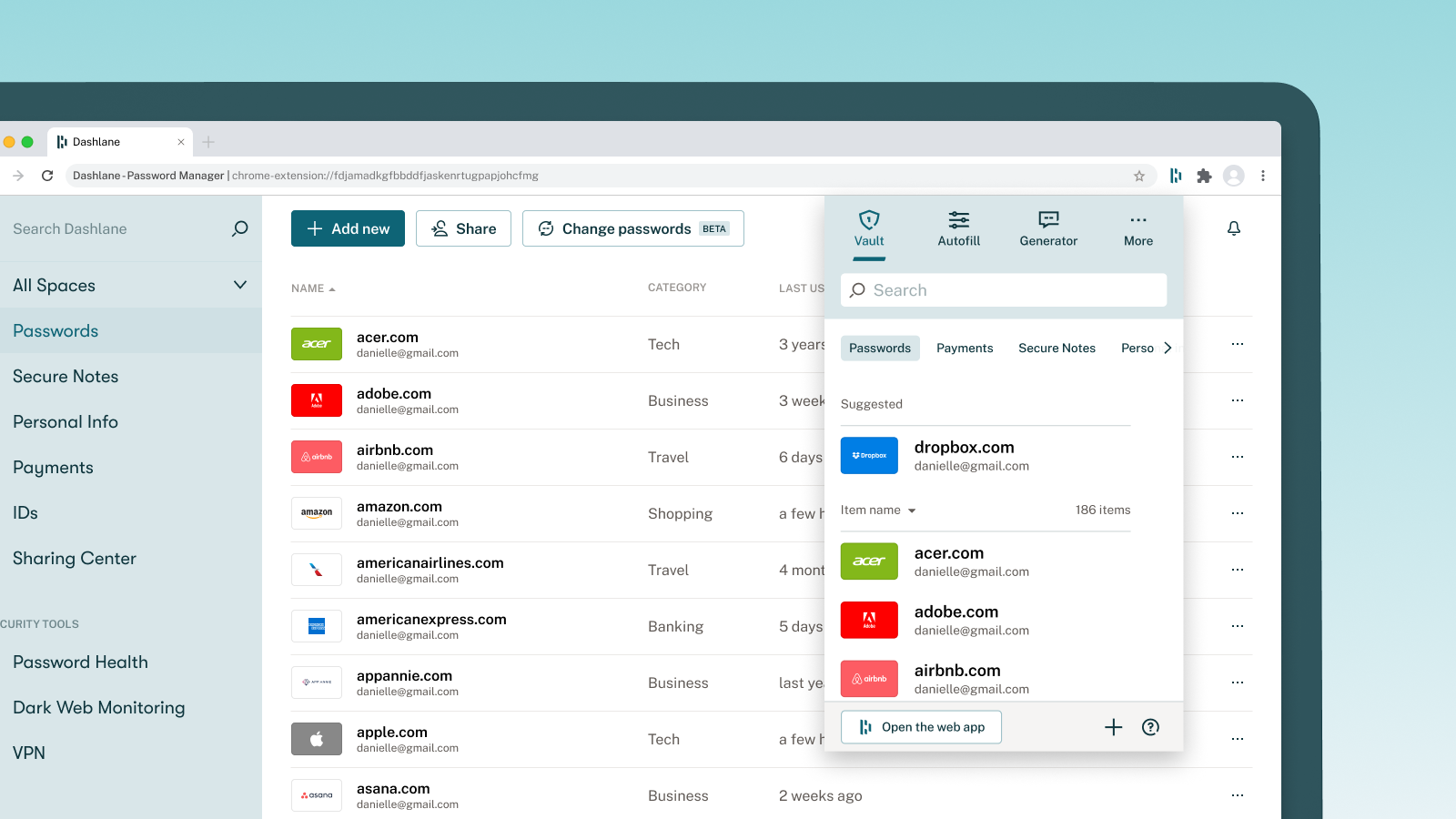
Dashlane is easy to set up and simple to use. You can import passwords from iCloud Keychain in just a few taps, and the app checks for weak or leaked passwords with a security score that updates as you fix issues. Premium plans also bundle a VPN, which is a nice extra if you don’t already pay for one separately.
Dashlane costs a little more than some other options, with plans starting at $2.71 per month. That premium plan includes a built-in VPN through Hotspot Shield, which can be worth it if you don’t already pay for VPN access separately. Dashlane also runs regular dark web scans and sends you a notification the moment your email address turns up in a new leak.
If you also work across a Windows laptop during the day, Dashlane is a solid pick for the best password manager for Windows and iPhone, since its apps feel nearly identical on both platforms. The interface leans friendly and visual rather than technical, which makes it a good fit for people who find some of the more security-focused apps intimidating to navigate.
NordPass
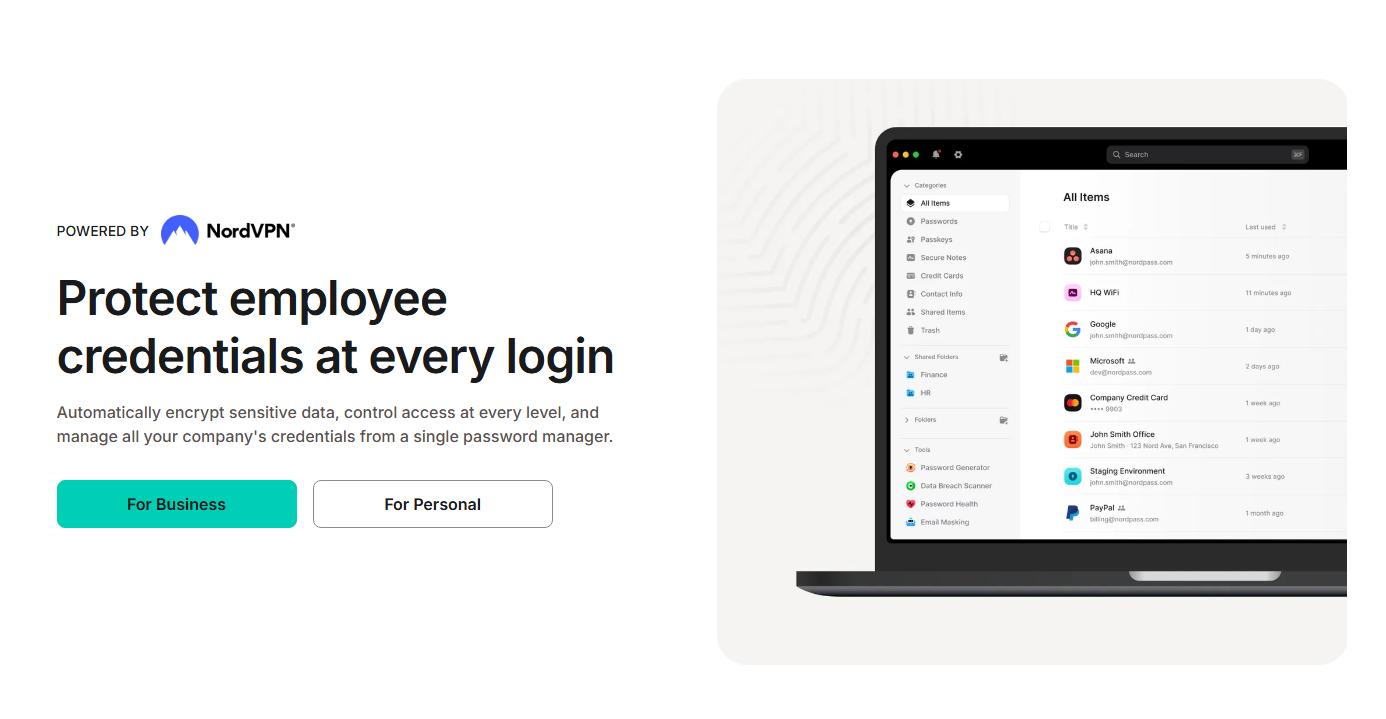
NordPass is another easy-to-use password manager, built by the same company behind NordVPN. Its free plan lets you store unlimited passwords, though you can only stay signed in on one device at a time, which is the main trade-off compared to Bitwarden’s free tier.
NordPass uses XChaCha20 encryption, a modern standard that’s faster and, according to independent cryptography researchers, at least as secure as the older AES-256 standard many competitors use. The app also supports passkeys, biometric unlock through Face ID, and a data breach scanner that checks your saved emails against known leaks.
If you want extra features like unlimited device sync and priority breach scanning, paid plans start at $1.99 per month with a longer subscription term, and pricing drops further if you commit to a two-year plan upfront. NordPass is a reasonable middle ground for someone who wants more than Apple’s built-in app but doesn’t need every extra feature that 1Password or Dashlane packs in.
Feature & Pricing Comparison Table
Choosing between the best password manager apps for iPhone often comes down to three things: cost, cross-platform support, and how you plan to share passwords. Price alone shouldn’t decide it, though. A free app that only works on one device isn’t actually free if you end up buying a second subscription for your laptop six months later.
Think of the table below as a starting filter, not a final answer. If cross-platform support matters most to you, look first at Bitwarden, Dashlane, and NordPass, since all three run natively on Windows, Mac, iOS, and Android without missing features.
If price is the deciding factor, Bitwarden and iCloud Keychain cost nothing at all, while RelyPass is free unless you add optional cloud sync. The table lines up all six apps side by side so you can compare them at a glance before reading the deeper breakdown in the sections above and below.
| App | Free Plan | Starting Paid Price | Cross Platform | Best For |
|---|---|---|---|---|
| 1Password | 14-day trial only | $2.99/month | Yes | Trusted security and audits |
| Bitwarden | Yes, unlimited passwords | $1/month | Yes | Best free option |
| iCloud Keychain | Yes, always free | No paid plan | Apple devices only | Simple built-in choice |
| Dashlane | No | $2.71/month | Yes | Easiest to set up |
| NordPass | Yes, one device | $1.99/month | Yes | Good encryption at low cost |
| RelyPass | Yes, always free | Optional sync add-on | iOS and iPadOS | Private, on-device vault |
What Is the Best Family Password Manager for iPhone?
Someone in the house asks for the WiFi password, and within seconds it shows up in a family group chat. Later, another person needs the streaming login, so someone sends that too.
Before long, you end up scattering passwords across text messages, screenshots, and sticky notes on the fridge. If you’re looking for the best password manager for iPhone for a household, this is exactly the kind of everyday problem it should solve.
Apple already has a free feature built for this. Apple calls it Family Passwords, and you’ll find it inside the Passwords app on iPhones running iOS 17 or later. A parent or another organizer can create a shared password group using Family Sharing or people pulled directly from the Contacts app.
Here’s how the setup works, step by step:
- Create a shared group. Open the Passwords app, go to the sharing section, and start a new group. Every member needs a device running iOS 17 or iPadOS 17 or later.
- Add people to the group. Pull members from your Family Sharing plan, or add anyone individually from your Contacts app, even if they’re outside your Family Sharing setup.
- Choose which passwords to share. Move specific logins, like the WiFi password or the family streaming account, into the shared group. Everyone in that group can then view, use, and update those passwords.
Everything moves through end-to-end encryption via iCloud Keychain, so the transfer itself is secure. The feature has one important limitation for families with young children, though.
Why Apple Family Passwords Can Be Too Open
There is no way to share only selected passwords with one person inside the group. If a nine year old joins the group to get the WiFi password, they can also see every other password stored there. That could include streaming accounts, smart home apps, or other shared logins. It is an all or nothing setup, with no option to give a child access to one password while keeping everything else private.
How Families Usually End Up Sharing Passwords
Research on password habits shows why this gap matters. According to Bitwarden’s World Password Day Survey 2025, 32% of people admit to sharing passwords through insecure methods such as texts, emails, or sticky notes. The same survey found that only 16% of families use a password manager with a proper shared vault. That leaves households choosing between sending passwords through messages or putting everyone into the same all-access group.
Keep Personal Passwords in a Separate Vault
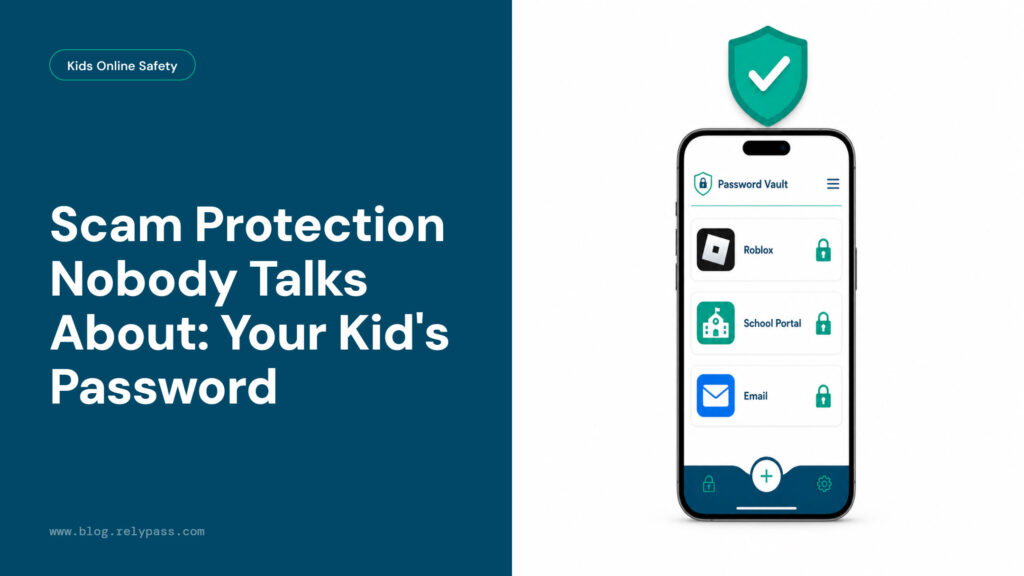
A private password vault can fill that gap. Each family member can use a separate app, such as RelyPass, to keep personal passwords on their own device. Apple Family Passwords can still handle logins everyone needs, such as the WiFi password or family streaming account. Personal accounts, including school logins or private email accounts, can stay in an individual’s own vault.
Give Kids Access Without Giving Them Everything
This two-layer approach works well in practice. Parents can keep the shared group for household logins that everyone needs. Each person, including older kids and teenagers, can keep a separate vault for private accounts, such as personal social media or a part-time job’s employee portal. This takes a little more setup, but it keeps private logins away from shared passwords and pairs well with other habits around protecting kids online.
Review Your Family’s Shared Passwords
If you manage the family’s accounts, take a quick look every few months. Remove people from a shared group when they move out or no longer need access. You should also change passwords that were shared with someone outside the household, such as a babysitter or house sitter.
How to Choose the Right iPhone Password Manager
The short answer: match the app to how many people will use it, which devices you own, and how much you want to spend. Here’s how to work through that decision.
Decide Who Will Be Using It
If you only need a password manager for yourself, most apps on this list will do the job well — see our full breakdown of best password managers for individuals for more depth. A single-user setup is straightforward: pick an app, import your existing logins, and let autofill handle the rest.
If you want to share passwords with your family, choose one that offers secure sharing while still keeping personal passwords private. Revisit the family section above if multiple people in your household need access, since the all-or-nothing limits of Apple’s shared groups matter most for that decision. A household with young kids has different needs than one with two adults who both just want the WiFi password stored somewhere sensible.
Check Your Devices
Think about the devices you use every day. If you only use Apple products, Apple’s Passwords app may be enough, and it doubles as the best password manager for iPhone and Mac if you never touch a Windows machine. For a deeper look at picking between Apple’s tools and a dedicated app, see choosing the right iOS password manager.
If you also use Windows or Android during the day, look for the best password manager for Windows and iPhone instead, something like Bitwarden, Dashlane, or NordPass, all of which run natively on both platforms without missing features. Test the browser extension on your work computer before committing, since that’s where you’ll use autofill the most outside of your phone. A mismatch here is the most common regret people report after switching apps.
Choose One That Fits Your Budget
Some password managers are completely free, while others require a subscription. If cost is your main concern, compare the best free password manager for iPhone options, like Bitwarden or iCloud Keychain, before paying for extras you may not use.
Weigh the features against the price, and only pay for what you actually need. A VPN bundled into a premium plan is only a good deal if you don’t already pay for one elsewhere. Family plans also tend to cost less per person than buying individual subscriptions, so check the per-seat price before ruling out a paid option for your household.
Look for the Features You Need
The best password manager apps for iPhone should make logging in easy. Features like password autofill, password generation, passkey support, and secure storage save time and help keep your accounts safe. If breach monitoring matters to you, prioritize an app like 1Password or Dashlane that actively scans for exposed credentials and alerts you right away.
Also check how each app handles account recovery. Some apps let you set up a trusted emergency contact who can request access if you’re ever locked out; others rely entirely on a recovery key that you have to store somewhere safe yourself. Know which model you’re signing up for before you commit years of saved logins to it.
Select the One That Works Best for You
There is no single app that is right for everyone. A student may prefer Bitwarden because it is free. A family may choose 1Password for its sharing features. If you want a one-time setup instead of a recurring subscription, RelyPass is a good choice. Pick the app that fits your needs instead of following every online ranking, including this one.
FAQ
What is the best password manager app for iPhone right now?
For most people, the best password manager for iPhone is 1Password, because of its clean app and its published security audits. If you want a free option that still covers every feature, RelyPass is the strongest pick, and it holds up well as the best free password manager app for iPhone.
Is the built-in iPhone password manager good enough?
Apple’s Passwords app covers the basics well, and it’s free. It doesn’t generate passwords for you on its own the way third-party apps do, and it only works fully on Apple devices. That makes it less useful if you also rely on a Windows computer during the day.
Does the iPhone have a family password manager?
Yes. iOS 17 and later includes a built-in Passwords app with a Family Passwords feature. It’s free and encrypted end-to-end through iCloud Keychain. Every member of a shared group can see everything inside that group, with no per-person limits, so a separate private vault still helps for logins that should stay just between you and no one else.
How do I share passwords with family members on iPhone?
Open the Passwords app on your iPhone, create a new shared group, and add people from your Family Sharing list or your Contacts. They need a device running iOS 17 or later. Then move the specific passwords you want to share into that group. Nothing gets shared automatically just because someone is in your Family Sharing plan; you add each password by hand.
Can I give my child their own private password vault on iPhone?
Apple’s shared groups don’t offer a restricted or age-based view, so every child in a group sees every password in it. A separate app with its own vault per person is the better route if you want your child to keep some logins private while still sharing household passwords through Apple’s group feature.
Is it safe to use a password manager on an iPhone?
Yes. Apple reviews every app before it reaches the App Store, and most password manager apps use strong encryption like AES-256. Still, check that an app has a clear privacy policy and a real security track record before you trust it with your passwords.
Do I really need a password manager if I already use Face ID?
Face ID unlocks your phone, but it doesn’t create long, random passwords for the accounts you use inside apps and on websites. A password manager and Face ID work together. Face ID unlocks the vault, and the vault holds passwords that are far harder to guess than anything most people would type on their own.
Can I switch password managers without losing my saved passwords?
Yes, in most cases. Nearly every app on this list, including 1Password, Bitwarden, and Dashlane, lets you export your vault as an encrypted or CSV file and import it straight into a new app. Delete the exported file immediately after you finish moving your passwords, since a CSV export sits unencrypted on your device until you remove it.
Does a password manager still work if I lose my iPhone?
Yes, as long as you remember your master password. Cloud-based apps like 1Password, Bitwarden, Dashlane, and NordPass sync your vault to their servers, so you can log in from a new device and recover everything. RelyPass and other on-device vaults are the exception; if you never turned on cloud sync, your passwords stay tied to that one phone, so back up your recovery key somewhere safe.
How much does the best password manager for iPhone cost?
Prices range from free to around three dollars a month. Bitwarden and Apple’s Passwords app cost nothing. RelyPass is also free to download, with an optional paid plan if you want cloud sync. Paid apps like 1Password, Dashlane, and NordPass charge a monthly fee, typically billed once a year at a discount.
Can I use the same password manager on my iPhone and computer?
Yes. Most password managers work across iPhone, Mac, Windows, and other devices. Once you sign in to the same account, your saved passwords can sync across your devices. This means you can save a login on your iPhone and use it later on your computer without entering it again. Just make sure the app supports the devices you use before signing up.
What happens if I forget my master password?
It depends on the password manager you choose. Some apps offer account recovery options, while others cannot restore your vault without the master password, since your master password protects the data inside your vault. Before choosing an app, check how its recovery process works. If it provides a recovery key or emergency access option, store it somewhere safe. Avoid keeping your recovery details in the same password vault you may not be able to open.
Final Thoughts
Finally, keeping your online accounts secure starts with using one of the best password manager apps for iPhone that fit your needs. The right app stores your passwords safely, saves you time, and makes signing in easier across your devices.
Think about your budget, the features you need, and whether you want to share passwords with family members or keep everything private. If your household still splits its logins between the WiFi password and half a dozen streaming accounts, the family section above walks through exactly how to handle that without giving everyone access to everything.
No matter which option you choose, stop reusing passwords and start creating a unique one for every account. Ready for a simpler and safer way to manage your passwords? Try RelyPass and protect every login with confidence.