


Locked out of Gmail
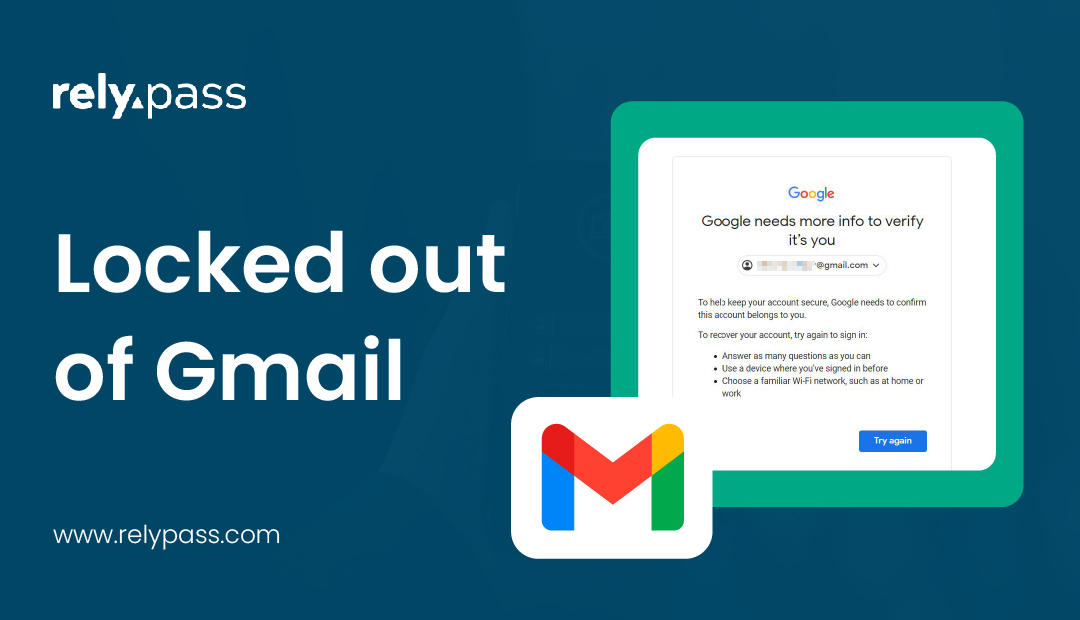
Are you tired of getting locked out of Gmail account? Well, this happens when you try too many wrong passwords. We all know Gmail stores important things like emails, documents, photos, and even purchases from Google Play.
Losing access can disrupt work, school, or personal life. The good news is that most people can get back in with a few steps. So what are these steps?
In this blog, I will explain the reasons for locking out Gmail and step by step process to recover it.
So, let’s begin the discussion.
Why Gmail Locks You Out
Gmail has security measures to protect your account. Sometimes these measures block access temporarily, which can feel frustrating. Knowing why it happens helps you take the right steps.
Too many wrong passwords
Entering the wrong password several times can trigger a temporary lock. This protects your account from unauthorized access.
Suspicious activity or verification issues
If Google notices unusual sign-ins, it may pause your access. Problems with 2-step verification can also cause a lockout.
Security actions after a breach
If Google suspects your account may be part of a larger security problem, it may force a password reset or temporarily block access.
How to Recover a Locked Gmail Account
Most locked accounts can be recovered using Google’s account recovery tools. Here, I will share a step by step process that you can follow to recover a locked gmail account.
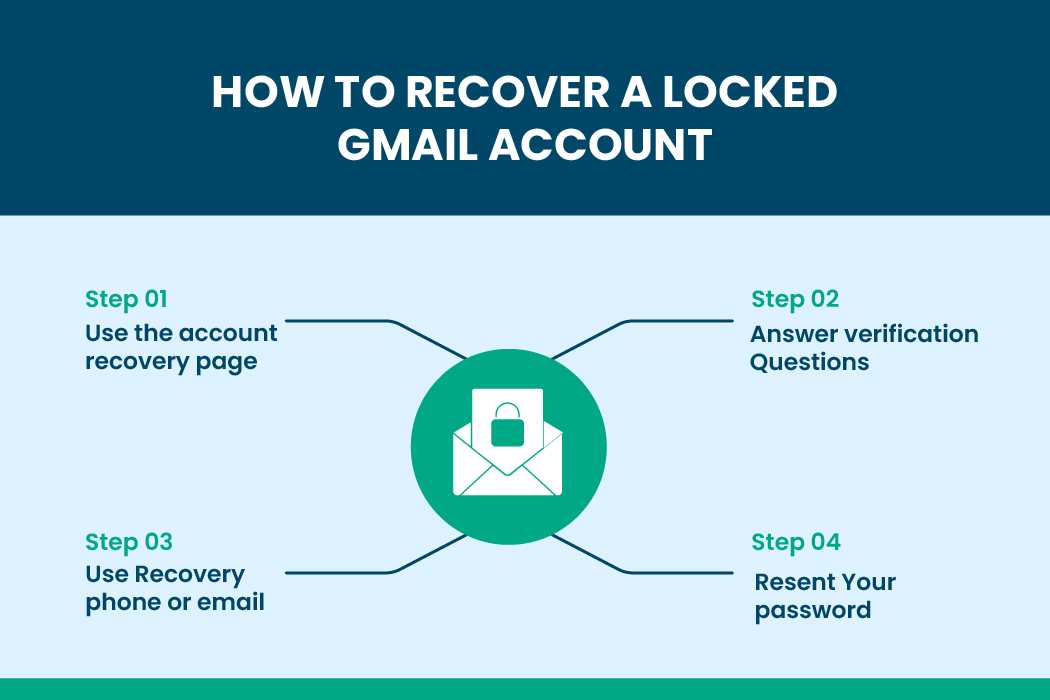
So, the process is:
Step 1: Use the Account Recovery Page
Go to Google’s official recovery page and enter your email address. Google will guide you through steps to confirm you own the account.
Step 2: Answer Verification Questions
Google may ask for:
- The last password you remember
- When you created the account
- Devices or locations you frequently use
- Your recovery phone number or email
Answer as accurately as you can. Even small details, like the month you created the account, can help.
Step 3: Use Recovery Phone or Email
If your recovery options are set up, Google will send a verification code. Enter the code to prove it’s you.
Step 4: Reset Your Password
After verifying, you can create a new password. Pick one that is strong and hasn’t been used for this account before. Avoid simple or common patterns.
Recover Gmail Without Phone or Recovery Email
If your recovery phone or email is unavailable, Google may ask for old passwords, devices, or locations you used to sign in. Providing accurate information increases the chance of getting back in.
What to Do If Verification Codes Don’t Work
Sometimes codes don’t arrive or won’t verify. If this happens:
- Try signing in from a device you often use
- Use a location where you usually log in
- Wait a few hours if multiple attempts fail
How Long Will Gmail Keep You Locked Out?
Understanding lockout duration can reduce stress. Let’s see how long Gmail will keep you locked out.
- Temporary lockouts usually last from a few minutes up to 24 hours. They happen after multiple failed login attempts or unusual activity.
- Longer restrictions are rare but can happen if Google detects repeated security issues.
How to Reset or Change Your Gmail Password
Changing your password is key if your account is locked or has been compromised. You must know how to reset or change your Gmail password.
So, the ways are:
Reset Steps if You Are Logged Out
- Go to Google’s password reset page
- Enter your Gmail address
- Follow the prompts and use recovery options if asked
- Create a new strong password

What to Do If Reset Emails Don’t Arrive
- Check your spam or junk folder
- Make sure you are using the correct recovery email
- Confirm your email service isn’t blocking messages from Google
Read more: Password Reset Email Not Arriving: Major Causes and Proper Solutions
What to Do After a Gmail Data Breach
If your account may have been part of a data breach, so you must :
- Check Google security alerts
- Change your Gmail password immediately
- Update passwords for other accounts using the same login
- Use a secure password manager to store strong passwords

How to Prevent Future Lockouts
Preventing lockouts is easier than fixing them. You must prevent future lockout so that that you can save your gmail.
So, you must do:
- Keep recovery info updated: Make sure your recovery phone and email are current.
- Use backup codes for 2-step verification: Keep them in a safe place so you can access your account if your phone is lost.
- Manage passwords securely: A password manager can help you create strong, unique passwords and store them safely.
Special Situations to Consider
If any special situations happen, you should consider some facts. Keep in mind that being prepared for these situations makes account recovery much easier.
You should consider:
- Locked out of Gmail old phone number: Use a device and location Google recognizes. Answer security questions carefully.
- New phone locked out of Gmail: Sign in from a familiar device or location. This helps Google verify your identity.
- Locked out of Gmail can’t verify: Use all available recovery options and provide accurate information.
- Similar lockout problems on other platforms: Gmail isn’t the only platform where people face unexpected lockouts and verification issues. Facebook users often experience the same frustrations—getting locked out suddenly, codes not arriving, or recovery options not working. If you’re also dealing with Facebook login trouble, see our guide on how to fix Facebook login issues for platform-specific solutions.
Google Gmail Security Settings to Review
Regularly reviewing security settings helps prevent future issues.These checks make sure only authorized devices are connected and alert you to unusual activity.
So, you must review:
- Check devices that are signed in
- Review security alerts and notifications
- Monitor apps that have access to your account
Why 2-Step Verification Helps
2-step verification adds an extra layer of security. Even if someone knows your password, they cannot access your account without the code. Keep backup codes safe and update your phone number if it changes.
End Note
Getting locked out of Gmail can feel stressful, but it can usually be resolved quickly. Keeping recovery info updated, using backup codes, and managing passwords carefully helps prevent future problems.
Regularly checking your security settings and staying aware of possible risks keeps your account safe. By following these steps, you can regain access to Gmail and feel confident your account is secure.