



Why Is Safari Not Saving Passwords and How to Fix It
Is Safari not saving passwords when you try to log in on your iPhone or Mac? It can be really annoying when Safari asks if you want to save your password but then doesn’t remember it. You might be wondering why this keeps happening and how to fix it.
This problem happens more often than you think, but the good news is it’s usually easy to solve. If your iPhone is not remembering passwords or you don’t know how to get Safari to save passwords on your Mac, this blog will help you step by step. Let’s get started.
Why Does Safari Not Saving Passwords Happen?
Safari should make saving passwords simple and automatic. Most of the time, it does. But there are a few reasons why it might not:
- Autofill or iCloud Keychain isn’t switched on. Without these, Safari can’t save passwords.
- You’re browsing in Private Mode. Safari never saves passwords in this mode.
- Your device needs an update. Bugs in older iOS or macOS versions can cause this.
- Glitches or corrupted cached data. This can stop Safari from working correctly.
- Problems syncing with iCloud Keychain. If your passwords don’t sync properly, Safari won’t save new ones.
If you’re stuck with Safari not saving passwords, don’t worry. We’ll go over the fixes step-by-step.
Quick Fixes for Safari Not Saving Passwords on iPhone and iPad
If your iPhone not remembering passwords is driving you nuts, try these easy steps first.
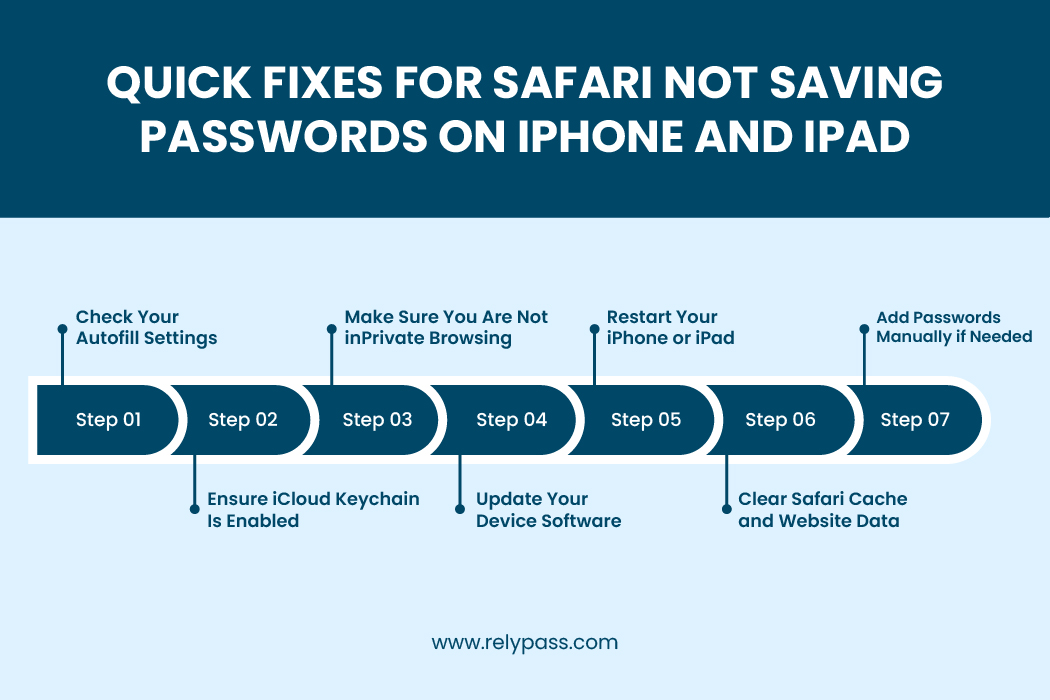
Let’s learn about these quick fixes.
Check Your Autofill Settings
This is usually the simplest fix.
- Open Settings.
- Tap Passwords.
- Select Password Options.
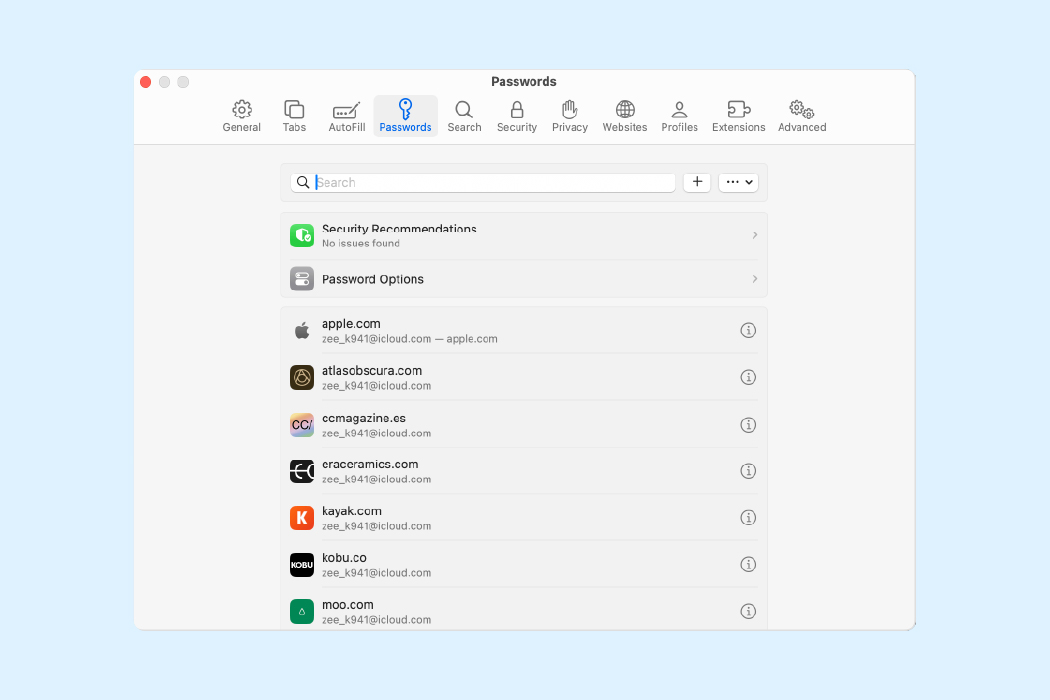
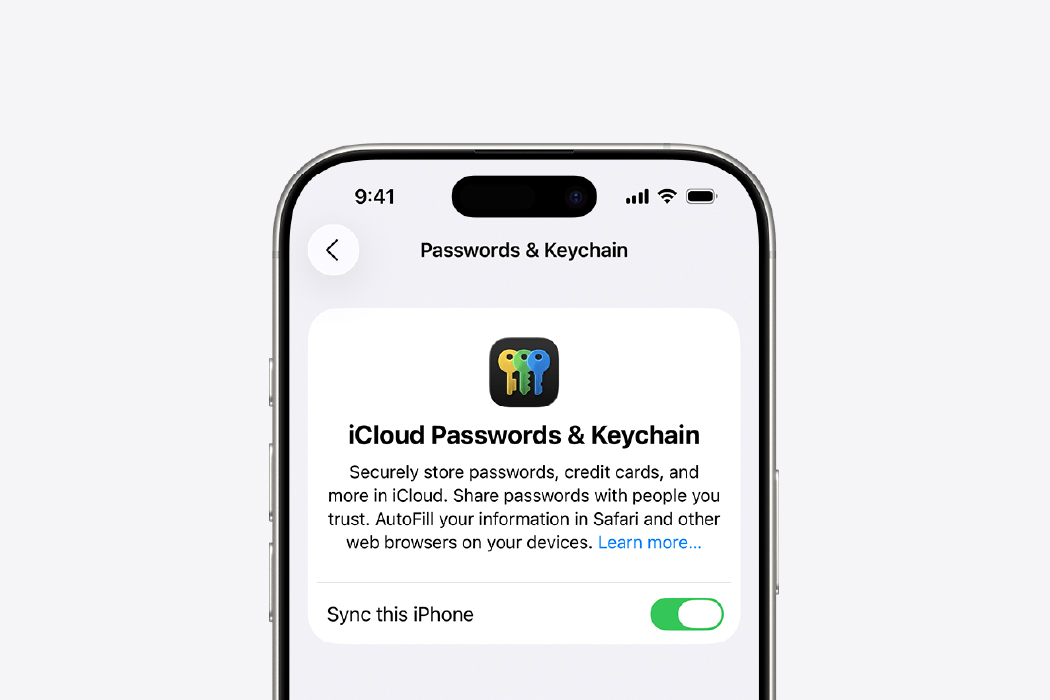
- Make sure AutoFill Passwords & Passkeys is turned on.
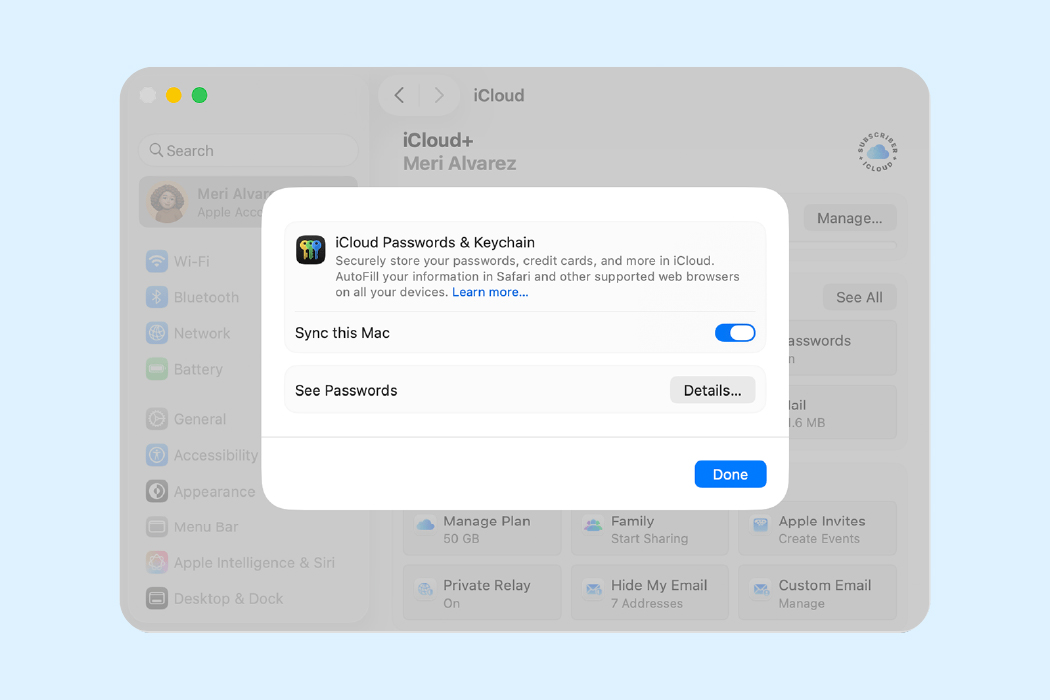
- Then, go to Settings > [Your Name] > iCloud > Passwords & Keychain and make sure iCloud Keychain is enabled.
If these are off, Safari won’t save any passwords.
Make Sure You Are Not in Private Browsing
If Safari’s address bar is dark or black, you’re in Private Browsing mode, which stops it from saving passwords.
- Tap the tabs icon (the two overlapping squares).
- Close any private tabs.
- Open a new regular tab and try logging in again.
Update Your Device Software
If your software is out of date, Safari might act up.
- Go to Settings > General > Software Update.
- Install any updates available.
- Restart your device after updating.
Restart Your iPhone or iPad
Turning your device off and back on can often clear up glitches.
- Power down.
- Wait a few seconds.
- Turn it back on.
- Try logging in again.
Clear Safari Cache and Website Data
Sometimes old data messes things up.
- Go to Settings > Safari.
- Tap Clear History and Website Data.
- This removes cookies and cache but keeps your saved passwords safe.
Add Passwords Manually if Needed
If Safari won’t prompt to save a password on a site:
- Open Settings > Passwords.
- Tap the plus (+) icon.
- Enter the website, username, and password yourself.
Learn more: How to Keep Passwords Safe
Fixing Safari Not Saving Passwords on Your Mac
If you’re on a Mac and Safari is acting up, here’s what to check.
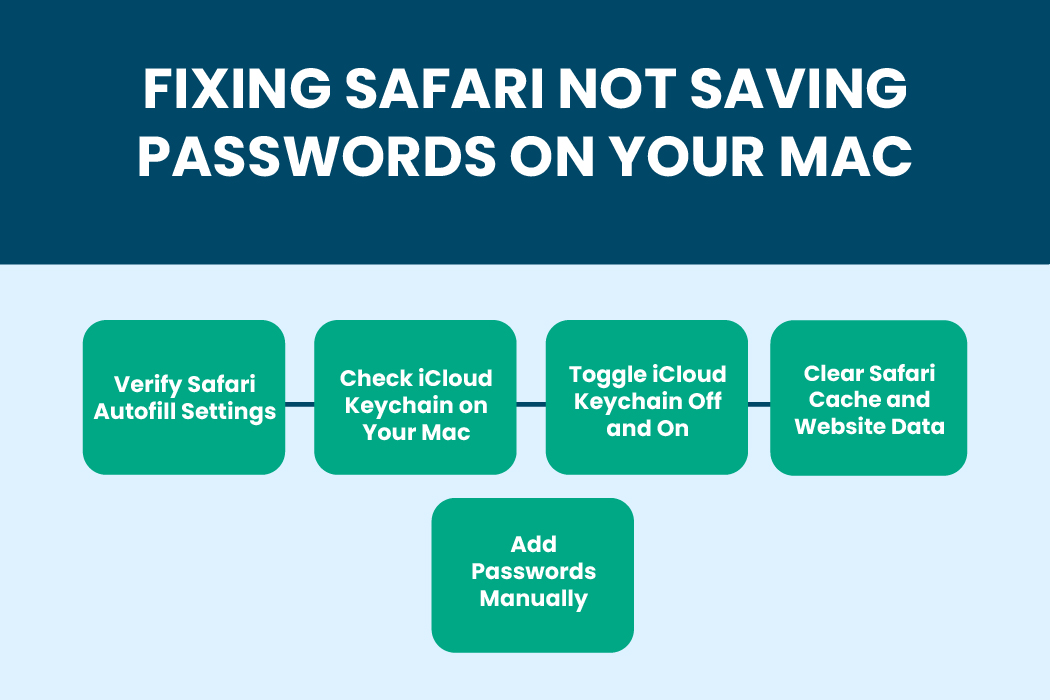
Let’s learn about them here.
Verify Safari Autofill Settings
- Open Safari.
- Click Safari > Settings (or Preferences).
- Choose Autofill.
- Make sure User names and passwords is checked.
Check iCloud Keychain on Your Mac
- Open System Preferences or System Settings.
- Click on your Apple ID.
- Go to iCloud > Passwords & Keychain.
- Ensure iCloud Keychain is turned on.
Toggle iCloud Keychain Off and On
Sometimes turning it off and back on fixes syncing problems.
- Switch iCloud Keychain off.
- Restart your Mac.
- Turn it back on.
Clear Safari Cache and Website Data
- In Safari, go to Safari > Settings > Privacy > Manage Website Data.
- Remove website data or clear it all.
Add Passwords Manually
If Safari won’t save a password on a specific site:
- Open Safari > Settings > Passwords.
- Click the plus (+) icon to add your info.
Read More: Best Password Manager Apps for iPhone (2025)
When Safari Not Saving Passwords Still Won’t Go Away
If none of the above works, here are some other ideas.
Reset iCloud Keychain
- Turn off iCloud Keychain on your device.
- Choose to keep passwords locally when asked.
- Restart your device.
- Turn iCloud Keychain back on and let it resync.
Report the Problem to Apple
Apple listens when enough users report a bug.
- Use the Feedback Assistant app on your device.
- Or go to Apple’s product feedback site.
- Let them know you’re having trouble with Safari not saving passwords.
If resetting Keychain doesn’t help and you think your Apple ID itself is the issue, the next step is to reset your Apple ID account and re-enable Keychain from scratch.
Why Consider Using a Different Password Manager
If you mainly use Apple devices, Safari’s password manager is handy. But it does have limits.
- If someone gets your Apple ID or device passcode, they get access to all your passwords.
- It doesn’t work well on non-Apple devices or with other browsers.
- It doesn’t let you share passwords safely with coworkers or family.
- It lacks extra features like breach alerts and password health checks.
If you use multiple devices or want stronger security and sharing options, look into third-party password managers like 1Password, LastPass, or TeamPassword.
Common Questions About Safari and Passwords
Is Safari’s Password Manager Secure?
It’s fairly secure for Apple users. Passwords are encrypted and synced via iCloud. But since it depends on your Apple ID and device passcode, if those are compromised, so are your passwords.
Will I Lose My Passwords if I Turn Off iCloud Keychain?
No, turning it off stops syncing and autofill, but saved passwords stay on your device until you delete them. It’s smart to export your passwords before turning it off, just to be safe.
How Do I Stop Safari From Suggesting Passwords?
Go to Settings > Passwords > Password Options and turn off AutoFill Passwords. This stops prompts but also means you have to enter passwords manually.
How to Save Passwords on Safari Properly
For Safari to save passwords smoothly:
- Turn on Autofill Passwords and iCloud Keychain.
- Avoid Private Browsing when you want to save passwords.
- Keep your device updated.
- Clear your cache from time to time.
- Restart your device if Safari acts strange.
When you log into a site, Safari should pop up asking if you want to save the password. If not, add it manually under Settings > Passwords.
End Note
In the end,If Safari not saving passwords has been a headache, hopefully, this blog helps you fix it. So, you’re trying to get Safari to save your passwords or your iPhone isn’t remembering them, it usually comes down to a setting or software update.
Give your device a little TLC with the steps here, and Safari will remember your passwords again in no time.When Safari doesn’t work well, a password manager can help keep your passwords safe and make things easier.
If you mostly use Apple devices, Safari can handle the basics. But if you use multiple devices, switch browsers often, or want more control over your passwords, a dedicated password manager can make life easier.
RelyPass is built for iPhone and iPad users who want a simple, secure place to keep passwords without overcomplicating things. You can take a look on the App Store and see if it fits how you manage passwords day to day.
Too Many Login Attempts Error: What It Means and How to Fix It Universal Guide - RelyPass
February 4, 2026[…] Read More: Why Is Safari Not Saving Passwords and How to Fix It […]