


How to Fix iCloud Keychain Not Syncing: A Complete Guide
Is your iCloud Keychain not syncing? Well, this issue happens when your passwords and other saved data may not update across devices. This is a serious issue, as it stores passwords, credit card information, and other sensitive data. So, how to fix this issue?
In this blog, I will explain why iCloud Keychain stops syncing and provide easy ways to fix it. You will also learn here how to sync Keychain between iOS devices and answer common questions about iCloud passwords not syncing.
Let’s begin the discussion.
Why iCloud Keychain Not Syncing Happens
iCloud Keychain not syncing between devices is usually caused by settings issues, outdated software, or temporary glitches. Other reasons can include network problems, mismatched date and time, or even app-related bugs
If your Keychain is not syncing to iCloud, you may notice that passwords saved on one device do not appear on another. Similarly, iCloud passwords not syncing can prevent Safari from autofilling login information, making everyday tasks frustrating.
Understanding these causes makes it easier to solve the problem and restore smooth syncing across all your devices.
Also Read: A Complete Guide to Reset Forgotten iCloud Password
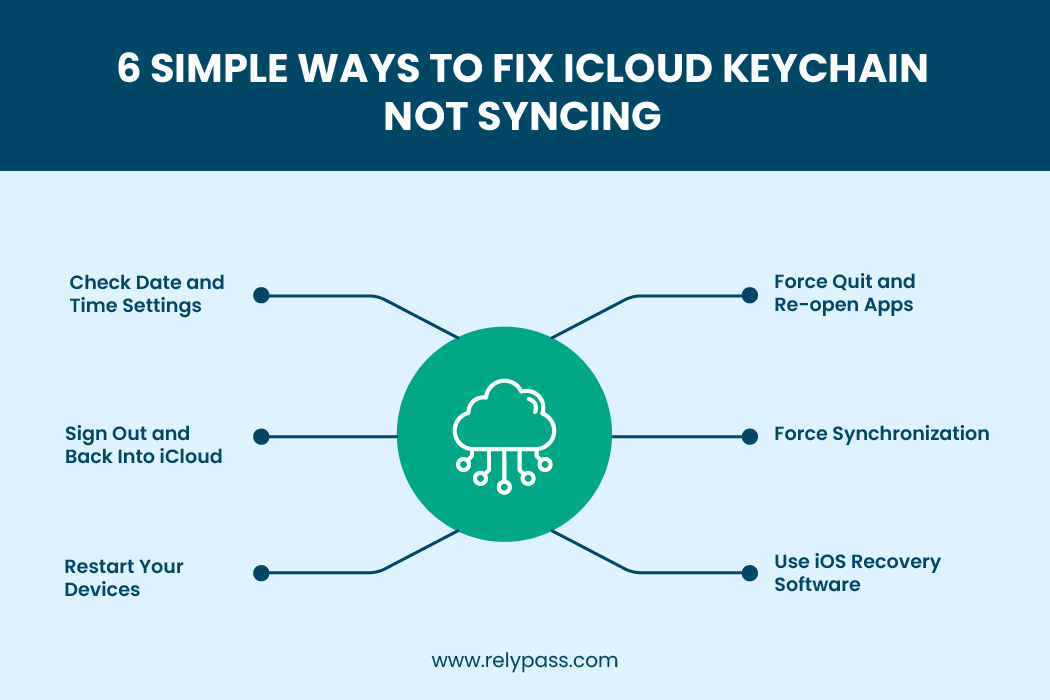
6 Simple Ways to Fix iCloud Keychain Not Syncing
Here are six reliable methods to fix iCloud Keychain not syncing issues. These are easy to follow, even if you are not a technical person.
1. Check Date and Time Settings
Incorrect date and time settings can block Keychain syncing. iCloud Keychain only syncs when the date and time on your devices are correct.
Steps to fix:
- Open the Settings app on your iPhone or iPad.
- Tap General and then Date & Time.
- Enable Set Automatically.
- On Mac, go to System Settings > General > Date & Time and turn on automatic settings.
Also, make sure iCloud Drive is enabled:
Go to Settings > [Your Name] > iCloud > iCloud Drive and toggle it on.
2. Sign Out and Back Into iCloud
If Keychain is not syncing to iCloud, signing out and back in can refresh your credentials and settings.
Steps to log out:
- Open Settings and tap your Apple ID.
- Scroll down and select Sign Out.
- Enter your Apple ID password and choose the data you want to keep on your device.
- Confirm Sign Out.
Steps to log back in:
- Open Settings and tap Sign in to your iPhone.
- Enter your Apple ID and password.
- Enter your device passcode if prompted.
- Go to iCloud and turn on Passwords & Keychain.
This method usually solves iCloud passwords not syncing and Keychain issues between devices.
After this, re-enable Keychain and all settings. If you’ve also forgotten your Apple ID password entirely, follow the steps to reset your Apple ID account before continuing.
3. Restart Your Devices
A simple restart often fixes syncing problems. Turning your iPhone, iPad, or Mac off and then back on can refresh system processes and network connections that may be blocking iCloud Keychain from updating.
Even if it seems basic, restarting can solve temporary glitches that prevent Keychain from syncing to iCloud.
4. Force Quit and Re-open Apps
Sometimes, apps that use iCloud Keychain have corrupted data or bugs. Force-quitting these apps can help resolve the issue.
Steps:
1. On iPhone, swipe up from the bottom and pause to see all apps. On older devices, press the Home button twice.
2. Swipe up on apps using Keychain to close them.
3. Wait a few minutes, then reopen the apps.
This can fix problems that stop iCloud Keychain from syncing between devices.
5. Force Synchronization
If Keychain is still not syncing, you can manually force iCloud to update. This works well for apps like Calendar and Contacts that rely on iCloud.
Steps for Calendar (example):
- Open the Calendar app on your iPhone or iPad.
- Tap Calendars at the bottom.
- Pull down to refresh until you see the spinning activity icon.
This process can also help iCloud passwords not syncing correctly in Safari or other apps. If apps keep signing you out too, see our guide to apps logging out.
6. Use iOS Recovery Software
If none of the above steps work, corrupted iOS files might be causing the problem. Software like TunesKit iOS System Recovery can fix these issues without losing data.
Steps:
- Download and install TunesKit iOS System Recovery on your computer.
- Connect your iPhone or iPad via USB.
- Select Standard Repair to safely fix Keychain syncing issues.
- Download the firmware package and click Repair Now.
Learn More: Best Password Manager Apps for iPhone (2025)
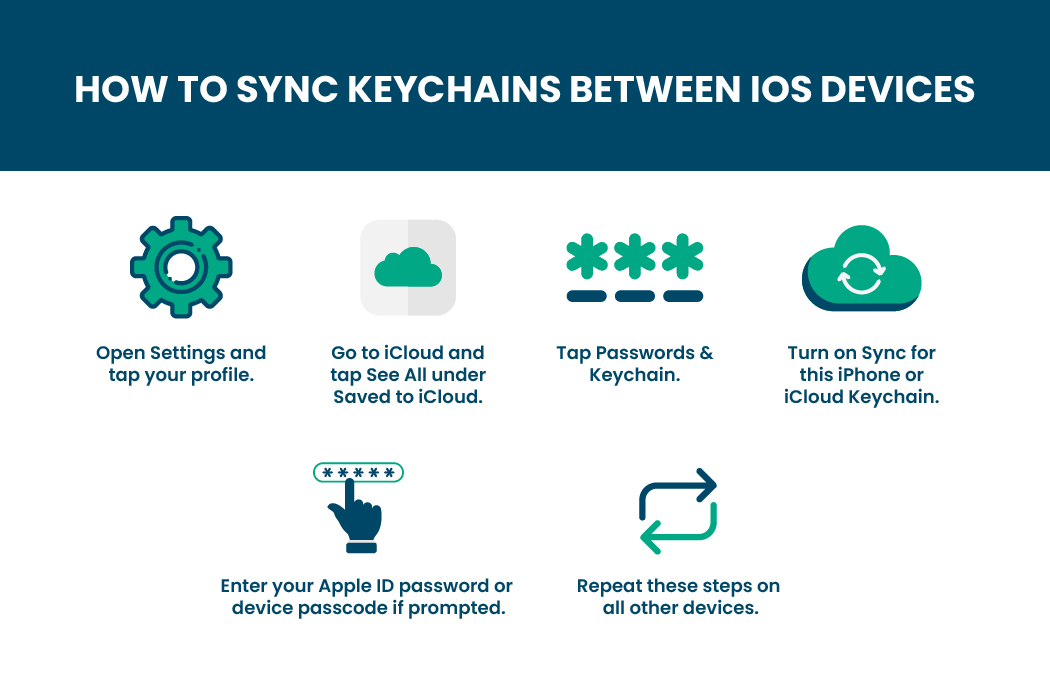
How to Sync Keychains Between iOS Devices
Once iCloud Keychain not syncing issues are fixed, you may want to ensure Keychain works on all devices.
Steps:
- Open Settings and tap your profile.
- Go to iCloud and tap See All under Saved to iCloud.
- Tap Passwords & Keychain.
- Turn on Sync for this iPhone or iCloud Keychain.
- Enter your Apple ID password or device passcode if prompted.
- Repeat these steps on all other devices.
Following this method ensures your Keychain is fully synced, and iCloud password not syncing issues are resolved.
Passwords Not Syncing Between iPhone and iPad
Password syncing between your iPhone and iPad usually stops when the devices are not signed into the same Apple ID. Check that both devices use the same account and that Passwords & Keychain is turned on in iCloud settings on each one.
Also make sure both devices have a stable Wi-Fi or mobile data connection, since sync cannot complete offline. Once everything is set up correctly, wait a few minutes for iCloud to sync your passwords across both devices.
Passwords Not Syncing Between iPhone and Mac
If your passwords are not syncing between your iPhone and Mac, first check that Passwords & Keychain is turned on in your Mac’s iCloud settings under System Settings > [Apple ID] > iCloud. Then open Safari > Settings > AutoFill and make sure Usernames and Passwords is ticked.
If the problem continues, restart both devices and give iCloud a few minutes to sync.
Fixing iCloud Keychain Not Syncing in Safari
Sometimes, Safari does not save passwords or credit card information, even if iCloud Keychain is enabled.
Check these settings:
- AutoFill:
- On iPhone: Settings > Passwords > Password Options > AutoFill Passwords
- For credit cards: Settings > Safari > AutoFill > Credit Cards
- Private Browsing: Ensure it is off. Safari does not save passwords in Private Browsing mode.
- On Mac: Safari > Settings > AutoFill and ensure Usernames, passwords, and Credit Cards are selected.
These steps help fix Keychain not syncing to iCloud, specifically for Safari.
What to Do if Keychain Items Are Missing
iCloud Keychain not syncing between devices may also happen after restoring your device from a backup. Keychain items are not included in iCloud backup, so they may not appear after restoration.
Check the following:
- iCloud Keychain is turned on for all devices.
- You did not turn off Keychain and delete items.
- You did not reset Keychain using Keychain Access on the Mac.
If items are missing, set up iCloud Keychain on the device with the most recent information, then enable it on other devices. This usually resolves syncing problems.
Apple Passwords App Not Syncing (iOS 18 and Later)
Apple introduced a standalone Passwords app with iOS 18, iPadOS 18, and macOS Sequoia. Instead of managing saved passwords through iCloud Keychain settings, you now have a dedicated app. The interface looks different, but the syncing engine behind it has not changed — it is still iCloud Keychain.
The New App Uses the Same Sync System
It is easy to assume the Passwords app is a completely new service, but that is not the case. It still uses iCloud Keychain to keep your passwords updated across your Apple devices. If your passwords are not syncing, the fixes earlier in this guide still apply.
Make Sure iCloud Sync Is Turned On
Open the Passwords app on your iPhone or iPad. Tap the three-dot menu, open Settings, and check that iCloud sync is enabled. If it is turned off, switch it on and wait a few minutes for your passwords to update.
Check iCloud Permission for Passwords
The Passwords app also needs permission to access iCloud. Go to Settings, tap your Apple ID, then open iCloud. Find Passwords and make sure the toggle is turned on — without this permission, syncing may not work properly.
Confirm iCloud Drive Is Enabled
Finally, make sure iCloud Drive is enabled in your iCloud settings — the Passwords app depends on it to sync your saved passwords between devices. If everything is turned on and syncing still does not work, restarting your device can often refresh the connection.
Give iCloud Time to Complete the Sync
Password syncing is not always instant. After enabling iCloud sync or changing any settings, wait a few minutes before checking another device. A stable internet connection also helps iCloud update your passwords without interruption.
iCloud Keychain Won’t Turn On — How to Fix It
Sometimes the iCloud Keychain switch will not turn on at all — this applies whether you see it as iCloud Keychain in Settings or as the Passwords app on iOS 18 and later, since both control the same underlying toggle. It may appear grayed out or switch itself off as soon as you enable it. This is different from a syncing problem because Keychain is not active in the first place.
One common reason is Screen Time restrictions. Go to Settings > Screen Time > Content & Privacy Restrictions > Allow Changes and make sure Passwords is set to Allow.
Another possible cause is your Apple ID. If your account needs verification, the Keychain switch may not stay enabled — signing out of iCloud and back in often refreshes your account and fixes the issue. You should also check your iCloud storage, since a full account can stop Keychain from working as expected until you free up space.
If you use a work or school device, a device management profile may be blocking Keychain — in that case, contact your IT administrator for help. After checking these settings, try turning on iCloud Keychain again. In most cases, one of these steps gets it working.
Still Not Syncing After All Fixes? Try This
If you have checked your settings, updated your devices, and made sure your internet connection is stable, but your passwords still are not syncing, try resetting iCloud Keychain.
Open Settings, tap your Apple ID, go to iCloud, then Passwords & Keychain, and turn it off. Remove the Keychain data from your device when prompted, restart your device, and then turn the feature back on. This lets iCloud download a fresh copy of your saved passwords.
If syncing still does not work, visit Apple’s System Status page — it shows whether iCloud services are experiencing any temporary issues that could affect password syncing.
If there are no reported service issues, contact Apple Support and tell them iCloud Keychain is not syncing even after resetting it and trying the usual troubleshooting steps. Apple Support can check your account for issues that are not visible on your device and help you get iCloud Keychain working again.
Common Questions About iCloud Keychain Not Syncing
Q1: Why are my iCloud passwords not syncing?
A: This happens if Keychain is off, devices are offline, or Safari settings block AutoFill. Check settings and restart devices.
Q2: How do I fix Keychain not syncing to iCloud?
A: Use the steps above, including logging out of iCloud, restarting devices, or using iOS recovery tools.
Q3: What if Safari won’t save passwords?
A: Ensure Private Browsing is off and AutoFill is enabled. Some websites block password saving.
Q4: How do I sync Keychain between iPhone and Mac?
A: Turn on iCloud Keychain on both devices under Settings > iCloud > Passwords & Keychain.
End Note
In the end, yes, iCloud Keychain not syncing is a serious issue. However, you can easily fix it if you follow my suggested steps. Start by checking the date and time, network connections, and iCloud settings. If problems persist, sign out of iCloud and log back in, restart your devices, or use iOS recovery software.
After fixing the issue, your Keychain will sync on iPhone, iPad, and Mac. Your passwords, credit cards, and other important information will always be up to date and easy to access. Fixing iCloud Keychain not syncing keeps your accounts secure and makes daily tasks easier.