


How to Reset My Apple ID Account: A Complete Guide
If you cannot sign in to your Apple Account, you may wonder, ‘how to reset my Apple ID account?’ This can happen if you forget your password, get a new device, or need to secure your account. Apple provides several ways to reset your password, depending on what devices or information you have available.
In this blog, I will explain each method to reset an Apple ID account, with steps for iPhone, iPad, Mac, the Apple Support app, and the web. Here, you will also learn how to find Apple ID password without resetting it.
Let’s get started.
Why You May Need to Reset Your Apple ID Account
There are a few common reasons to reset your Apple ID account:
- You forgot your Apple ID password.
- Your account may have been accessed by someone else.
- You have a new Apple device to set up.
- You have been locked out after multiple incorrect sign-in attempts.
Even if your account is secure, sometimes iCloud Keychain not syncing between devices or keychain not syncing to iCloud can cause problems with saved passwords. These issues do not prevent you from resetting your Apple ID, but they may require additional steps afterward to ensure your passwords and credit cards sync correctly.
How to Reset My Apple ID account: 5 Effective Methods
Now you may wonder how to reset my Apple ID account. Well, here, I will share 5 effective methods that you can follow to reset the account.
So, these methods are:
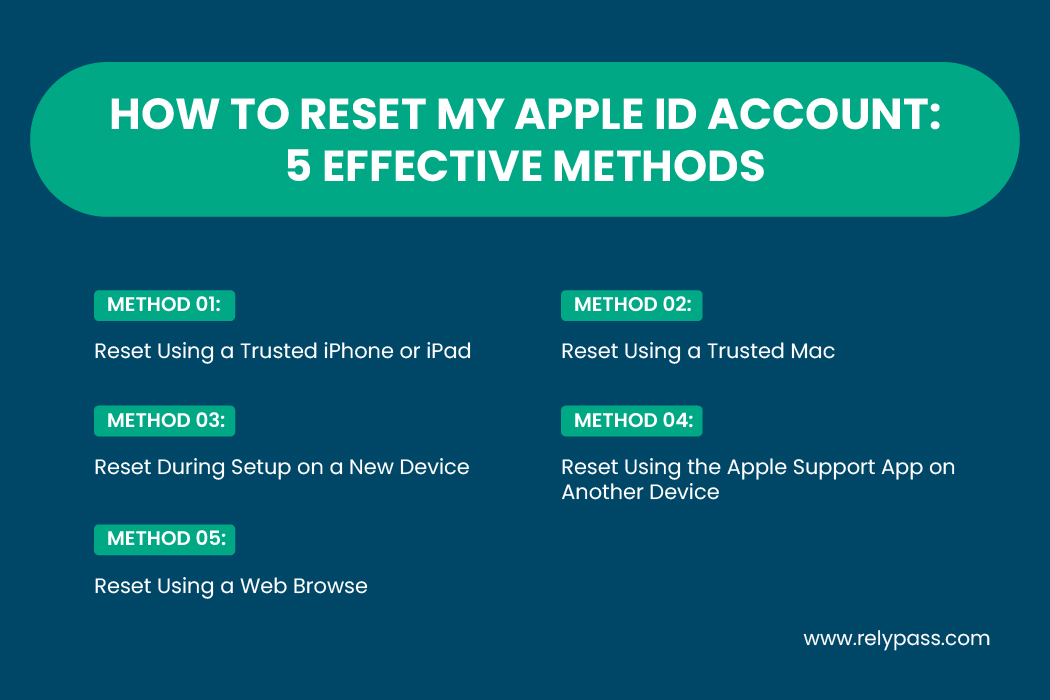
Method 1: Reset Using a Trusted iPhone or iPad
If you are signed in on your device, you can reset your password directly from it. This is the most straightforward method when people search for ” How to reset my Apple ID account.”
Steps:
- Open Settings.
- Tap your name at the top.
- Select Sign-In & Security.
- Tap Change Password.
- Enter your device passcode when prompted.
- Follow the instructions to set a new password.
Apple updates your password across all devices linked to your account. If iCloud passwords are not syncing, this may help refresh them after the reset.
Method 2: Reset Using a Trusted Mac
You can also reset your Apple ID on a Mac that is signed in. This is another reliable method for those searching for how to reset my Apple ID account.
Steps:
- Click the Apple menu at the top left of your screen.
- Select System Settings.
- Click your name and choose Sign-In & Security.
- Click Change Password.
- Enter your Mac password.
- Set a new Apple ID password.
Method 3: Reset During Setup on a New Device
If you are setting up a new iPhone, iPad, or Mac and cannot sign in, you can reset your password during device setup. This option is useful when people search for how to reset my Apple ID account for a new device.
Steps:
- Turn on the device and start the setup process.
- At the Apple Account sign-in screen, tap Forgot password?
- Enter your Apple ID email or phone number.
- Follow the on-screen instructions to verify your identity.
Once verified, you can create a new password and continue setting up your device.

Method 4: Reset Using the Apple Support App on Another Device
If you do not have access to your own Apple device, you can borrow one from a friend or family member. This works if you have a trusted phone number. Many users look for how to reset my Apple ID account in this situation.
Steps:
- Open the Apple Support app on the borrowed device. You can download it from the App Store if needed.
- Scroll to Support Tools and tap Reset Password.
- Tap Help Someone Else.
- Enter your Apple ID email or phone number.
- Follow the instructions on screen.
The borrowed device does not save your information. This method is also helpful if you want to know how to find Apple ID password without resetting it, because it allows access to recovery options securely.
Method 5: Reset Using a Web Browser
If you cannot reach any Apple device, you can reset your password online. This method may take longer, but it works. Users often search ‘How to reset my Apple ID account’ when they do not have their devices nearby.
Use Apple’s official pages:
Steps:
- Go to iforgot.apple.com.
- Enter your Apple ID email or phone number.
- Verify your phone number if prompted.
- Follow the on-screen steps to reset your password.
Sometimes the browser will redirect you to a trusted device. If you cannot use one, continue the reset through the web instructions.
Things to Keep in Mind While Resetting Apple ID
When searching for how to reset my Apple ID account, there are a few points to remember:
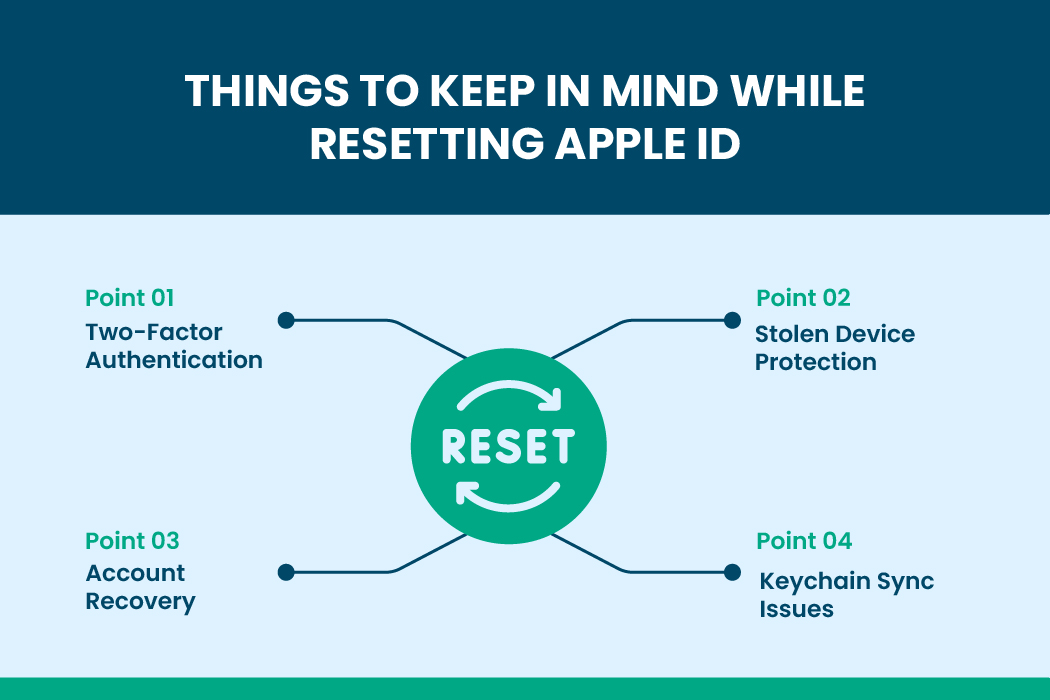
Two-Factor Authentication
Apple sends a verification code to a trusted device or phone number. This confirms your identity.
Stolen Device Protection
If enabled, Apple may delay the reset for one hour to protect your account.
Account Recovery
If Apple cannot immediately verify your identity, the process may take several days.
Keychain Sync Issues
Sometimes, iCloud Keychain does not sync between devices, or the keychain not sync to iCloud prevents passwords from appearing immediately. After resetting your password, check Keychain settings and turn it off and on if needed.
How to Find Your Apple ID Password Without Resetting It
Some people want to know how to find their Apple ID password without resetting it. Apple does not show your current password, but if you have saved passwords in iCloud Keychain, you can view them on your devices:
- On iPhone: Settings > Passwords
- On Mac: System Settings > Passwords
If your iCloud passwords are not syncing, you might not see the latest ones. In that case, resetting your password is the safest option. You can also try Relypass, a free and secure app for iOS that keeps your passwords safe and easy to access whenever you need them.
Why Resetting Your Apple ID Is Important
Resetting your Apple ID password protects your account. It ensures that only you have access. After resetting, your Apple devices will update automatically. Checking Keychain and iCloud settings afterward ensures passwords and payment information sync correctly.
Tips for a Smooth Password Reset
- Use a trusted device whenever possible.
- Create a strong password with letters, numbers, and symbols.
- Keep a backup of your Apple ID email or trusted phone number.
- After resetting, check iCloud Keychain settings.
- Sign out and back in on your devices if passwords do not update.
End Note
In the end, following these steps ensures you know exactly how to reset my Apple ID account whenever needed. After resetting, check that Keychain is working properly if iCloud Keychain is not syncing between devices.
If you want to know how to find an Apple ID password without resetting it, you can look at saved passwords in Keychain. Otherwise, resetting your password is the best way to keep your account secure and up to date.