


Forgot WiFi Password? How to Recover It — And Never Lose It Again
TLDR Forgot WiFi password? You can recover it from a device or reset it at the router. If a device is still connected, check iPhone Settings → Wi-Fi, Windows Network Settings, or Mac Keychain, where the password is saved. If nothing is connected, log into your router at 192.168.0.1 or 192.168.1.1 using the credentials on the router label. If you forgot the router admin password too, hold the reset button for 8–10 seconds to restore factory defaults. If you reset your phone recently, check iCloud Keychain or Google backup first.
Forgot WiFi password and can’t get back online? It happens to everyone. You try connecting a new phone or laptop, but the password you thought you knew just doesn’t work. Suddenly, checking emails, joining video calls, or using smart devices comes to a stop.
You don’t need to worry. In this blog, you will get the solution to this issue. Here, I will explain easy ways to recover your WiFi password using connected devices, your router, or backup options. If recovery fails, I will show you how to reset your WiFi password too.
So, let’s begin the discussion.
Table of Contents
If You’re Still Connected to the WiFi
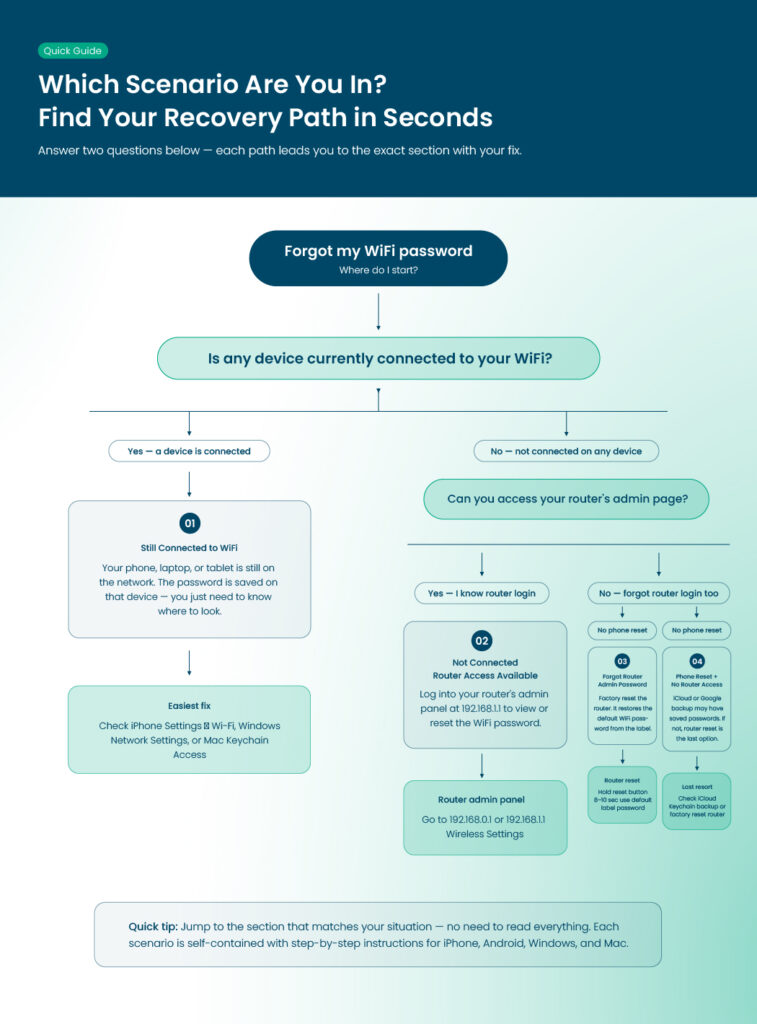
If your device is still connected, WiFi password recovery is usually simple. Many devices automatically save your WiFi credentials, and you can pull them up quickly.
Let’s see what you can do on different devices:
On iPhone or iPad
Apple devices store passwords in iCloud Keychain if it is enabled. To retrieve it:
- Open Settings and tap Wi-Fi.
- Tap the info icon next to your network.
- A hidden password field may appear. Authenticate with Face ID, Touch ID, or passcode.
- Tap Copy to copy the password to your clipboard.
This works if you are connected to the network. To find the saved WiFi password iPhone for other networks, open Settings > Wi-Fi > Known Networks, verify your identity, and repeat the steps above. This is especially useful if you shared the network with friends in the past but now need the password yourself.
On Android Devices
Different Android devices handle saved passwords differently, but most modern phones make it easy:
- Stock Android:
- Go to Settings > Network & Internet > Internet.
- Tap Saved Networks, select the network, and tap Share.
- Authenticate and locate the password under the QR code.
- Samsung devices:
- Go to Settings > Connections > Wi-Fi.
- Tap the gear icon next to your network.
- Tap QR Code > Quick Share or Save as Image.
- Use Google Lens on the image to read the password if it isn’t displayed directly.
Even if the password field looks hidden, these QR codes often show the password behind the scenes, which can save time.
On Windows
Windows PCs save WiFi passwords automatically once you connect. If you are still connected:
- Open Settings > Network & Internet.
- Select Wi-Fi > Manage known networks.
- Click your network name, then Properties.
- Under Security, click Show characters to reveal your password.
If you prefer the command line, this works on Windows 10 and 11:
- Open Command Prompt as administrator.
- Type ‘netsh wlan show profiles’ to see saved networks.
- Type netsh wlan show profile name=”NetworkName” key=clear and press Enter.
Look under Key Content to find your password.
This method is especially handy if you forgot WiFi password but are still connected on a different device.
On Mac
Macs save WiFi passwords in Keychain Access, which is easy to access:
- Open Keychain Access from Applications or Spotlight.
- Search for your network name.
- Double-click it, check Show password, and authenticate with your admin password.
- Copy the password for use.
If you regularly connect to multiple networks, Keychain can be lifesaving. You can see all saved WiFi passwords in one place, which helps avoid repeated frustration.
If You’re Not Connected to The WiFi Anymore
If your device isn’t connected to WiFi, the recovery process requires access to your router or your ISP account.
How to Reset WiFi Password From the Router Admin Panel
Most routers allow you to view or change passwords through an admin page:
- Connect a device to the router via Ethernet or WiFi from a connected device.
- Enter the router’s IP address (common examples are 192.168.0.1 or 192.168.1.1) in a web browser.
- Log in with the router credentials. Many routers list default login information on a sticker.
- Open Wireless Settings to view or change your password.
Even if you don’t remember the old one, you can set a new WiFi password here.
Default Credentials
If you forgot WiFi password and haven’t changed the router password, check the sticker on the router. It often lists Wi-Fi password, WPA key, or wireless key. Many people overlook this simple solution.
ISP Login Access
Some ISPs let you manage your WiFi password online. Logging in to your account can show your current password or allow you to set a new one. This is particularly useful if multiple people in the household use the same router.
If You Forgot Router Admin Password
Router admin credentials are different from your WiFi password. Losing this makes password recovery harder.
Reset Implications
If you cannot log in, a factory reset may be necessary. Press the small Reset button on your router for 8–10 seconds. Lights will flash briefly, indicating the reset.
What Factory Reset Actually Erases
- Restores default WiFi password printed on the sticker.
- Erases custom settings such as port forwarding or parental controls.
- Disconnects all connected devices.
What Happens to Smart Home Devices
Smart devices like cameras, lights, and thermostats may disconnect. You will need to reconnect them using the new WiFi password. This can be time-consuming but is necessary after a reset.
If You Reset Your Phone
A phone reset can also make WiFi passwords disappear, even if they were saved before.
iCloud or Google Backup Reality
- iPhones using iCloud Keychain can restore saved WiFi passwords.
- Android devices synced with a Google account may restore some passwords.
When Recovery Is Possible
If your phone reset without backup, and no device is connected to WiFi, your only solution is to recover the password via router reset or ISP login. It’s a good reminder to back up passwords regularly.
Learn more: Problems With Two Factor Authentication: You Must Know
What Not To Do When You Forget WiFi Password
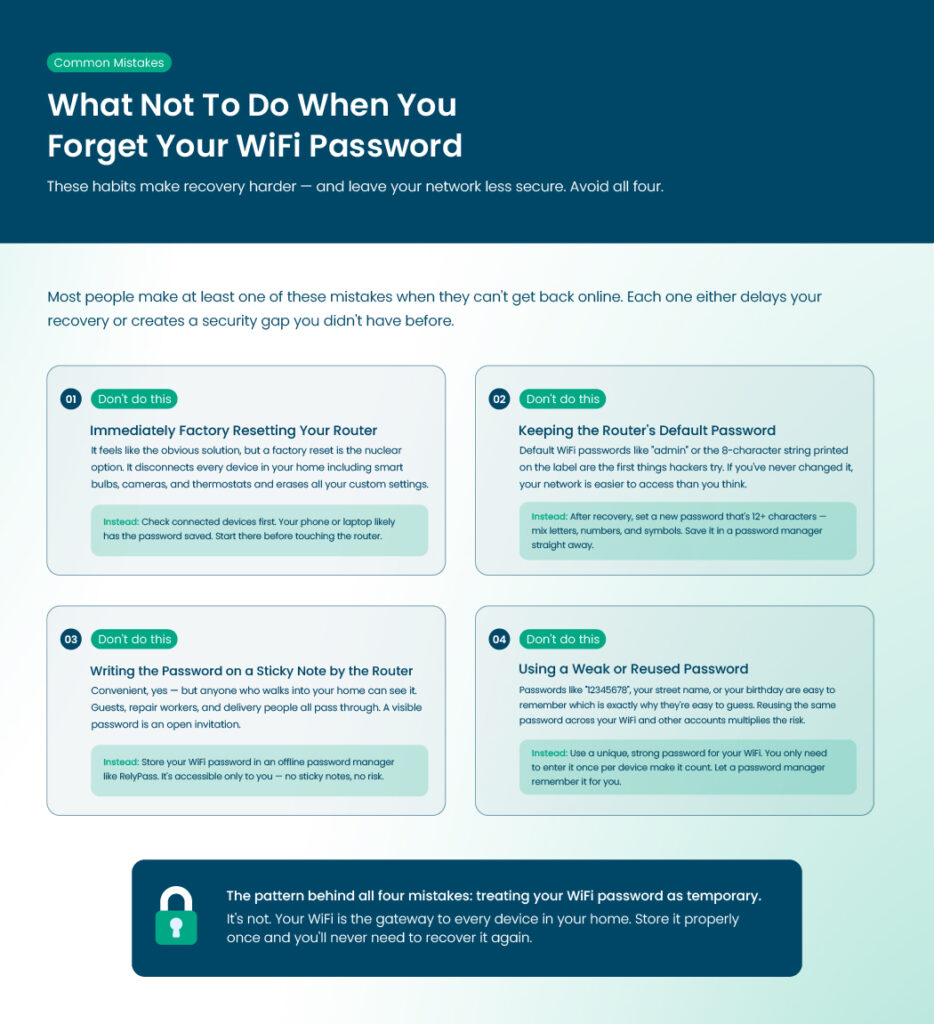
Certain habits make WiFi recovery harder. Avoid these:
- Avoid resetting your router right away. There are usually easier ways to recover your password first.
- Change the default password, since hackers often try these first.
- Avoid writing passwords on the router or on sticky notes, as they can be lost or seen by others.
- Use strong, unique passwords instead of weak ones to keep your network secure.
When Recovery Is Not Possible
Sometimes, no matter what you try, there’s just no way to recover your WiFi password. This usually happens if:
- None of your devices are currently connected to the WiFi network.
- You can’t access the router’s admin page because you forgot the login credentials.
- Your ISP account doesn’t give you access to manage your WiFi settings.
- You don’t have any backup of saved passwords on your phone, computer, or password manager.
In such cases, a factory reset is the only option. This will restore the default WiFi password printed on the device. After that, you can create a new password that’s easy to remember and secure.
Keep in mind that a reset will disconnect every device connected to the network. Phones, laptops, smart home devices, and printers will need to reconnect using the new password.
How to Never Forget Your WiFi Password Again
Preventing a forgotten password is easier than recovery. These tips help keep your WiFi credentials safe and accessible.
So, let’s learn how to never forget your WiFi password again.
Add an infographic here
How to Never Forget Your WiFi Password Again
- Store in a Password Manager
- Sync Across Devices
- Keep a Secure Backup
- Avoid Relying Only on Browser Memory
- Use Strong, Unique Passwords
- Update Periodically
Store in a Password Manager
Password managers save WiFi passwords securely. Many can autofill passwords on devices, which saves time and avoids repeated recovery attempts. So, try RelyPass, the best password manager, to keep your passwords safe.
Sync Across Devices
Enable syncing across all devices. If one device is lost or reset, your WiFi password is still available elsewhere.
Keep a Secure Backup
Store a written copy in a safe place or in an encrypted note. Avoid keeping it on sticky notes or in easily accessible places.
Avoid Relying Only on Browser Memory
Browsers can lose passwords after updates or resets. Password managers or keychains are more reliable for long-term storage.
Use Strong, Unique Passwords
Combine letters, numbers, and symbols. Avoid simple passwords like 12345678. Strong passwords protect your WiFi and prevent unauthorized access.
Update Periodically
Changing your WiFi password every few months can enhance security. Make sure to update the password across all devices immediately.
FAQs
Can I recover my WiFi password without resetting the router?
Yes, in most cases you can. If your device is still connected to the WiFi, the password is usually saved there. You can check your phone, tablet, or computer for saved passwords. You can also log in to your router’s admin page through a web browser or check your ISP account if it supports online network management. Resetting the router is only needed if none of these options work.
Where is my WiFi password stored on an iPhone?
On an iPhone, saved WiFi passwords are kept in iCloud Keychain if it’s turned on. To find it, go to Settings > Wi-Fi, tap the info icon next to your network, and verify with Face ID, Touch ID, or your passcode. Once verified, you can view or copy the password. This is handy when setting up a new device or helping a friend connect.
What happens if I factory reset my router?
A factory reset restores your router to its original settings. Your WiFi password will go back to the default one printed on the device, and any custom settings like parental controls or network names will be erased. Every connected device will be disconnected, and you’ll need to reconnect them using the default or a new password. It’s a reliable last option if you can’t recover your password any other way.
Can someone access my WiFi password if they steal my phone?
It’s possible if your phone stores passwords without requiring authentication. That’s why it’s important to protect your phone with a passcode, Face ID, or Touch ID. Using a password manager with a master password adds another layer of security and keeps your WiFi information safe.
Is there a way to see passwords for networks I connected to years ago?
Yes. On Windows, you can use the command line to see saved networks. On a Mac, you can find them in Keychain Access, where you can reveal passwords with your admin password. On mobile devices, older networks may still appear in Known Networks if you haven’t removed them.
Can I share my WiFi password safely with guests?
Absolutely. Many routers and devices let you share WiFi through a QR code or set up a temporary guest network. This way, friends or visitors can connect without you giving out your main password.
I forgot my WiFi password and no device is connected. What should I do?
If no device is connected and you don’t have access to the router login, a factory reset is usually the only solution. After resetting, use the default password printed on your router to reconnect and set a new one. Make sure to save it in a password manager or somewhere secure so you won’t have this problem again.
End Note
In the end, now you know what to do when you forgot WiFi password. You can get it back without any hassle. Check your connected devices, log into your router, or use backup services to find the password and get back online.
Taking a few simple steps now will also help you avoid this problem in the future by keeping your passwords safe and easy to access. Next time you forget, you will know exactly what to do, and your WiFi will stay under your control.
Still connected to a device?
Check iPhone Settings → Wi-Fi, Windows Network Settings, or Mac Keychain. The password is saved there — you just need to know where to look.
Not connected at all?
Log into your router at 192.168.0.1 or 192.168.1.1. Credentials are printed on the router label. Wireless Settings → show password.
Forgot router admin password too?
Hold the reset button for 8–10 seconds. This restores factory defaults — use the default password on the label to get back in.
Prevent it next time
Save your WiFi password in a password manager. One secure place — accessible from any device, even if you’re locked out.
Never lose a password again
RelyPass stores your passwords offline with strong encryption. Works without internet — perfect for exactly this situation.