


Password Not Accepted: The Complete Guide to Fix and Prevent Login Problems
Are you struggling to log in even though your password is correct? The message ‘password not accepted’ can be confusing. You type carefully, check every letter, and still the system does not let you in. This can happen on email, social media, work accounts, apps, or websites, leaving you unsure why it is not working.
The password not accepted message usually happens because of small issues that are easy to miss. Extra spaces, wrong capitalization, outdated autofill, browser cache, or device syncing problems can all cause login errors.
In this blog, I will explain why this happens, show you simple ways to fix it on any device, and give tips to prevent it from happening again. By following these steps, you can get back into your accounts quickly, avoid repeated login problems, and make signing in easier and stress-free.
Let’s begin the discussion.
What Does Password Not Accepted Mean
When you see the message password not accepted, it means the password you typed does not match the one saved by the system. This can happen on desktops, laptops, phones, tablets, or even smart TV apps. The message is straightforward, but it can be confusing because it may appear even when your password is correct.
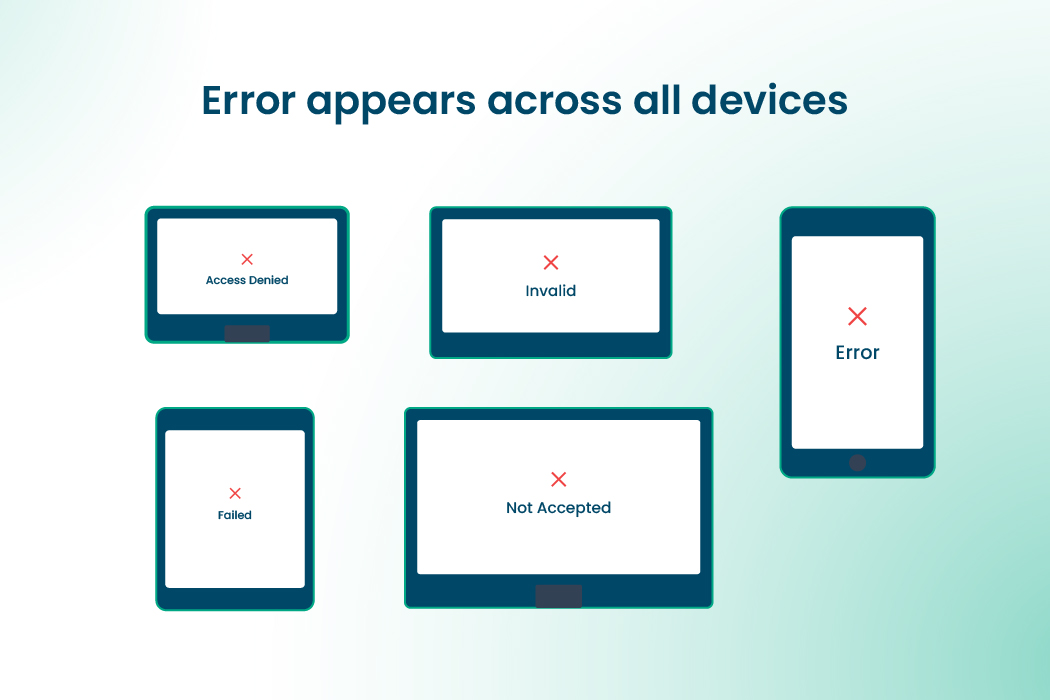
The error can show up on Windows computers, Mac laptops, iPhones, Android phones, web browsers, and apps if there is a small difference between what you type and what the system expects.
Many people get tense because they know their password is correct, yet the system refuses it. Invisible spaces, wrong capitalization, outdated autofill, or rules about usernames can all cause password not accepted. Understanding why this happens is the first step to fixing it and avoiding it in the future.
Why You Are Getting Password Not Accepted
Even when your password is correct, there are many reasons why the system might reject it.
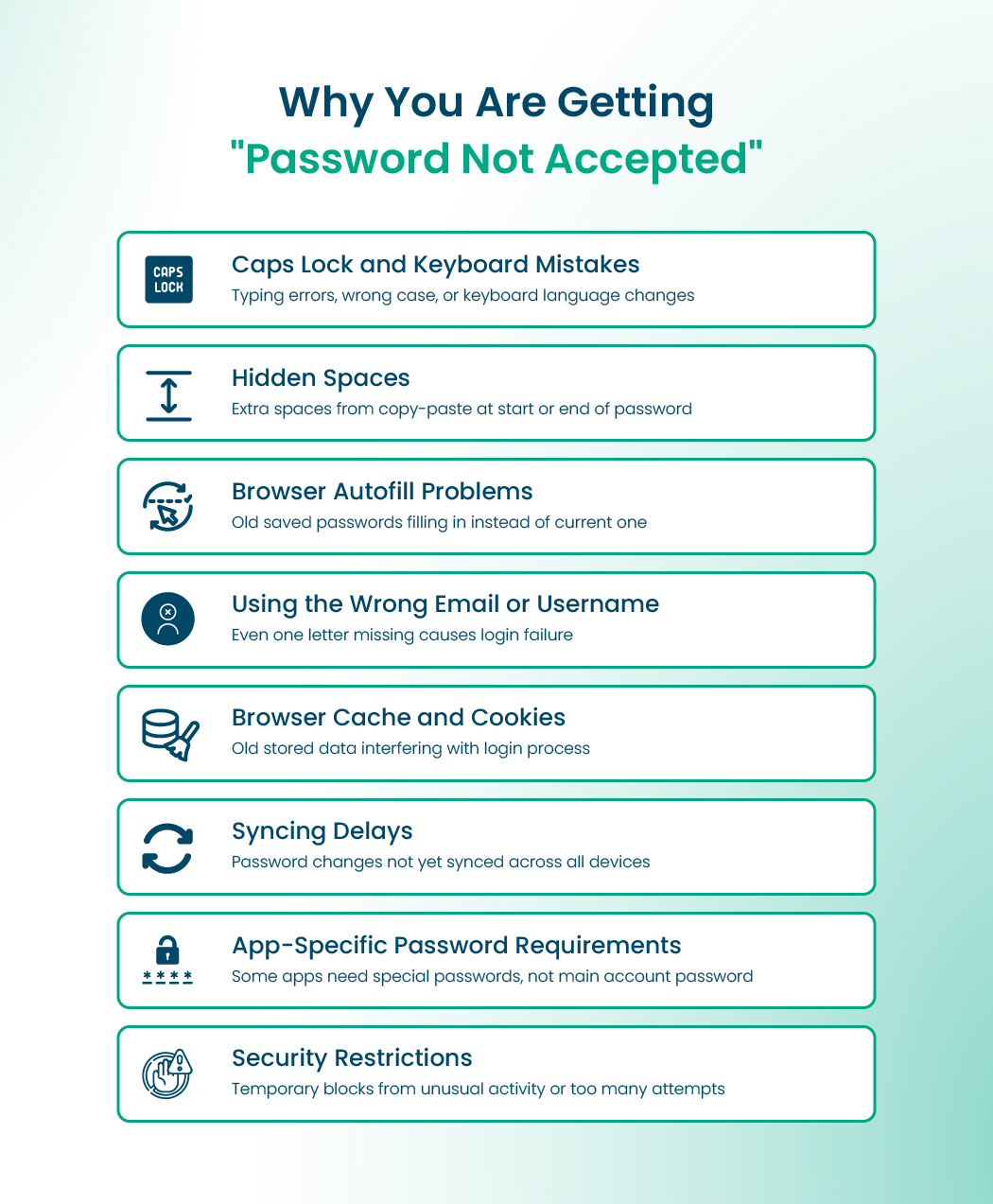
So, the reasons are:
Caps Lock and Keyboard Mistakes
One of the most common reasons is typing errors. If Caps Lock is on, letters will appear in uppercase when they should not. If your keyboard language has changed, letters may appear differently than you expect. Even a single character typed incorrectly can result in password not accepted. Look-alike characters cause the same trouble. MacMost shows how a capital O and a zero, or a lowercase l and the number 1, get mixed up.
Hidden Spaces
Another common issue is hidden spaces. Copying and pasting passwords can sometimes include an extra space at the beginning or end, which the system reads as part of the password. Even typing a space by accident can prevent your password from being accepted.
Browser Autofill Problems
Autofill features are meant to make life easier, but they can create problems. Many browsers save old passwords, and if autofill inserts a previous password instead of the current one, the login will fail. If autofill fills in nothing at all, that is a different problem, and our guide to autofill not working covers it.
Using the Wrong Email or Username
Even if the password is correct, entering the wrong email or username will prevent login. This happens more often than you might think. A single letter missing or a typo can trigger password not accepted.
Browser Cache and Cookies
Your browser stores cache and cookies to help websites load faster, but these files can sometimes interfere with the login process. Old data can confuse the system and make it reject correct passwords.
Syncing Delays
Some accounts, especially for email or work systems, take a few minutes to sync across all devices after a password change. Logging in too quickly after a change can cause password not accepted errors temporarily.
App-Specific Password Requirements
Certain apps, like Apple Mail or Outlook, require special passwords created specifically for that app. Using your main account password in these apps can cause login failures. Ask Leo explains why mail programs stopped accepting your normal Gmail password.
Security Restrictions
If unusual activity is detected or too many login attempts are made, systems may temporarily block login attempts. Even a correct password can be rejected until the system confirms that it is you.
How to Fix Password Not Accepted: Step-by-Step
When you follow a step-by-step process to fix an issue, you can easily fix it. Here is a universal approach that works on any device or platform.
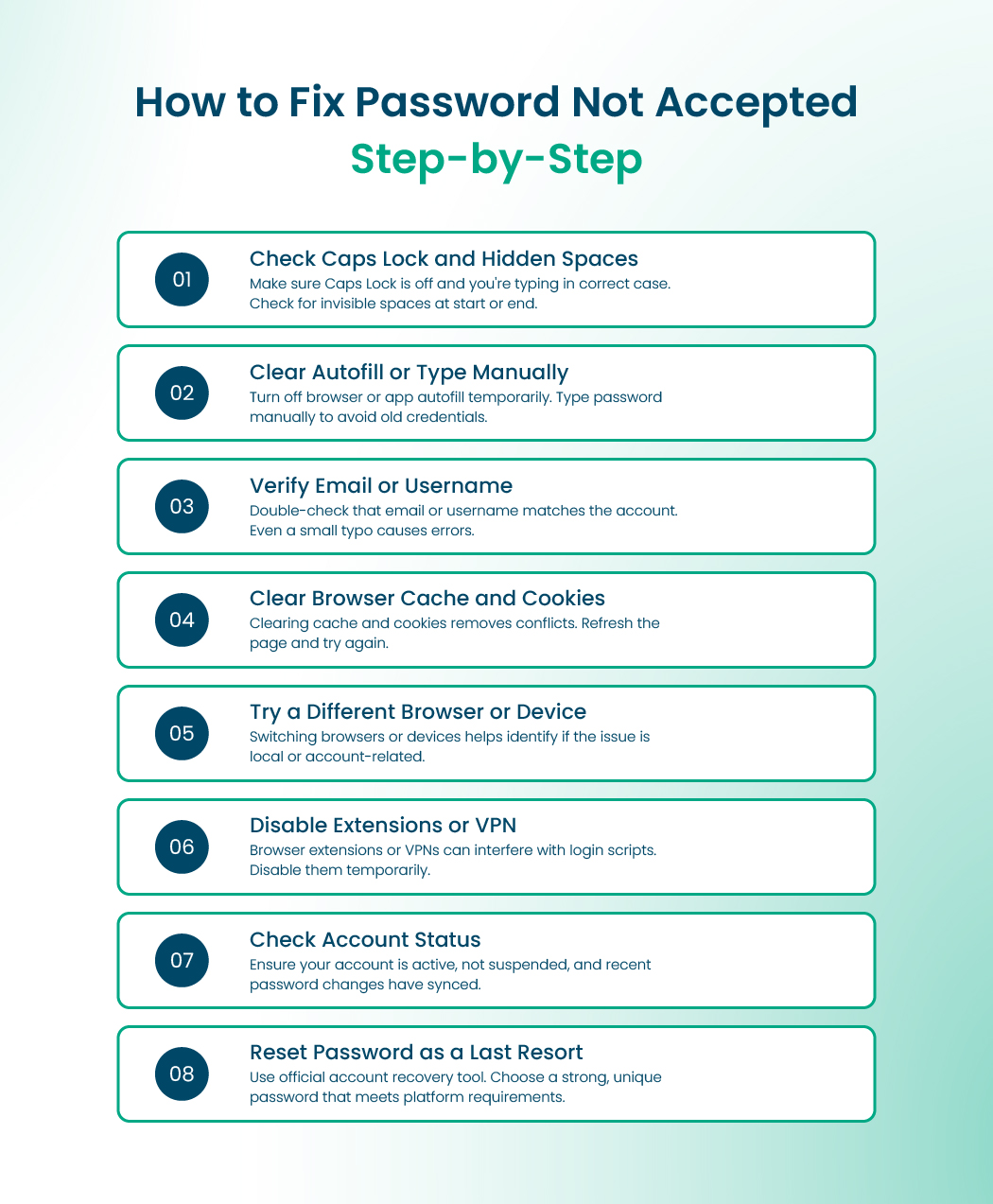
So, here, to fix the password not accepted’ issue, the step-by-step process is:
Step 1: Check Caps Lock and Hidden Spaces
Make sure Caps Lock is off and you are typing in the correct case. Check for invisible spaces at the start or end of your password. Typing manually instead of copying and pasting can help.
Step 2: Clear Autofill or Type Manually
Turn off browser or app autofill temporarily. Type your password manually to avoid old or incorrect credentials being inserted.
Step 3: Verify Email or Username
Double-check that the email or username matches the account. Even a small typo can result in password not accepted.
Step 4: Clear Browser Cache and Cookies
Clearing cache and cookies can remove conflicts that prevent login. Once cleared, refresh the page and try again.
Step 5: Try a Different Browser or Device
Sometimes the problem is specific to a browser or device. Switching to another browser or device can help you identify whether the issue is local or account-related.
Step 6: Disable Extensions or VPN
Browser extensions or VPNs can interfere with login scripts. Disabling them temporarily often resolves password not accepted errors.
Step 7: Check Account Status
Make sure your account is active, not suspended, and that any recent password changes have synced across all devices.
Step 8: Reset Password as a Last Resort
If nothing else works, use the official account recovery or reset tool. If the reset link never reaches your inbox, see what to do when you are not receiving the password reset email. Choose a strong, unique password that meets the platform’s requirements.
Platform-Specific Notes: You Must Know
Even though the steps above work for all devices, some small differences exist.
- Mac devices use iCloud Keychain. Ensure syncing is on, otherwise autofill may insert outdated passwords. If syncing is on and your devices still disagree, fix iCloud Keychain not syncing first.
- Windows browsers may store conflicting cache or extensions that prevent login. Clearing these often helps.
- iPhone and Android devices store passwords in device settings. Typing manually usually fixes the issue.
- Gmail and other email apps sometimes require special app passwords. Entering the main password may fail.
- Social media and work platforms can reject passwords containing parts of your username or that do not meet special character rules.
Why This Keeps Happening
Repeated password not accepted errors happen when managing passwords becomes overwhelming. Small mistakes or overlooked details can quickly turn into a frustrating cycle. Common reasons include:
- Too many passwords to remember: When you have accounts for email, work, apps, and social media, it is easy to confuse passwords or reuse similar ones.
- Autofill inserting outdated information: Browsers or apps sometimes fill in old passwords without you noticing.
- Typing errors: Rushing, small keyboards, or accidentally adding spaces at the start or end of a password can cause login failure.
- Passwords not synced across devices: If you recently updated a password, some devices may still be using the old one.
- Account-specific rules: Systems may reject passwords that include parts of your username or fail to meet character requirements.
- Security blocks or account locks: Multiple failed attempts or suspicious activity can temporarily block login, even with the correct password.
- Browser or app glitches: Sometimes the system does not read your input correctly due to browser or app errors.
- Network or server issues: Slow connections or server problems can prevent a password from being verified.
- Multiple accounts on the same device: Having more than one account saved in a browser or app can cause conflicts and login errors.
How to Prevent Password Not Accepted Forever
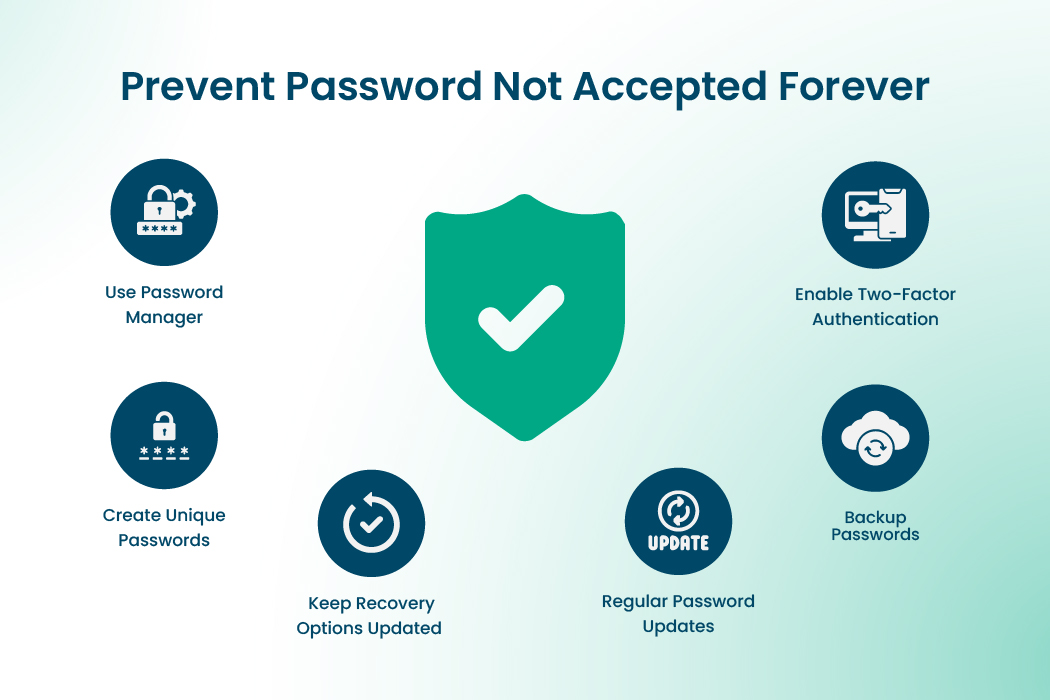
The best way to prevent ‘password not accepted’ errors is to take control of your passwords. So, to prevent it, you can do the following:
Use a Password Manager
A password manager stores all your credentials in one place and fills them in automatically. This reduces mistakes and ensures your passwords are always entered correctly.
One reliable option is a tool that works offline, supports all devices, and allows for secure access using biometrics. Try RelyPass to manage all your passwords.
Enable Two-Factor Authentication
Adding two-factor authentication protects your accounts even if a password is compromised. This extra layer ensures that only you can log in and prevents errors caused by security blocks.
Create Unique Passwords
Use a unique password for each account. Avoid variations of old passwords. This reduces login errors and the chance of repeated ‘password not accepted’ messages.
Keep Recovery Options Updated
Maintain current recovery emails and phone numbers. If a password reset is needed, recovery options allow you to regain access quickly.
Change Passwords When It Matters
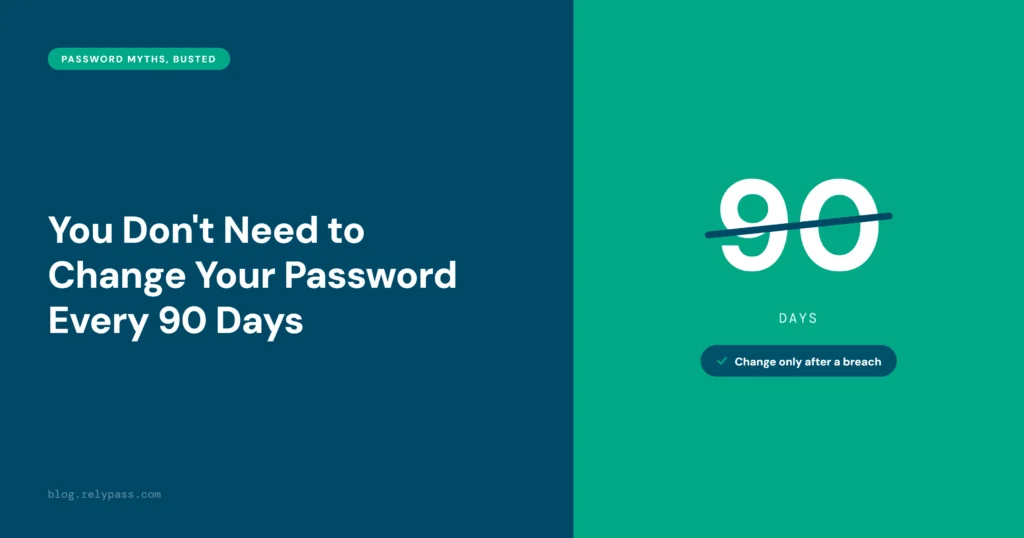
Change a password when there’s a reason to, like a breach alert. Changing your password every 90 days on a schedule doesn’t add much. When you do change one, make sure the update syncs across all your devices.
Backup Passwords
Keeping a secure offline backup of your main password ensures that you can regain access if anything goes wrong.
Read more: Best Password Manager Apps for iPhone
Frequently Asked Questions
Why is my password not accepted even when it is correct?
\Sometimes the system rejects a password even when you know it is right. Common causes include hidden spaces at the start or end, accidentally having Caps Lock on, or typing errors on a phone or small keyboard.
Autofill can also insert an old password saved by your browser, which will not match the current one. Some systems have rules that prevent you from using parts of your username or previous passwords. Checking these details carefully usually fixes the problem.
Can a VPN cause login problems?
Yes. VPNs can change your location or IP address, and some websites may see this as unusual activity. Even with the correct password, this can trigger a password not accepted message. Disconnecting from the VPN or using a trusted network often solves the issue.
Should I reset my password if I am sure it is correct?
Resetting should be a last resort. Only do it if other steps fail, like checking for typos, clearing cache, or verifying your account details. Constantly resetting your password can cause confusion and make it harder to keep track of your accounts.
Do email apps require special passwords?
Yes. Some apps like Outlook, Apple Mail, or Thunderbird may need app-specific passwords instead of your main account password. These temporary passwords allow secure access through third-party apps. Using your main password in these apps can cause repeated password not accepted messages.
Will clearing cache and cookies help?
Often, yes. Cache and cookies can store outdated or corrupted information that prevents login. Clearing them removes conflicts, especially if you recently changed your password or notice inconsistent behavior on a website. After clearing, manually type your password to avoid errors.
How can I avoid repeated login failures?
The key is organization. Use unique passwords for each account, avoid small variations, and keep them stored securely. A password manager can save your credentials safely, enter them correctly for you, and reduce mistakes. Regularly updating passwords and making sure all your devices are synced also helps prevent repeated password not accepted errors.
Does using a different browser help?
Sometimes. Extensions, outdated software, or browser settings can interfere with login scripts. Switching to another browser or updating your current one can fix persistent login problems that appear on one device or browser.
Is two-factor authentication necessary?
Two-factor authentication adds an extra layer of security. It is optional but highly recommended. It helps prevent unauthorized access and reduces login errors caused by suspicious activity. With 2FA, your accounts stay safer and logging in becomes smoother.
Can my password contain parts of my username?
Many systems do not allow this. Using parts of your username, email, or common words from your account can make your password easier to guess and trigger password not accepted messages. Always choose passwords that are unique and unrelated to your username.
How can I make logging in less stressful?
Keep passwords organized, enable two-factor authentication, and use a password manager for secure storage. Type passwords carefully when needed and make sure recovery options like email or phone are up to date. These steps reduce mistakes and prevent repeated password not accepted errors.
Why do some accounts accept my password while others reject it?
Different accounts have different rules. Some require numbers, symbols, or capital letters, while others allow simpler passwords. Even small differences can trigger password not accepted messages. Checking the password requirements for each account prevents unnecessary frustration. Some sites also cut long passwords short without telling you. Developer Terence Eden found a change-password page that cut his 32-character password down to 20, so his correct password was rejected.
Can multiple failed attempts make my password not accepted?
Yes. Many platforms lock your account temporarily after repeated failed login attempts. During this time, even the correct password may be rejected. Waiting for the lock to lift or using the account recovery process usually restores access. For Gmail, see what to do when you are locked out of Gmail.
End Note
Finally, ‘password not accepted’ is an issue, and you need to fix that. It usually happens because of typing mistakes, old autofill data, cached files, or having too many passwords to remember. Following the steps in this blog can help you get back in quickly.
Using a secure password manager like RelyPass keeps your passwords organized, safe, and easy to access on any device. This helps prevent login problems and saves time.
By understanding why the password is not accepted and using these tips, logging in becomes easier and smoother. With a little organization and the right tools, you can avoid repeated errors and manage your accounts with confidence.