


Is It a Scam on iPhone? 6 Password Tricks Apple Users Fall For
TLDR
Common scams on iPhone include fake Apple ID reset pop-ups, odd payment approval requests, fake security alerts, and strange iCloud messages. If you see something suspicious, do not tap anything outside the Settings app. Go to Settings, tap your name, then Password and Security to check if the alert is real. Never share a code with anyone who calls or texts you. If a password may be exposed, change it right away and consider keeping your passwords offline for safety.
Introduction
Your phone lights up with a pop-up. It says your Apple ID needs attention. Or you get a sudden alert about a payment you never made. Maybe it’s a request to approve a password reset, and it will not stop appearing.
At that moment, it’s easy to panic and wonder if the message is from Apple or if it’s a scam on iPhone designed to take your account.
If you’re reading this, you’re probably holding your phone right now trying to figure out what to trust. Many people end up hesitating, clicking too fast, or worrying they might lose their account or money. That confusion is exactly what scammers depend on. Even a small mistake can expose your password or give someone access to your Apple ID.
In this blog, you will learn about six common tricks that target your passwords, how to spot them, and what to do if you tap something by mistake.
6 Types of Scams on iPhone Targeting Your Passwords
Here, you will learn about the 6 types of scams on iPhone targeting your passwords. So, these 6 types are:
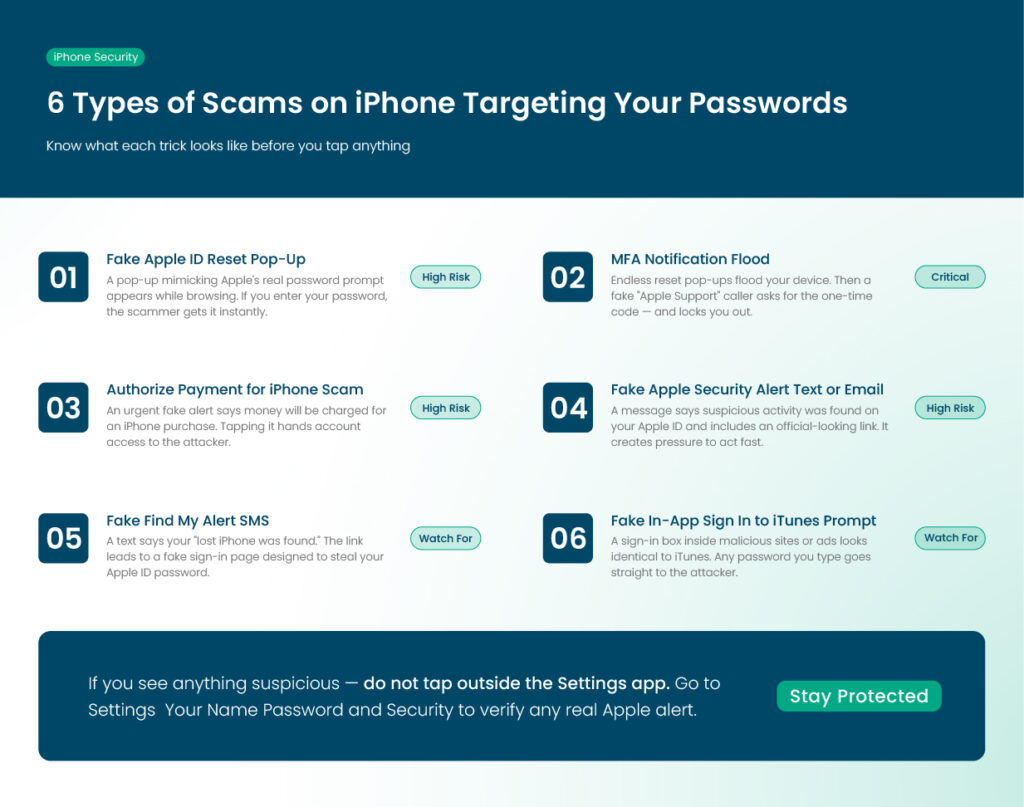
Fake Apple ID Reset Pop-Up
The most common scam on iPhone starts with a pop-up asking you to enter your Apple ID password. It may say your session expired or that your account needs to be verified. What makes this tricky is that the box looks almost identical to a real password prompt.
If you enter your password here, the scammer gets it instantly. These fake prompts often appear while browsing or after opening a random link.
MFA Notification Flood
Another type of scam on iPhone forces endless pop-ups asking you to approve a password reset. Victims report receiving dozens of these messages until their phone becomes impossible to use.
After bombarding the device, the scammer calls pretending to be Apple Support and asks for the code that was just sent. If you hand over the code, they reset the account and lock you out entirely.
Authorize Payment for iPhone Scam
This scam hits people with a sudden request to approve a payment for an iPhone purchase. The alert looks urgent and usually claims money will be charged if you don’t act.
The goal is to push you into tapping the button so scammers can access your account. This one spreads fast because it preys on the fear of losing money.
Fake Apple Security Alert Text or Email
Some people receive messages claiming suspicious activity was found on their Apple ID. These alerts often include a link that looks official. The language creates pressure, suggesting your account will be disabled if you ignore it.
These messages are common, so people think they’re normal. But if the message appears outside your Settings app, treat it as a scam on iPhone.
If you want to understand how email tricks work more broadly, see how phishing emails trick iPhone users.
Fake Find My Alert SMS
You may see a message saying your lost iPhone was found or that someone tried to sign in through the Find My feature. The link usually leads to a fake sign-in page designed to steal your password. Since many people keep Find My alerts on, this scam blends into real notifications.
Fake In-App Sign In to iTunes Prompt
Some apps occasionally require you to sign in again, but scammers recreate this prompt inside malicious websites or ads. They design the box to look identical to the real one.
If you type your password here, it goes straight to the attacker. This scam on iPhone often appears after tapping a strange link or viewing a suspicious website.
A real sign-in request has ordinary causes. Our guide explains why an iPhone keeps logging you out of apps.
How to Tell If an Apple Alert Is Real or Fake?
Here are the simplest rules to keep in mind:
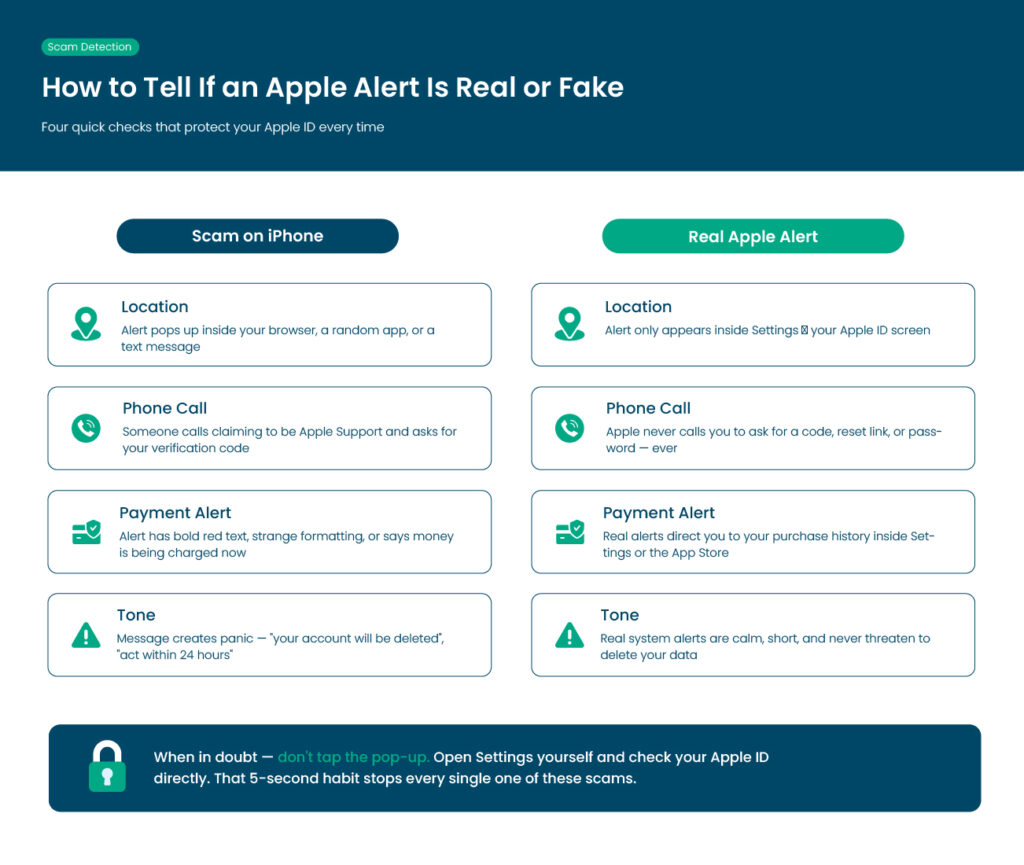
Real alerts stay inside the Settings app
Any request for your Apple ID password outside Settings is suspicious. Real system messages do not appear through your browser or inside random apps. They show up only through official settings screens.
Apple will never call you and ask for a code
If someone phones you and requests a code that was just texted to you, hang up. Apple Support never asks for verification codes, reset links, or passwords.
Real payment alerts come from your purchase history
A fake payment alert usually has bold red text or strange formatting. Real alerts direct you to your purchase history inside Settings or the App Store.
When in doubt, go check manually instead of tapping the pop-up.
Anything urgent or threatening is a red flag
Scam messages use fear to get you to react quickly. Real system alerts are calm, short, and do not threaten to delete your data.
How These iPhone Scams Reach You and How to Protect Yourself Before They Spread
Most iPhone scams happen because some of your details are already out there. Your email may have been leaked before, your phone number can be found online, or small info from social media can be used against you. Scammers use this to send fake alerts, texts, and pop-ups that look real.
These messages try to rush you. They may say your account will be locked, a payment is going through, or someone is signing in. When you’re not paying full attention, it’s easy to react quickly, and that’s what they want.
The safe way is to stop and check. Real Apple alerts only appear inside the Settings app, not in pop-ups or links. Turning on two-factor authentication, checking your devices, and using strong passwords also helps.
If something feels wrong, don’t tap it. Open Settings yourself and check. If your passwords were exposed in a leak, change them and keep them stored safely offline.
What to Do Right Now If You Fell for a Scam on iPhone
If you tapped something or entered your password, here’s what to do immediately.
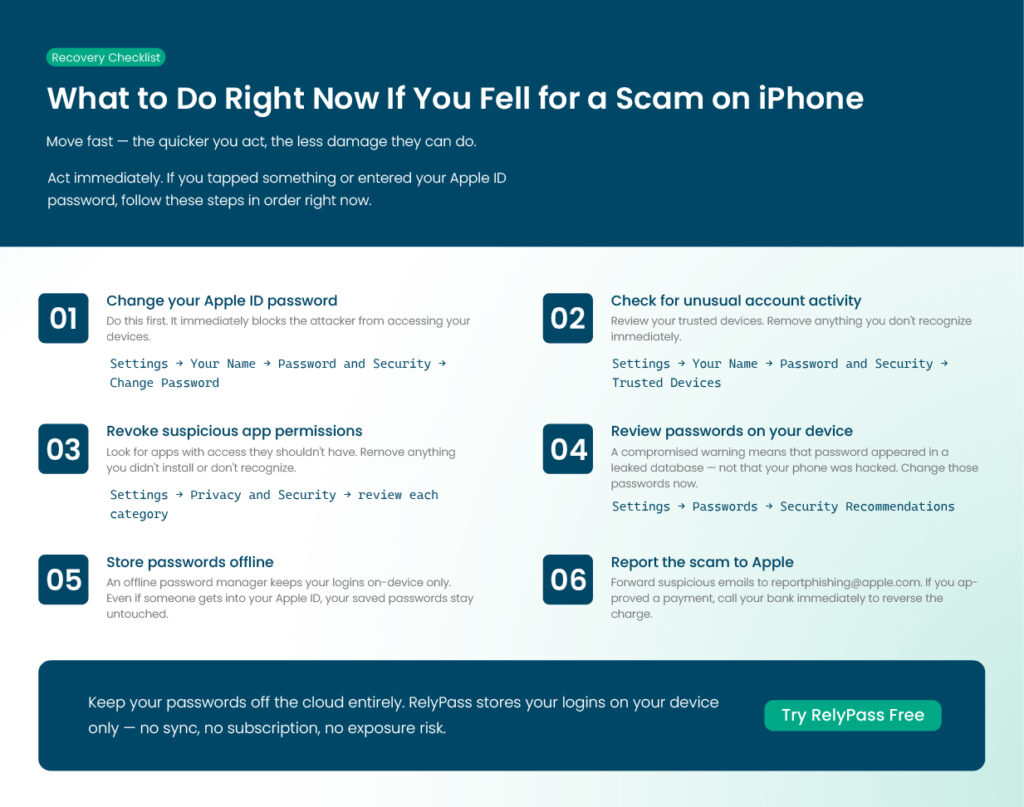
Change your Apple ID password
Go to Settings, tap your name, then Password and Security. Change the password right away. This blocks the attacker from accessing your devices.
Check for unusual account activity
Still in Password and Security, review your trusted devices. Remove anything you don’t recognize.
Revoke suspicious app permissions
Go to Settings, then Privacy and Security. Look for apps with access they shouldn’t have. Remove anything questionable.
Review passwords stored on your device
Go to Settings, then Passwords. Look for any warnings under Security Recommendations. If you see a compromised password alert, that doesn’t mean your phone was hacked. It means that the password appeared in a leaked database online.
Here’s what to do next: what to do if your password appeared in a data leak.
You can also confirm a leak at this external checker: check if your password appeared in a data leak.
Consider storing your passwords offline
If any of your passwords were exposed, think about securing them in a place that cannot be accessed through iCloud. An offline password manager for iPhone keeps your logins on your device only. That means even if someone gets into your Apple ID, your saved passwords stay untouched.
Report the scam to Apple
Forward suspicious emails to reportphishing@apple.com.
If you approved a payment by accident, contact your bank immediately.
FAQ About iPhone Scams
Is the Apple security alert a scam?
Not always, but most alerts that arrive through text, email, or browser pop-ups are fake. Real security alerts appear inside Settings under your Apple ID. If an alert pushes you to tap a link or sign in outside the Settings app, treat it as a scam on iPhone and ignore it.
How did all of my passwords get compromised on my iPhone?
The compromised password warning means a password saved in your iPhone was found in a known data breach. This usually happens when a website you use suffers a leak.
Go to Settings, then Passwords, then Security Recommendations to see which ones need attention. Change those passwords right away and make them unique.
What should I do if I authorised a payment for an iPhone scam?
Call your bank or card provider immediately. Ask them to reverse the charge. Then change your Apple ID password and sign out of every device from your Apple ID screen. After that, report the issue to reportphishing@apple.com.
Move fast. The quicker you report it, the better your chances of recovering the money.
How do I know if someone is trying to access my Apple ID?
If you start getting verification codes or login alerts you didn’t request, someone may be trying to get into your account. Change your Apple ID password right away, make sure two-factor authentication is turned on, and review your trusted devices to confirm nothing unfamiliar is connected.
Can scammers control my iPhone if they have my number?
Your phone number alone doesn’t give anyone control over your device. What scammers can do is use it for phishing texts, fake “Apple Support” calls, or attempts to trigger password resets. As long as you never share verification codes with anyone, you’re safe.
What if I clicked on a suspicious link on my iPhone?
If you opened a sketchy link, just close it. After that, clear your Safari history and website data. Change your Apple ID password, and if you typed any login details on that page, update those passwords too. Keep an eye on your accounts and make sure two-factor authentication is turned on for extra protection.
Keep Your Passwords Safe With RelyPass
Finally, if you reached this point, you probably saw a suspicious alert on your screen recently and wanted to be sure it wasn’t a scam on your iPhone.
These tricks work because they appear at moments when you’re distracted. The best defence is staying calm and checking everything inside your Settings app instead of reacting to pop-ups or calls.
And if this made you realize your passwords might not be as safe as you thought, consider keeping them offline on your device.
A tool like RelyPass secures your logins without sending anything to the cloud. No accounts to sync. No subscription. Just your passwords are stored on your iPhone, fully under your control.
If you’re curious, you can try it for free today.