


Autofill Not Working: Best Solutions to Solve This Issue
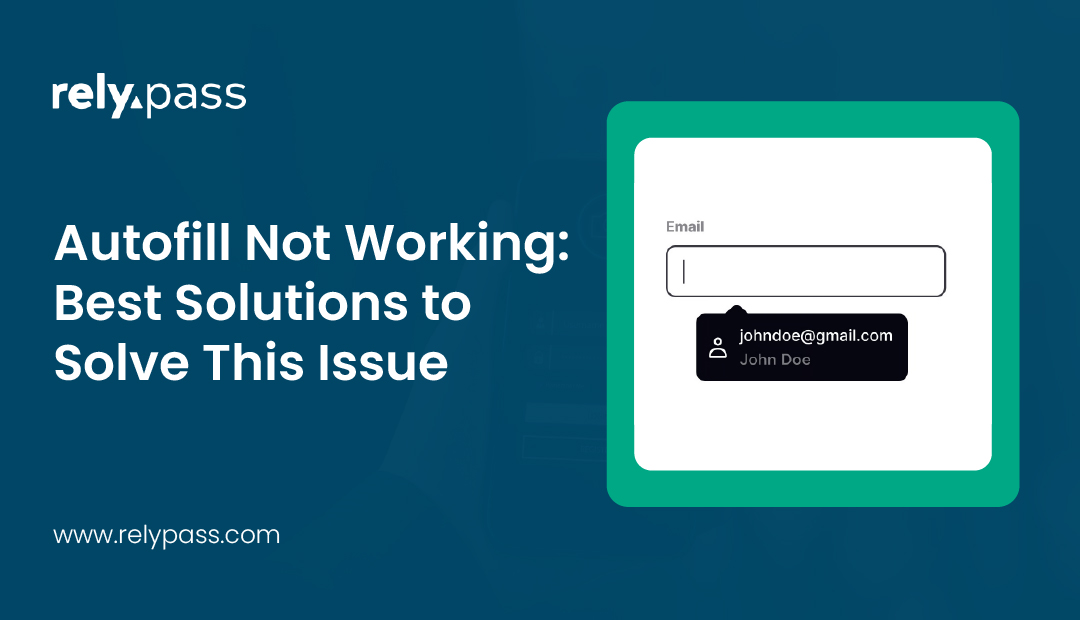
Autofill not working is one of those problems that hits at the worst possible moment – you’re trying to log in fast and nothing fills. No suggestions, no prompts, just an empty box staring back at you.
The frustrating part is that your passwords are usually still there. The issue is almost always a changed setting, a permission that got reset, or two password managers fighting each other in the background.
In this guide, you’ll learn exactly why autofill stops working and how to fix it on iPhone, Android, Chrome, and Safari – step by step, no guesswork.
TL;DR: Autofill not working is almost always caused by a disabled setting, a missing permission, corrupted cache, or two password managers conflicting. Start by checking if autofill is turned on in your device settings, then clear cache and verify only one password manager is active. Platform-specific fixes for iPhone, Android, Chrome, and Safari are covered below.
Why Autofill Stops Working (Common Reasons)
Autofill rarely breaks for one big reason. It usually stops after a setting change or apps clash in the background.

Common causes include:
- Someone turned off Autofill without noticing
- A browser or system update reset permissions
- Password manager lost access after an update
- Cache or cookies became corrupted
- Two password managers are active at once
- You switched Google, Apple, or browser profiles
- Sync paused in the background
- Accessibility permissions were removed
Quick Things to Try When Autofill Stops Working
If autofill suddenly refuses to show up, don’t panic. In most cases, the fix is simple. These steps solve the issue for a lot of people, so it’s worth going through them one by one.

Let’s learn about them here:
Restart Your Phone or Computer
It sounds basic, but restarting your device can clear a lot of small problems. Apps and system services sometimes get stuck running in the background, and autofill depends on those services. A restart gives everything a clean slate and often brings autofill back right away.
Make Sure Everything Is Up to Date
Autofill works best when your browser and password manager are running the latest version. Older versions can struggle to recognize login fields or trigger the autofill prompt. Take a minute to check for updates, install them, and then try again.
Check That Autofill Is Actually Turned On
Autofill settings can get switched off without you realizing it, especially after updates. Open your browser or system settings and look for the autofill or password section. Confirm that autofill is enabled and set to fill login details.
Review App Permissions
Autofill needs permission to show over other apps, work with the keyboard, and access saved passwords. If even one of these permissions is missing, autofill may stop working completely. Go into app permissions and make sure everything it needs is allowed.
Clear Cache Files
Cache files help apps run faster, but when they become corrupted, they can block autofill from appearing. Clear the cache for your browser or password manager. Just be careful not to delete saved passwords.
Refresh the Autofill Service
Turning autofill off and then back on forces your device to reconnect it with apps and websites. This quick reset often fixes forms that refuse to fill.
Remove Extra Password Managers
Using more than one password manager can confuse your device. Stick to one and disable or uninstall the others.
Try Another Browser
If autofill works in a different browser, you’ll know the issue is tied to your main one.
Learn more: How to Keep Passwords Safe
Autofill Not Working on iPhone (iOS Fixes)
If autofill not working on iPhone is the issue, the problem usually sits inside iOS password settings.

Let’s see how to fix it.
Turn On Password AutoFill
- Open Settings
- Tap Passwords
- Enable Password AutoFill
- If this is off, nothing will fill.
For more details, see Apple’s guide on how to turn on AutoFill Passwords on iPhone.
Enable Keychain
- Go to Settings → Apple ID → iCloud
- Turn on Keychain
- Safari and apps rely on this for password filling.
Check “Allow Filling From”
- Open Settings → Passwords → Password Options
- Confirm your password manager is selected
- If nothing is selected, autofill will not appear.
Reset Keyboard Dictionary
Keyboard prediction bugs can block autofill suggestions.
- Settings → General → Transfer or Reset iPhone
- Tap Reset → Reset Keyboard Dictionary
This does not delete passwords.
Remove Old Profiles
Old work or school profiles can override autofill permissions.
Update iOS and Restart Safari
Older iOS versions often cause password autofill not to work on iPhone after app updates.
Read More: Best Password Manager Apps for iPhone (2025)
Autofill Not Working on Android (Android Fixes)
Autofill not working on Android usually comes down to the default autofill service.
Select the Correct Autofill Service
- Open Settings
- Go to Passwords & accounts
- Tap the Autofill service
- Choose your password manager
If “None” is selected, autofill won’t work.
Disable Conflicting Apps
Android allows multiple managers, but only one should be active.
Clear Browser and Autofill Cache
- Clear cache for your browser
- Clear cache for your password manager
Do not clear storage unless instructed.
Reset Keyboard or Autocorrect Settings
Some keyboards block autofill overlays.
Check Accessibility Permissions
Many managers require accessibility to detect login fields.
Update Android System WebView
Outdated WebView breaks login forms across apps and browsers.

Autofill Not Working in Chrome
Google autofill not working is common on both desktop and mobile Chrome.
Check Chrome Autofill Settings
- Open Chrome → Settings
- Tap Autofill
- Ensure Passwords is enabled
You can also manage saved passwords in Chrome directly from Google’s support page.
Confirm Sync Is Enabled
- Visit chrome://settings/syncSetup
- Make sure passwords are included in sync
If sync is off, saved passwords may exist online but not locally.
Clear Autofill Data
- Press Ctrl + Shift + Delete
- Select Autofill form data
- Choose All time
- Clear data
This often restores autofill suggestions.
Update Chrome
- Older Chrome versions struggle with form detection.
Test Incognito Mode
- If autofill works there, an extension is interfering.
Create a New Chrome Profile
- Corrupted profiles can hide saved passwords even when sync is active.
Autofill Not Working in Safari (iPhone & Mac)
Safari autofill issues often relate to saved form conflicts or Keychain sync.

Let’s see how to do this.
Enable AutoFill Passwords
- Settings → Safari → AutoFill
- Turn on Passwords
Enable Keychain
- Safari depends on iCloud Keychain for filling passwords.
Check “Allow Filling From”
- Confirm your password manager is enabled here.
Clear Safari History
- Corrupt form data can prevent autofill from appearing.
Restart Safari or macOS
- This refreshes autofill services.
Remove Old or Duplicate Passwords
- Conflicting entries can stop Safari from suggesting logins.
Autofill Still Not Working? Try Resetting It
When autofill refuses to work, a full reset often clears hidden issues.
How to Reset Autofill
- Turn off autofill in settings
- Remove your password manager
- Restart the device
- Reinstall the manager
- Sign back in
- Enable autofill and sync again
This does not delete stored passwords but refreshes all connections.
Read More: A Complete Guide to Reset Forgotten iCloud password

When Autofill Issues Mean Your Account Might Be Wrong
Sometimes autofill fails because the wrong account is active.
Signs to watch for:
- Passwords show online but not on the device
- Work profile is enabled
- Sync is paused
- Multiple Apple IDs or Google accounts are signed in
- You have installed two password managers
Sign out, confirm the correct account, then sync again.
Platform-specific bugs can also look like account problems. Facebook login screens, for example, sometimes refuse to show autofill suggestions even when your password manager is working perfectly everywhere else. If Facebook is the only site where autofill fails, check our detailed guide on common Facebook login problems and fixes for targeted troubleshooting.
If you suspect you’re signed into the wrong Apple ID or need to start fresh, you may need to reset your Apple ID account before autofill will work correctly again.
How to Prevent Autofill Problems in the Future
Autofill works best with simple habits:
- Use one password manager only
- Keep browsers and systems updated
- Clear cache monthly
- Check sync status regularly
- Avoid too many browser profiles
- Review permissions after updates
These steps prevent sudden autofill failures.

Why Is My Autofill Not Working – And How Do I Fix It?
Autofill stops working because of a disabled setting, a missed permission, corrupted cache, or a conflict between two active password managers.
Check that autofill is turned on, clear your browser or app cache, and make sure only one password manager is running. For device-specific issues, the iPhone, Android, Chrome, and Safari sections above cover every common scenario with step-by-step fixes.
Once autofill is back, keep it that way: use one password manager, keep your apps updated, and check permissions after every major system update.
FAQs About Autofill Not Working
Why is autofill not working on my iPhone?
Either you disabled Autofill, turned off Keychain, or another app is blocking it..
How do I turn autofill back on my iPhone?
Go to Settings → Passwords → Password Options and enable Password AutoFill.
Why has my autofill stopped working suddenly?
Updates, permission resets, or cache conflicts usually cause this.
How do I reset autofill?
Turn autofill off, restart, then enable it again. Reinstall the password manager if needed.
Where are my autofill settings?
You can find these settings in system password settings or browser autofill sections.
Why isn’t my Google autofill working?
Either sync is paused, your Chrome profile is corrupted, or extensions are interfering.
How do I get autofill back on my phone?
Enable the autofill service, select the correct manager, and restart.
Why are my autofill passwords not working?
You may be signed into the wrong account, or you turned off sync.